

Updating Failed: Response is not a valid JSON Response

By Aravindhan | July 7, 2026










This is only a common WordPress error that appears when editing WordPress posts or pages on your website saying ‘The response is not a valid JSON response’ and will fail to update the post.
In this article, we’ll show you how easy this is to fix and why this error occurs and how to avoid it.
What Causes a ‘Not a Valid JSON Response’ Error?
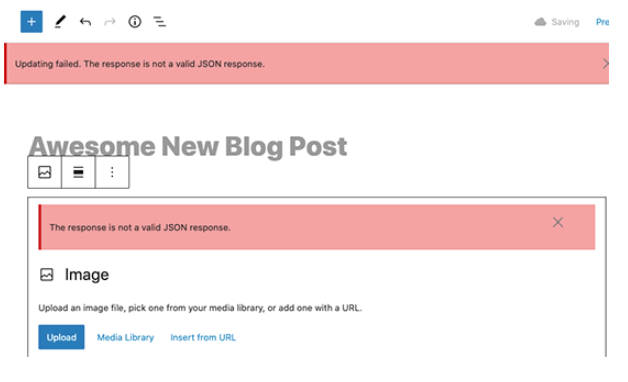
WordPress actually communicates with the server while you are editing a post. It relies on getting responses from the web hosting server in the background, as the response is usually in JSON format. If WordPress fails to get either any response or the response is not a valid json response, it shows a ‘response is not a valid json response’ error as shown below.
NOTE: Please take a complete WordPress backup before making any changes to your website. So that, you can easily restore your website to the previous state.
How to Fix Not a Valid Json Response:
1. Check WordPress URLs in Settings
Always make sure that your WordPress Address and Site Address settings are correct. Mostly, it must have the same URL in both fields. But sometimes, users or admin may create in a different directory and serve the website on a different address which they fail to update in settings. In that case, they can have different URLs here.
If the Site Address is incorrect, then that would trigger the invalid JSON error in WordPress. So, to change that, go to Settings -> General
Here, enter the correct URL of your website on both boxes as same
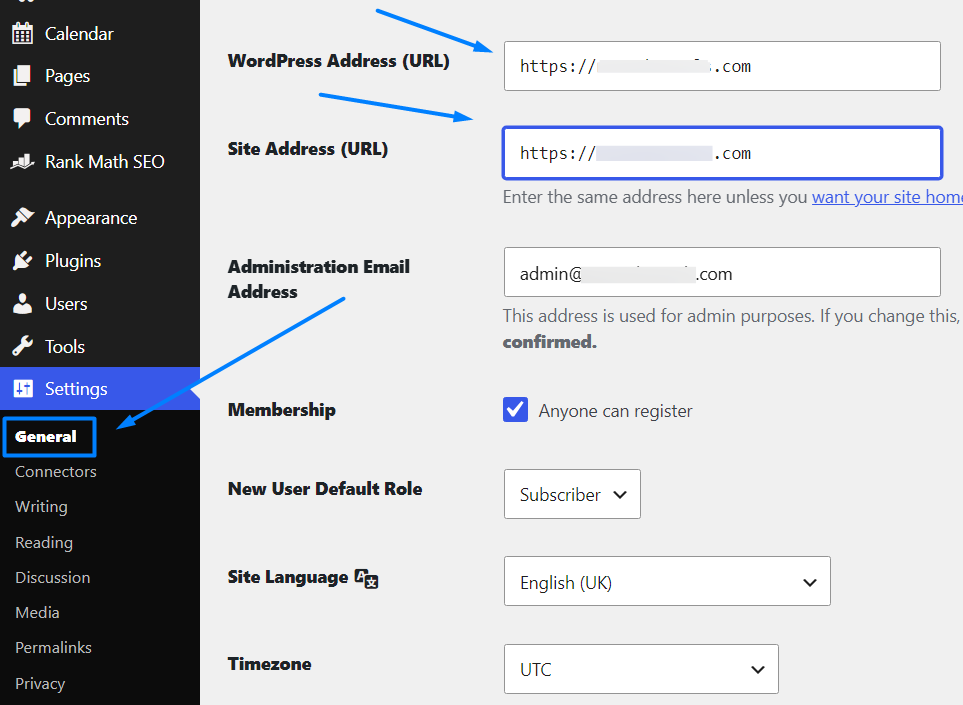
Now click “Save Changes”. See if the error disappears and able to update the post. If not, follow the below steps.
2. Fix WordPress Permalink Structure
Sometimes a user may change the permalinks settings for a reason. It makes it difficult for the WordPress editor to get a valid JSON response and trigger the error to show up.
Now, Go to Settings -> Permalink -> click save changes (don’t change anything) and it will create a new .htaccess file with the default codes.
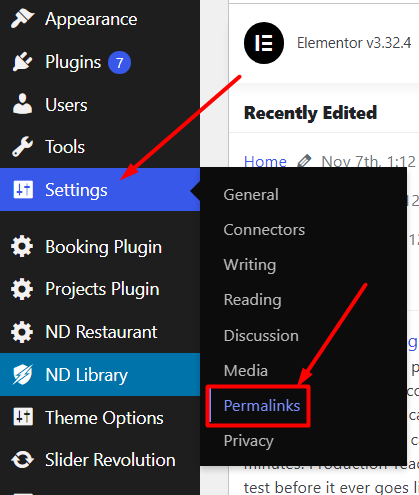
You can now try editing a blog post or page to see if the error has disappeared. If it hasn’t, then you can try the next step.
3. Regenerate WordPress .htaccess File
WordPress can automatically regenerate and update the .htaccess file after we click save changes in the permalink. However, sometimes it may not get updated nor has incorrect settings. This would affect the WordPress permalinks and may also cause a response is not a valid json response. Have a backup of the old .htaccess by downloading it. So that, if the error does not disappear, you can restore it later.
Go to cPanel -> File manager -> pubic_html -> Right-click on .htaccess file and click edit. Replace all the codes with the below default .htaccess code and click save changes. Now check it.
# BEGIN WordPress
RewriteEngine On

RewriteRule .* - [E=HTTP_AUTHORIZATION:%{HTTP:Authorization}]

RewriteBase /

RewriteRule ^index\.php$ - [L]

RewriteCond %{REQUEST_FILENAME} !-f
RewriteCond %{REQUEST_FILENAME} !-d

RewriteRule . /index.php [L]
# END WordPress
If you are still seeing the error, then there are a few more steps you can take.
4. View the Rest API Debug Log
The invalid JSON response error also means that WordPress “REST API” encountered an error. It is the one that WordPress uses to communicate with the server whenever you work on your website. You can see details of this error in the WordPress Site Health tool. Go to Dashboard » Tools » Site Health.
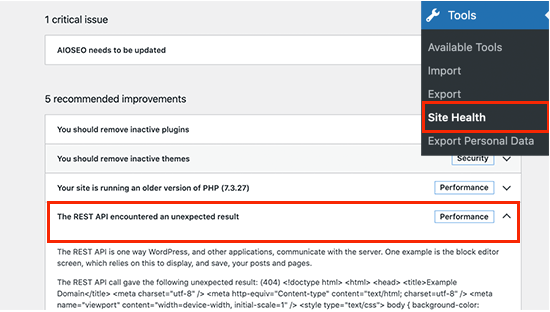
There you can see this issue as ‘The REST API encountered an unexpected result’. Clicking on it will show you more details about which plugin or third-party service may be causing the issue. If this doesn’t solve, then you pass to the next step.
5. Deactivate All WordPress Plugins
The more plugins you use on your WordPress site, the higher the chances of conflict between newly installed or updated Plugins which is incompatible with the old one.
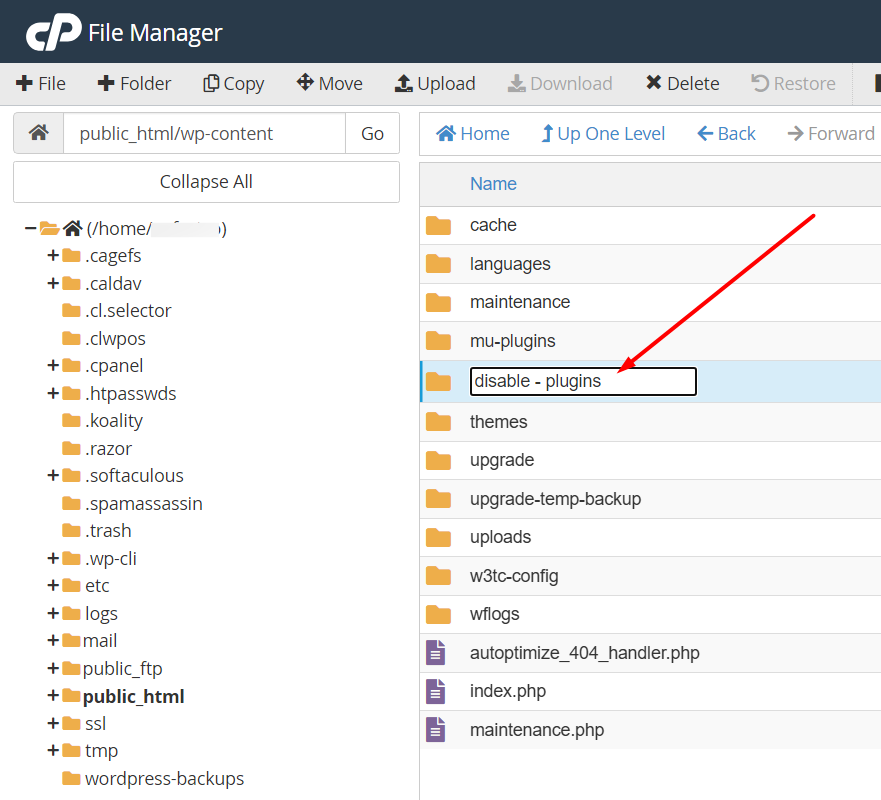
Step 1: Login to cPanel -> File manager -> public_html -> wp_content
So, have to disable all your Plugins by renaming the Plugins folder in File Manager as Plugins-disable.
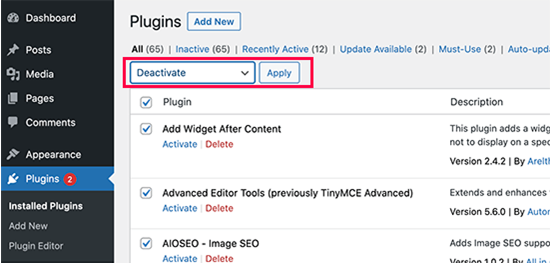
Step 2: In WP Dashboard » Plugins » Installed Plugins. Select all plugins and then choose ‘Deactivate’ under the Bulk Actions drop down menu. Now, click the Apply button to continue.
If error “response is not a valid json response” disappears when you deactivate all the plugins means that one of the plugins was causing the error.
Now, you should activate the plugins one by one. If the error recurs on activating a particular plugin implies that this plugin was the culprit.
6. Temporarily Switch to the Classic Editor
If all the above steps fail, then you can temporarily switch to the Classic Editor for WordPress. It uses a simpler text editor and doesn’t rely heavily on REST API to get JSON responses. To do this, install and activate the Classic Editor Plugin, which disables the new block editor Gutenberg editor once activated. It will most probably solve this issue but if still persist, move to the next solutions.
7. Mixed content error due to the use of SSL certificate
Another common reason for this error is the use of a secure socket layer (SSL) certificate (HTTPS) on your WordPress site. Using an SSL certificate can result in some content being delivered non-securely on HTTP protocol even if the rest of the content is delivered securely over HTTPS protocol. This results in a mixed content error in which both https and https content is transmitted at the same time to the web browser. It is linked to the use of the Really Simple SSL plugin if installed on your site.
Two changes to solve this:
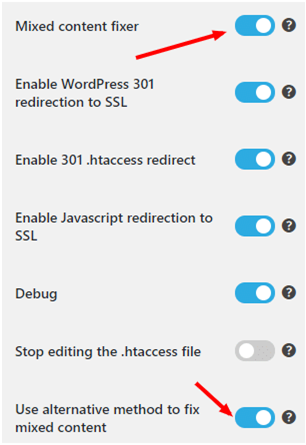
1. Ensure that “Mixed content fixer” option is turned on to prevent mixed content problems on your website.
2. Next, turn on the “Use an alternative method to fix the mixed content” option. This will ensure that “response is not a valid json response” error does not show abruptly while editing.
8. Further Troubleshooting
Here are some more steps that you can try:
- Switching to a Default WordPress Theme:
You can test this, by simply switching to a default WordPress theme like TwentyTwentyOne or Twenty-Twenty.
- Temporarily Turn off Website Application Firewall:
If you are using a WordPress firewall like Sucuri, Cloud flare, etc then it is possible that they may sometimes block legitimate requests too. Figure this by temporarily disabling your WordPress firewall plugin or service.
- Turn on Debugging in WordPress:
WordPress comes with a built-in feature that allows you to keep a log of errors. To turn it on, add the following code in the wp-config.php file:
define( ‘WP_DEBUG’, true );
define( ‘WP_DEBUG_LOG’, true );
9. Fresh WordPress Install:
If everything fails, as the last option take full backup in cPanel for the website and install fresh WordPress. Once fresh WordPress installed, upload the backup file and replace the below three files in the public_html directory with the old one.
1. .htaccess
2. wp-config
3. wp-content
4. Any other file manually uploaded before.
It will keep a log of all errors which show you the cause of the error in a debug.log file located in the wp-content folder.
Find out more articles on our website that would help your business run hassle-free.
Hope you got it!