


How to Create Subdomain in cPanel?

By Gowdham | February 7, 2026










You can create a webpage individually for your contact, blog and article as separate website under your main website in cPanel. Just create subdomain for your main website and upload the content.
Let’s guide you how to create subdomain in cPanel in this article.
What is Domain?
A domain name is the name of a website name. It is the permanent web address of your websites on the Internet. In other words, when you buy a domain you have purchased the name for your site, but you still need to build the website itself. Website made up with a combination of the domain name and a TLD. For example, www.seekahost.in is a domain.
.in -> Top Level Domain (TLD) or extension
seekahost -> Second Level Domain.
www -> Third Level Domain.
What is Sub-Domain?
A domain name is the name of a website. It comes after “www.” in a web address. Sub Domain means the domain which is followed by the main domain. For example, google.com is the main domain and the subdomain is blog.google.com.
Why do we need a Sub-Domain?
Subdomains enable you to set up multiple websites using a single domain. Domain and a subdomain act as two different sites, they’re also tracked separately. This helps businesses serving different audiences keep better track of user data and analytics, which can be used to optimize the sites better.
Below is the step-by-step guide on how to create subdomain in cPanel.
How to create a Sub Domain in cPanel?
In cPanel it is very simple and easy steps to create subdomain. Just follow the below steps to create subdomain in your account.
- Login to your cPanel Account with the access given by your web hosting providers.
- In search, enter “Domains” and click “Create a New Domain” as shown below.

- Now Click “Create a New Domain” button.

- Enter the “subdomain” name in the domain text box. In the Document Root folder text box, you can mention the folder name under which you want to store the files. After that, click “Submit” button to create subdomain.

- To install WordPress for the subdomain, click “WordPress” and then click install under the “softaculous app installer” section. Now choose the domain name from the drop-down.
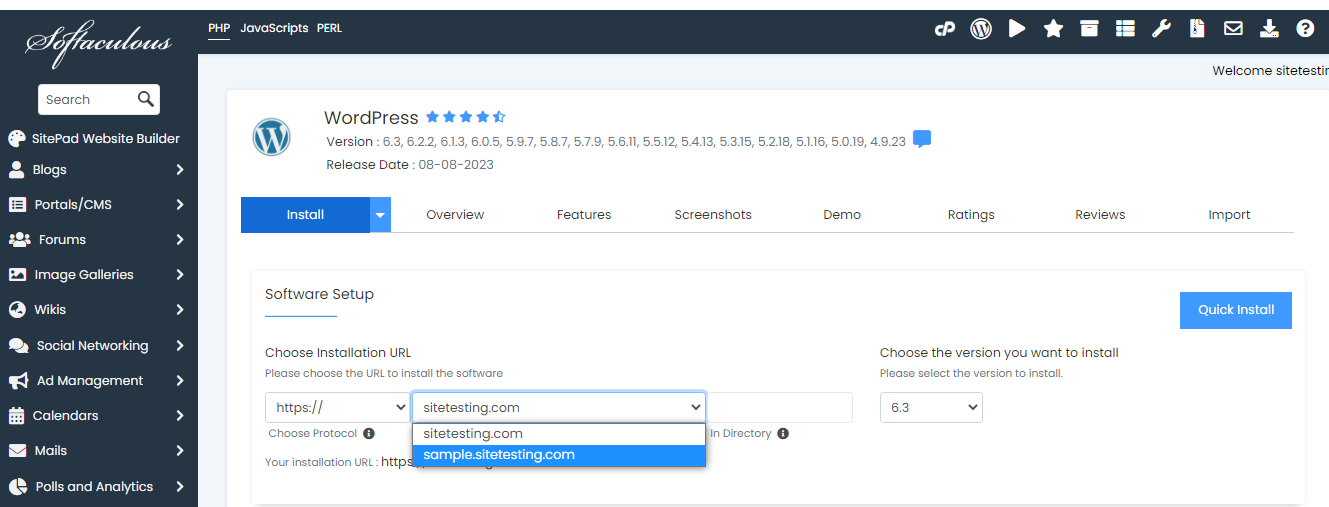
- Click install button to complete the installation.
- To check installation files, go to cPanel and click on File Manager as shown below.

- In Filemanager, Click on public_html.
- Here you will see a folder in the name of your subdomain as shown in the below image.

- Finally, you have created a subdomain and it is ready to use it.
If you are a registered user in SeekaHost and have any queries to be clarified or issues to be sorted, you can raise a ticket through the client area dashboard or email to support@seekahost.in. For immediate interaction or guidelines, contact our support team available in LiveChat at the right bottom corner of the website.