

503 Service Unavailable: What it is and How To Fix it?

By Aravindhan | August 3, 2026










When browsing websites, you may encounter different HTTP status errors such as 403, 404, 409, 501, and 503. These errors occur during communication between the browser (client) and the web server. Among them, the HTTP 503 Service Unavailable error indicates a temporary issue where the server is unable to process the request.
In this guide, we will understand what the 503 Service Unavailable error means, why it happens, and how to fix it effectively.
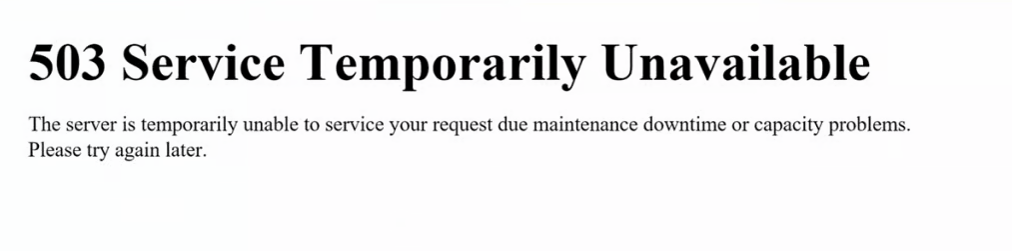
What is 503 Service Unavailable error?
The 503 Service Unavailable error occurs when a server is temporarily unable to handle incoming requests. This usually happens when the server is overloaded, under maintenance, or facing temporary technical issues.
In simple terms, the website is working, but the server cannot respond at that moment.
This error may appear in different formats such as:
- 503 Service Unavailable
- HTTP Error 503
- HTTP Server Error 503
- Service Temporarily Unavailable
- Error 503 Service Unavailable
Common Causes of HTTP 503 Error:
The HTTP 503 error can occur due to several reasons:
- Server overload due to too many requests
- Scheduled server maintenance or updates
- Misconfigured firewall or security rules
- Faulty plugins or themes (commonly in WordPress)
- PHP memory limit exhaustion
- Backend service downtime or crash
- DDoS protection blocking traffic
How To Fix the 503 Service Unavailable Error?
1. Restart the Server:
If you have server access, restarting the server can help clear temporary overload or service crashes. This is often the quickest fix.
2. Check WordPress Plugins:
Faulty plugins are a common cause of 503 errors.
To troubleshoot:
- Log in to cPanel
- Open File Manager
- Go to public_html -> wp-content -> plugins
- Rename the plugins folder to disable all plugins
If the website starts working, enable plugins one by one to identify the problematic one.
3. Check Themes:
A corrupted or incompatible theme can also trigger this error.
To troubleshoot:
- Go to wp-content -> themes
- Rename the active theme folder
- WordPress will switch to a default theme automatically
If the site loads, the issue is with the theme.
4. Firewall Configuration:
While configuring the firewall you may make some mistakes. The firewall is used for protecting your server from malicious activities and DDoS attacks.
Security tools and firewalls may block legitimate requests.
Check if:
- Any recent firewall rule changes were made
- IP blocking or rate limiting is too strict
- DDoS protection is affecting normal traffic
Adjust settings carefully to avoid blocking real users.
5. Check Server Resource Usage:
If your hosting server is running out of resources like CPU or RAM, it may trigger a 503 error.
You can:
- Check resource usage in hosting panel
- Upgrade hosting plan if limits are consistently reached
- Optimize website performance
6. Enable Debug Mode (Advanced)
If the issue is unclear, enabling debugging in WordPress can help identify the root cause in logs. You can find the logs in the public_html folder.
How to Prevent HTTP 503 Error:
1. Keep plugins and themes updated
2. Use optimized and lightweight themes
3. Avoid overloading server with heavy scripts
4. Use caching solutions
5. Choose reliable hosting with scalable resources
Common Website Errors:
1. Fix DNS_PROBE_FINISHED_NXDOMAIN Error
4. Fix HTTP 500 Internal Server Error
The HTTP 503 Service Unavailable error is usually temporary and caused by server overload, maintenance, or misconfiguration. In most cases, it can be fixed by checking plugins, themes, firewall settings, or server resources.
With proper maintenance and optimized hosting, you can significantly reduce the chances of encountering this error again.