


How To Install FastPanel on Ubuntu 24.04 LTS

By Aravindhan | October 30, 2026










FastPanel is a server control panel that helps manage websites, databases, email accounts, SSL certificates, and other hosting services through a web-based interface. This guide explains how to install FastPanel on an Ubuntu 24.04 LTS server.
Process To Install FastPanel on Ubuntu 24.04 LTS:
1. Prerequisites
Before installing FastPanel, ensure that your server meets the following requirements:
Supported Operating Systems
- Ubuntu: 18.04, 20.04, 22.04, 24.04
- Debian: 9, 10, 11, 12
- AlmaLinux: 8
- Rocky Linux: 8
Server Requirements
- Static IP Address: A public static IP address is required. Dynamic or internal-only IP addresses are not supported.
- Hostname: Configure a valid Fully Qualified Domain Name (FQDN) for the server.
- RAM: Minimum 1 GB
- Disk Space: Minimum 5 GB of free disk space
- CPU: Minimum 1 CPU core at 1 GHz
- Security: Disable any pre-installed firewall and SELinux before starting the installation.
2. Update the Server
Log in to your Ubuntu server via SSH as the root user.
First, update the system packages and install the required certificates:
$ apt-get update && apt-get upgrade -y && apt-get install -y ca-certificates wget
After the update is complete, reboot the server:
$ reboot
3. Install FastPanel Ubuntu 24.04
Once the server has restarted, log in again via SSH as the root user.
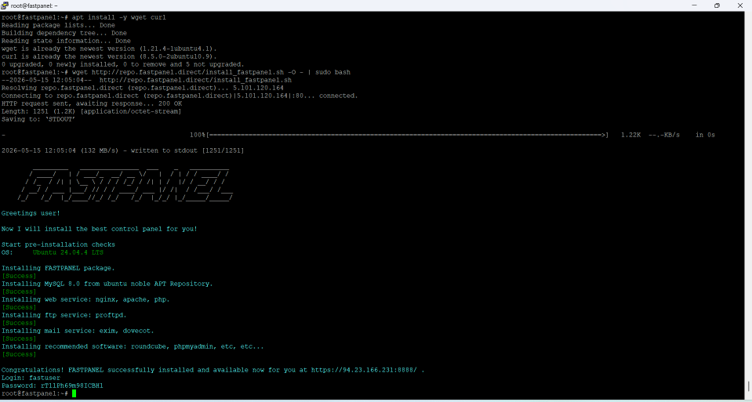
Run the following command to install FastPanel:
$ wget https://repo.fastpanel.direct/install_fastpanel.sh -O - | bash -
Wait for the installation process to complete.
4. Access FastPanel
After the installation is complete, FastPanel will be available through the following URL:
https://YOUR_SERVER_IP:8888For example:
https://91.207.248.148:8888Use the login credentials provided during or after the installation process to access the FastPanel control panel.
Note: Replace YOUR_SERVER_IP with your server’s actual public IP address.
5. License Activation
When you log in to FastPanel for the first time, complete the license activation process:
- Enter your email address.
- Retrieve the free license details sent to your email.
- Enter your server’s public and private IP addresses (optional).
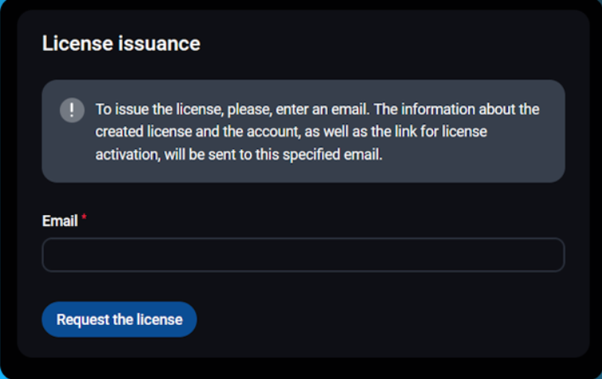
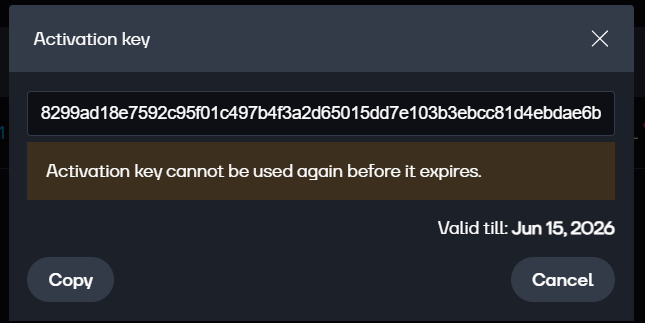
Enter the license Key,
Once licence activated, you can manage in FastPanel Dashboard.
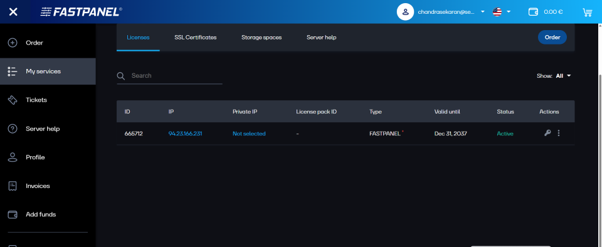
Once the activation is completed, you can start configuring and managing your server through the FastPanel dashboard.
Other Installation on Ubuntu:
1. Install Nextcloud on Ubuntu
2. Install aaPanel on Linux Server
Conclusion
FastPanel is now successfully installed on your Ubuntu 24.04 LTS server. By following this guide to Install FastPanel ubuntu, you can easily manage websites, domains, databases, SSL certificates, and other server services through a single, user-friendly control panel accessible via port 8888.