


How to Duplicate WordPress Pages (2 Different Methods)

By Aravindhan | July 30, 2026










When You’re using a WordPress, you may need to Duplicate WordPress Pages or post for some reasons. This can be helpful to update content quickly or use the same layout for a new page or post.
In this article, we are going to see How to Duplicate a Page or Post in WordPress, Using both through plugin and code.
1. Using a Plugin
2. Doing it Manually
Both methods are simple and can save your time when working with WordPress.
Different Methods To Duplicate WordPress Pages or Posts:
1. Using a WordPress Plugin
2. Manually With Code
1. Using a WordPress Plugin
Manually copying and pasting your WordPress page or post is simple process. But, when you manually copy a post or page, only text content will be replicated. You also need to copy Template parts, images, and SEO elements like meta description and title tags separately. This method may consume time, when doing multiple WordPress page or post.
You can save the time while using a WordPress plugins. There are lot of plugins available to Duplicate WordPress Pages, posts, or other content on your website. If you have WooCommerce site, WooCommerce includes its own built in feature to duplicate a products.
Before following steps, we assume that you already know how to install WordPress for your website.
Step 1: Install and Activate plugin from WordPress Plugin directory. Here, we used Duplicate Page plugin to duplicate a post or page in WordPress.
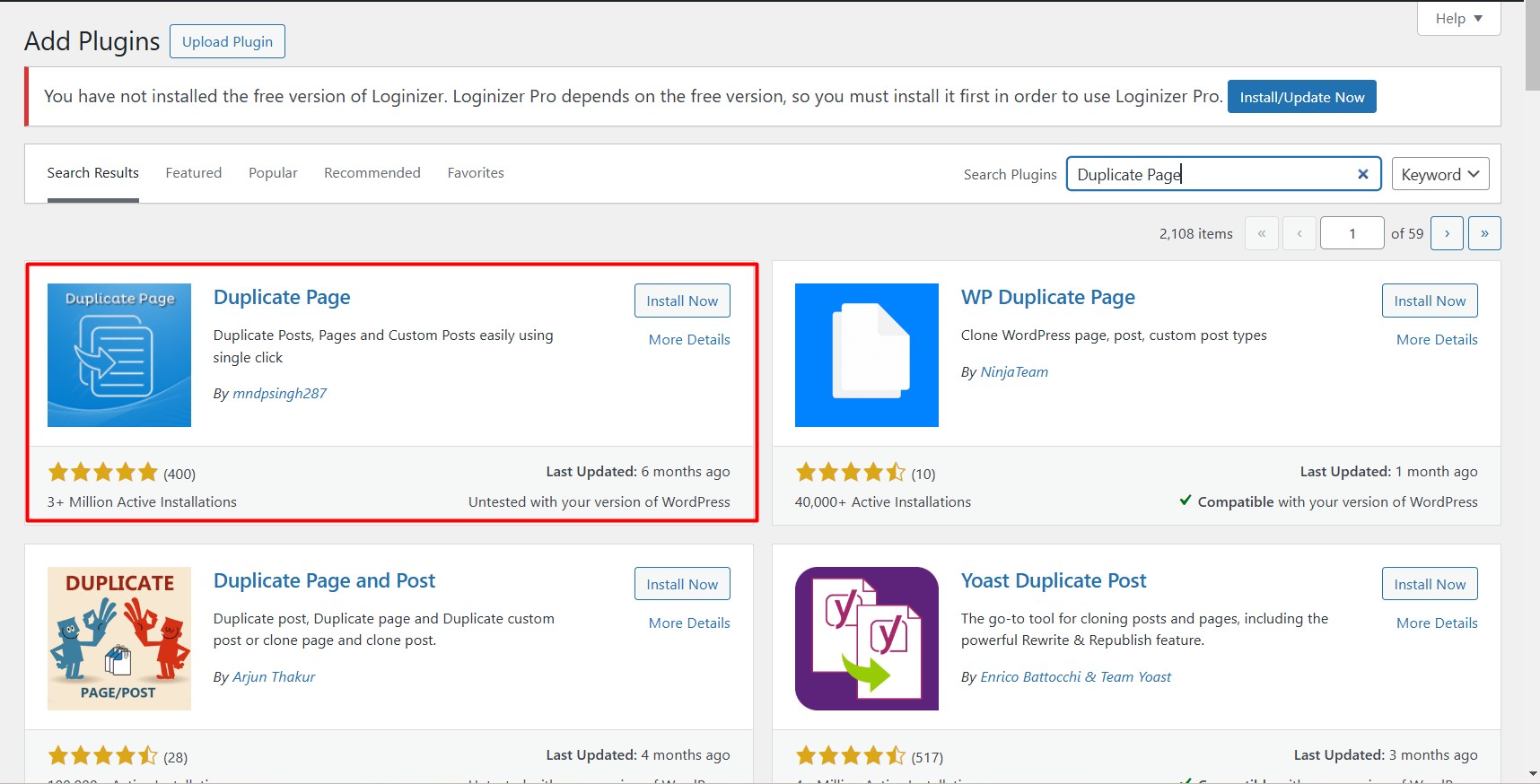
Step 2: Go to Settings -> Duplicate Page to configure the plugin settings. The plugin automatically sets duplicated content to Draft status and redirects you to the post list once the process is finished.
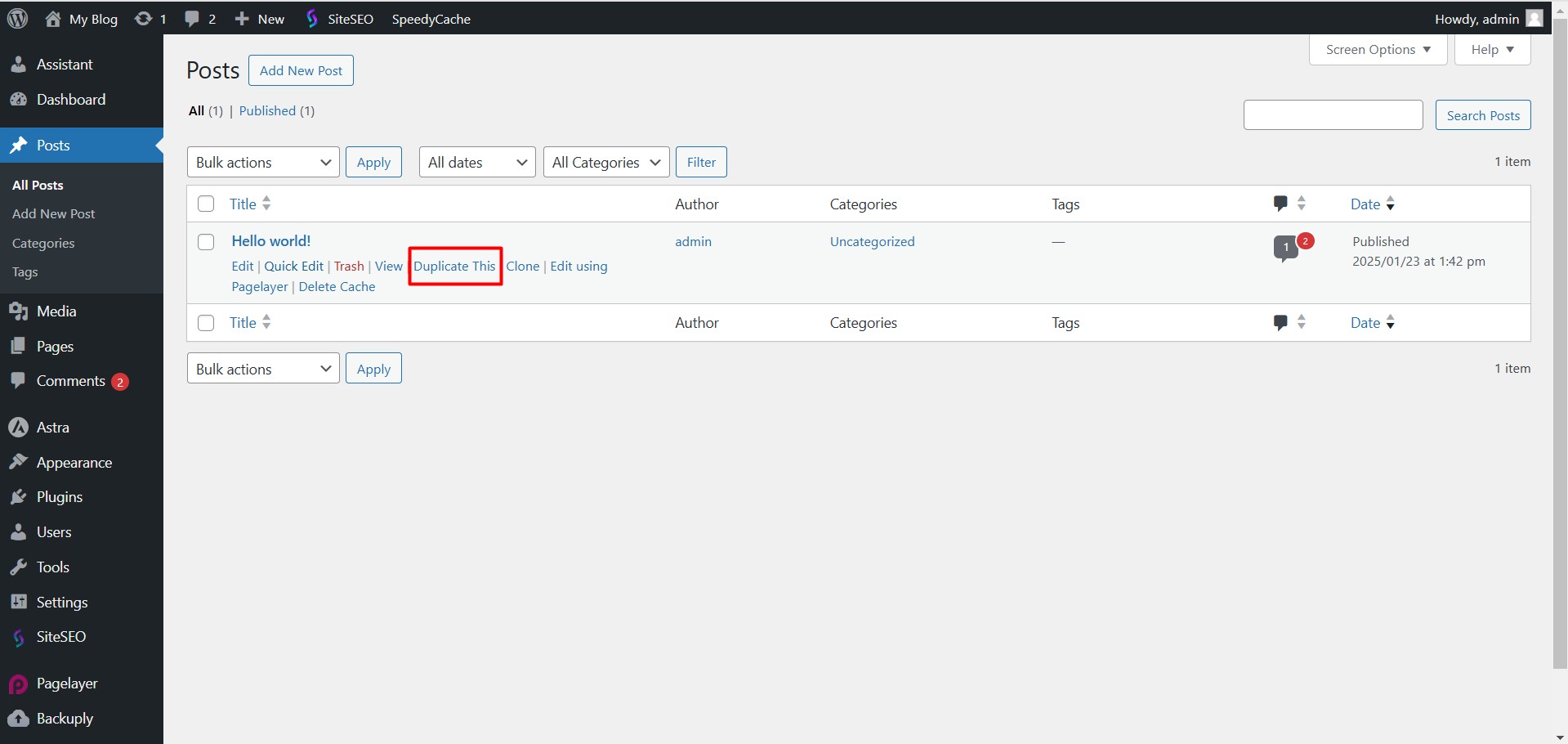
Step 3: Go to Posts -> All Posts in WordPress Dashboard. Find Duplicate This option under each posts. Click on the option and create a duplicate page as a draft.
We have Duplicate WordPress Pages using Duplicate Page Plugin. If Duplicate Page plugin is not fit for your needs, Kindly use the any one of popular plugins to duplicate the page or post.
2. Manually With Code
Without using a plugin, you can enable the a duplication in your page and posts by modifying the functions.php file. This file is located on wp-includes within your WordPress site.
There are multiple methods available to edit the functions.php file. Through File Manager, FTP, HTML code editor or the built-in WordPress editor.
Option 1: Through WordPress Theme File Editor
Built-in WordPress editor is accessible in Appearance -> Theme File Editor from your WordPress dashboard.
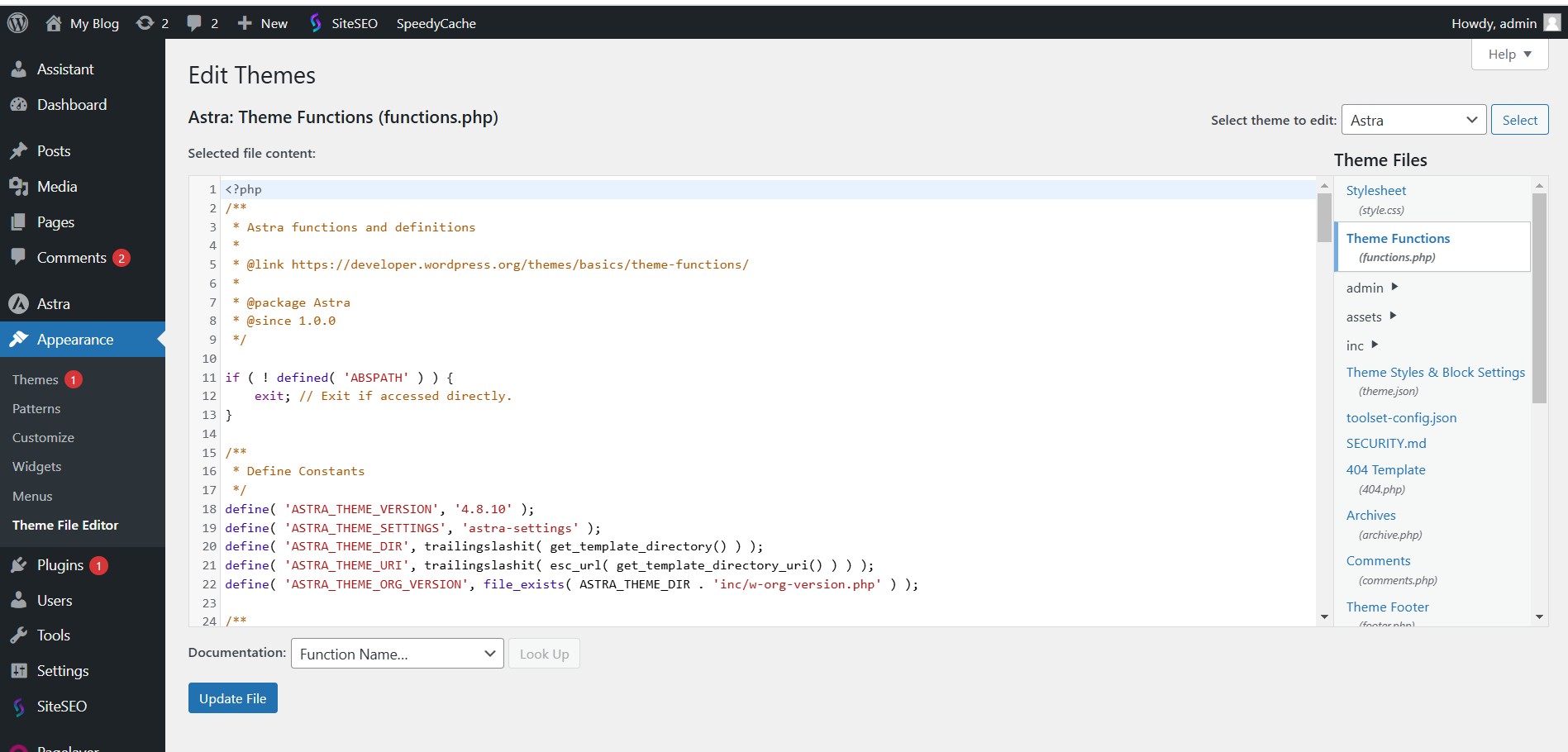
Kindly Paste the following code at the bottom of your functions.php file:
/*
* Function for post duplication. Dups appear as drafts. User is redirected to the edit screen
*/
function rd_duplicate_post_as_draft(){
global $wpdb;
if (! ( isset( $_GET['post']) || isset( $_POST['post']) || ( isset($_REQUEST['action']) && 'rd_duplicate_post_as_draft' == $_REQUEST['action'] ) ) ) {
wp_die('No post to duplicate has been supplied!');
}

/*
* Nonce verification
*/
if ( !isset( $_GET['duplicate_nonce'] ) || !wp_verify_nonce( $_GET['duplicate_nonce'], basename( __FILE__ ) ) )
return;

/*
* get the original post id
*/
$post_id = (isset($_GET['post']) ? absint( $_GET['post'] ) : absint( $_POST['post'] ) );
/*
* and all the original post data then
*/
$post = get_post( $post_id );

/*
* if you don't want current user to be the new post author,
* then change next couple of lines to this: $new_post_author = $post->post_author;
*/
$current_user = wp_get_current_user();
$new_post_author = $current_user->ID;

/*
* if post data exists, create the post duplicate
*/
if (isset( $post ) && $post != null) {

/*
* new post data array
*/
$args = array(
'comment_status' => $post->comment_status,
'ping_status' => $post->ping_status,
'post_author' => $new_post_author,
'post_content' => $post->post_content,
'post_excerpt' => $post->post_excerpt,
'post_name' => $post->post_name,
'post_parent' => $post->post_parent,
'post_password' => $post->post_password,
'post_status' => 'draft',
'post_title' => $post->post_title,
'post_type' => $post->post_type,
'to_ping' => $post->to_ping,
'menu_order' => $post->menu_order
);

/*
* insert the post by wp_insert_post() function
*/
$new_post_id = wp_insert_post( $args );

/*
* get all current post terms ad set them to the new post draft
*/
$taxonomies = get_object_taxonomies($post->post_type); // returns array of taxonomy names for post type, ex array("category", "post_tag");
foreach ($taxonomies as $taxonomy) {
$post_terms = wp_get_object_terms($post_id, $taxonomy, array('fields' => 'slugs'));
wp_set_object_terms($new_post_id, $post_terms, $taxonomy, false);
}

/*
* duplicate all post meta just in two SQL queries
*/
$post_meta_infos = $wpdb->get_results("SELECT meta_key, meta_value FROM $wpdb->postmeta WHERE post_id=$post_id");
if (count($post_meta_infos)!=0) {
$sql_query = "INSERT INTO $wpdb->postmeta (post_id, meta_key, meta_value) ";
foreach ($post_meta_infos as $meta_info) {
$meta_key = $meta_info->meta_key;
if( $meta_key == '_wp_old_slug' ) continue;
$meta_value = addslashes($meta_info->meta_value);
$sql_query_sel[]= "SELECT $new_post_id, '$meta_key', '$meta_value'";
}
$sql_query.= implode(" UNION ALL ", $sql_query_sel);
$wpdb->query($sql_query);
}

/*
* finally, redirect to the edit post screen for the new draft
*/
wp_redirect( admin_url( 'post.php?action=edit&post=' . $new_post_id ) );
exit;
} else {
wp_die('Post creation failed, could not find original post: ' . $post_id);
}
}
add_action( 'admin_action_rd_duplicate_post_as_draft', 'rd_duplicate_post_as_draft' );

/*
* Add the duplicate link to action list for post_row_actions
*/
function rd_duplicate_post_link( $actions, $post ) {
if (current_user_can('edit_posts')) {
$actions['duplicate'] = '<a href="' . wp_nonce_url('admin.php?action=rd_duplicate_post_as_draft&post=' . $post->ID, basename(__FILE__), 'duplicate_nonce' ) . '" title="Duplicate this item" rel="permalink">Duplicate</a>';
}
return $actions;
}
add_filter( 'post_row_actions', 'rd_duplicate_post_link', 10, 2 );
Option 2: Through cPanel
Step 1: Login to cPanel

Step 2: Go to File Manager under cpanel.
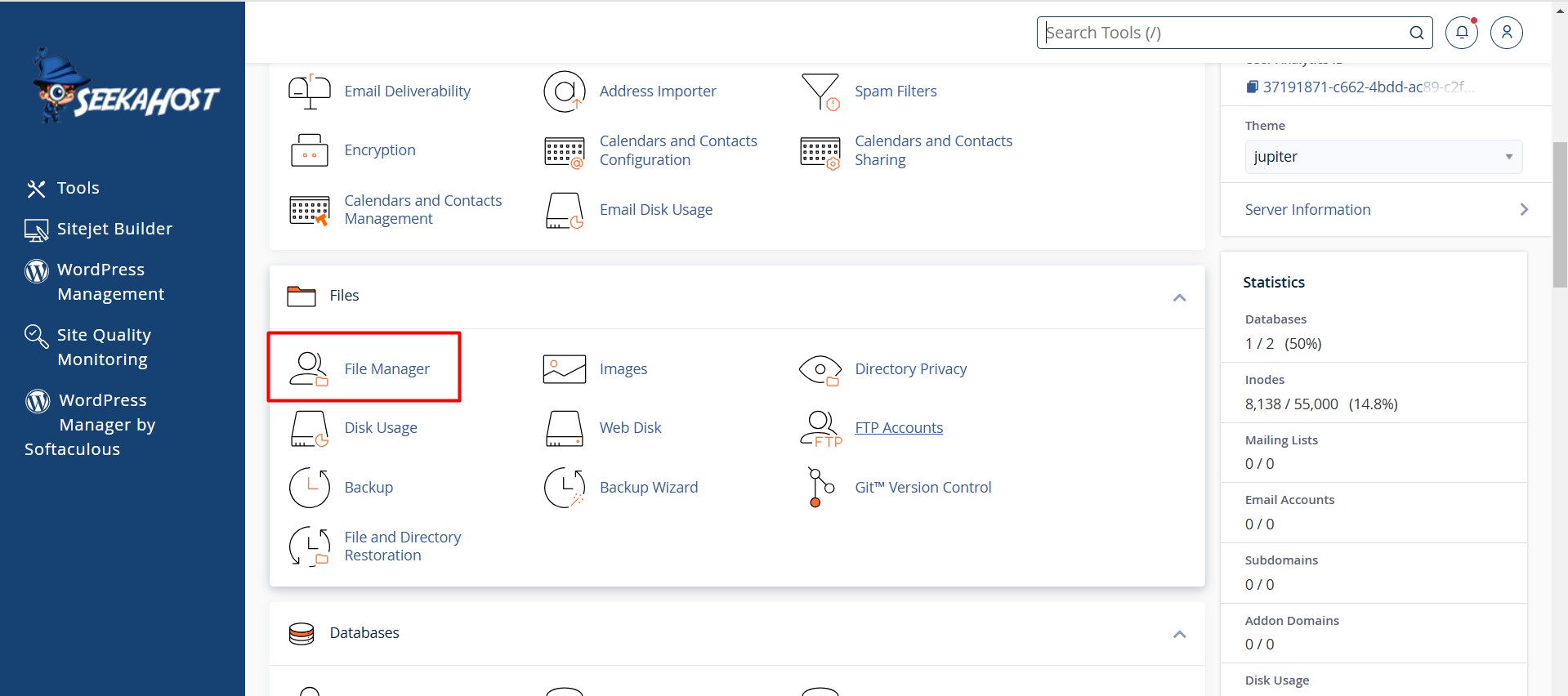
Step 3: Now go to public_html -> wp-includes folder. Select the functions.php file and click Edit option on the top.
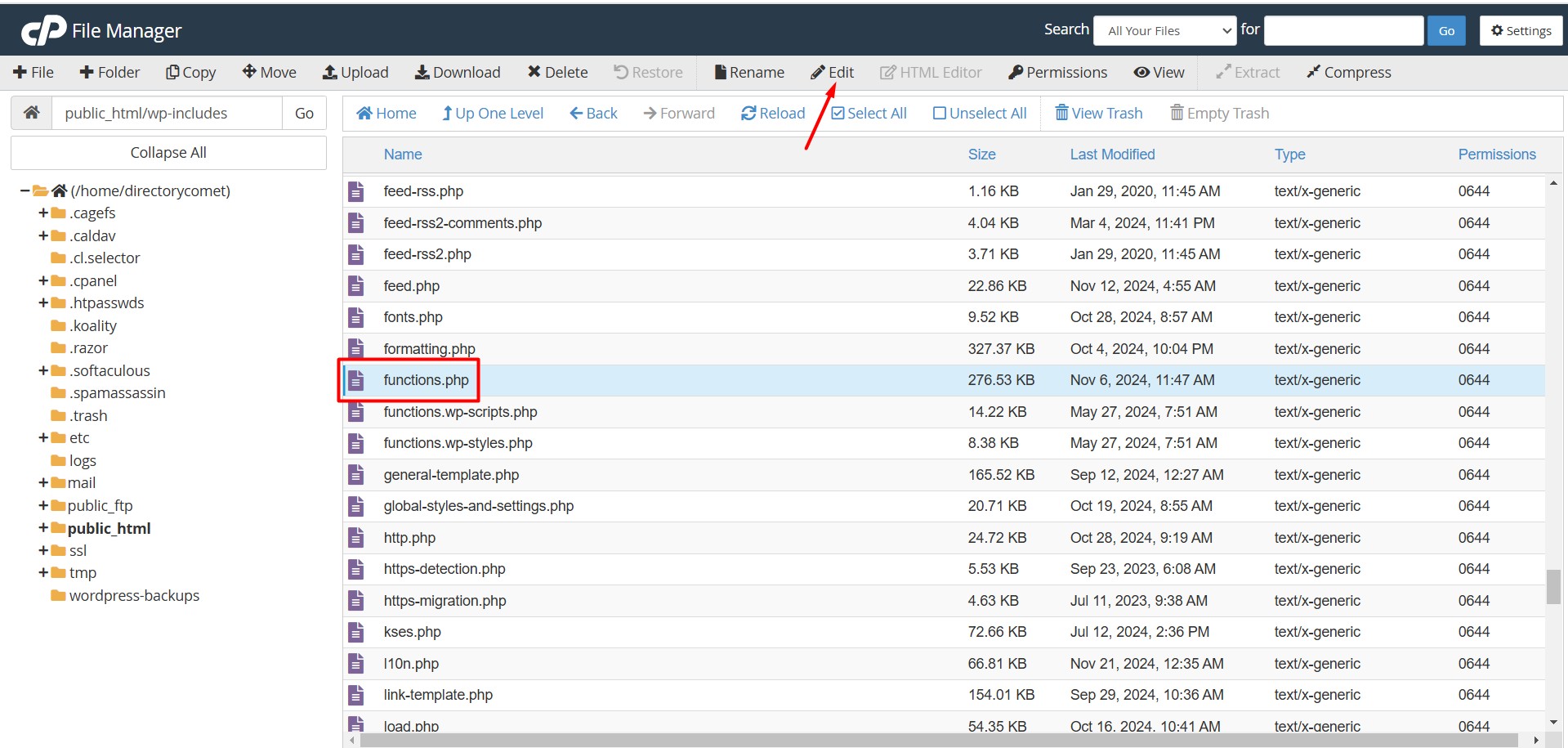
Paste the same code in the function.php file as well. The above custom code adds “Duplicate” link in the Posts section. If it is working, you’ll see the “Duplicate” link under each post.
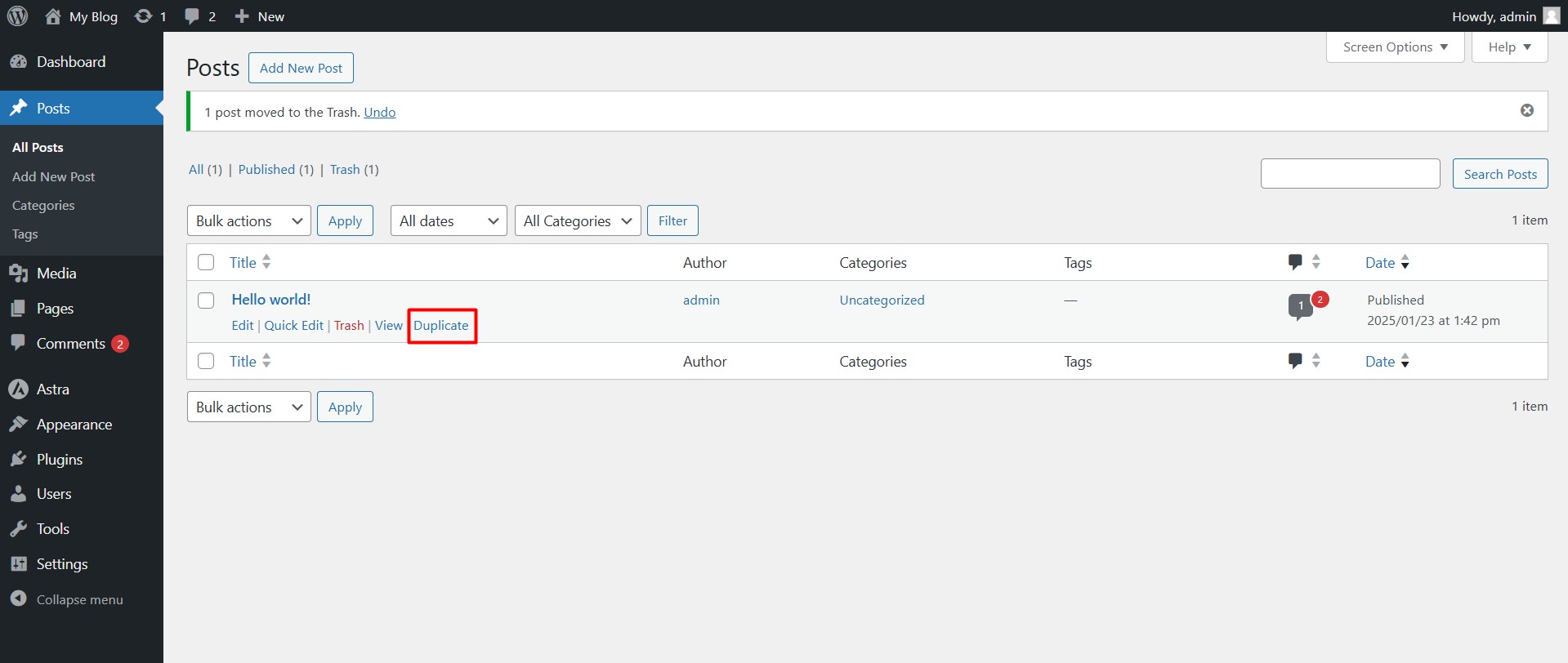
To add the same feature under your page section, just replace the last line of the above code with the below snippet,
add_filter(‘page_row_actions’, ‘rd_duplicate_post_link’, 10, 2);
Similarly, clicking the Duplicate link lets you create a duplicate WordPress page as a new draft.
Hope this article is helpful for you to easily Duplicate WordPress Pages and posts with 2 Different Methods.