











How to Create Coupon Code and Use in WooCommerce

By Arshath | June 10, 2026










Create coupon code and providing them as a discount is one of most prominent and yet intriguing marketing strategy followed by all company as a promotional campaign.
For instance, if you are building or running a WooCommerce store and looking for an effective way to promote your online store, then you can make the best use of WooCommerce’s built-in coupon creation and management tools
Moreover, you might find it confusing or difficulty in creating and placing the coupon code for your products. However, don’t worry, as this article gives you a simple yet effective guide to create coupon code in WooCommerce in just a few clicks, so you can start offering coupons.
What is a Coupon Code?
A coupon code – also called as promo code or discount code – unique generated code made of letters, numbers or both. Simply enter it on your product checkout page of the online store and click “Apply,” which will drop your total product price to the discounted price below the original.
Moreover, in a WooCommerce store, it is used to boost sales, manage inventory, and build customer loyalty with the coupon codes they offer.
Prerequisites:
1. Install WordPress and configure WooCommerce plugin
2. Add Products
How to Create Coupon Code in WooCommerce?
Step 1: Login to WordPress of your website
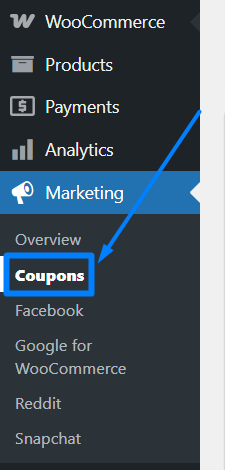
Step 2: Under Marketing section, click “coupons” option.
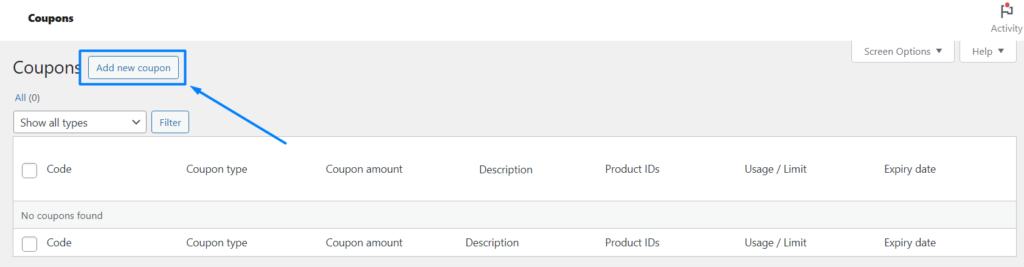
Step 3: Click “Add new coupon” button.
Generating Your Coupon Code:
Step 4: Now click “Generate coupon code” button to create coupon code. It will generate a code and you can mention a description for that coupon code (only available to merchant).
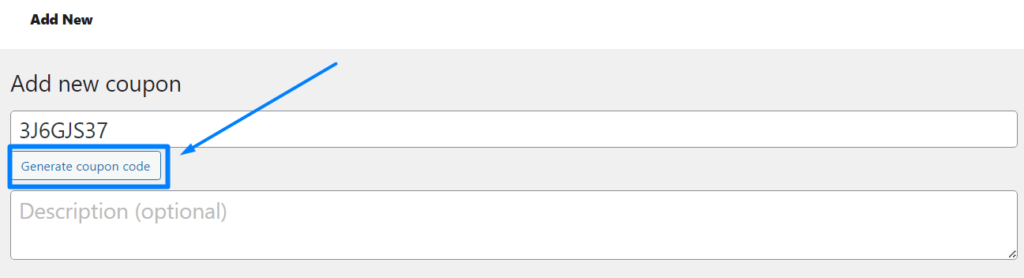
This is the coupon code which you will share with your customers to apply in their product added to cart.
Below these fields under Coupon data block. It has three sections:
- General
- Usage restriction
- Usage limits
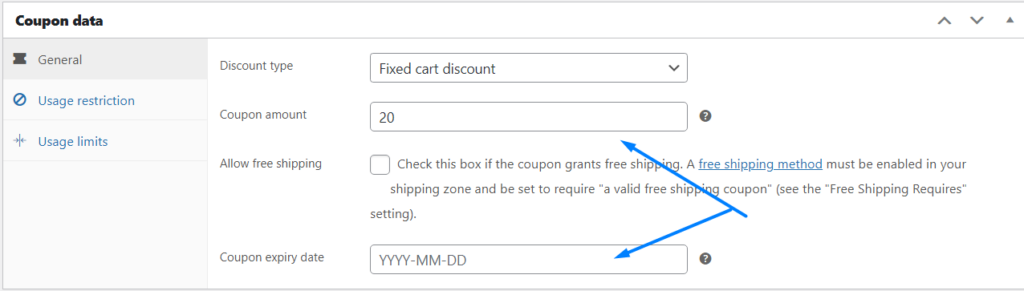
1. General:
Discount Type:
-
Percentage Discount: Reduce a set percentage off from total cost of your cart.
For Example: 20% off 2 jackets at $50 each ($100 total) saves $20, dropping it to $80. -
Fixed Cart Discount: Reduce a fixed dollar amount instead of percentage discount from your entire cart total.
For Example: $15 off any cart over $50 turns a $75 grocery haul into $60. -
Fixed Product Discount: Deducts a fixed amount per specific item, multiplying by quantity.
For Example: $5 off each pair of shoes – buy 3 pairs at $30 each ($90 total) and save $15, paying $75.
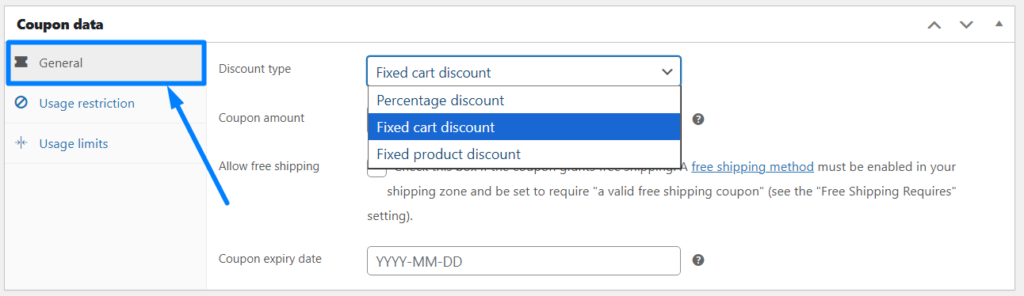
- Coupon Amount: Enter the amount for offer or discount will be reduced when applied.
- Allow For Shipping: Enable the checkbox if you want to provide free shipping for customer who use the coupon code.
- Coupon Expiry Date: Enter the expiry date for the coupon code which is best when you want to limit and encourage sale quicker.
2. Usage restriction
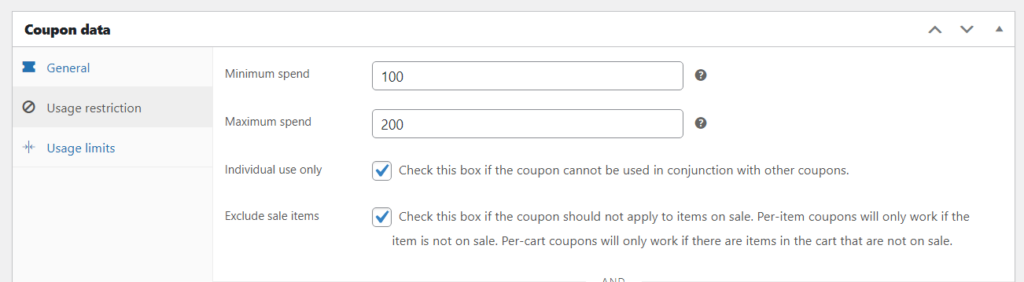
Additionally, this section clearly helps you define on what basis the offer will be applicable and can be claimed or not.
- Minimum Cost – From which product cost, the coupon will be applicable
- Maximum Cost – Till which product cost, the coupon will be applicable.
- Individual use Only – Enable checkbox if you do not want your customer to use this coupon with any other create coupon code for same product.
- Exclude Sale Item – If you already provided product on discount with sale tag, then enable this option to not allow coupon to apply.
Furthermore, you can restrict which products, categories, and brands can avail of the coupon code.
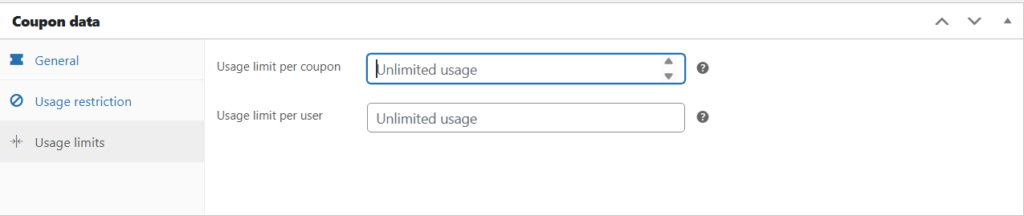
3. Usage Limits:
Once updated, click “publish” button to activate the coupon.
Applying the Coupon:
Step 5: Now its time to apply the code created in your product. Add the product to cart and go to view cart. Here, enter the coupon code in the box and click “Apply” button to apply the discount.
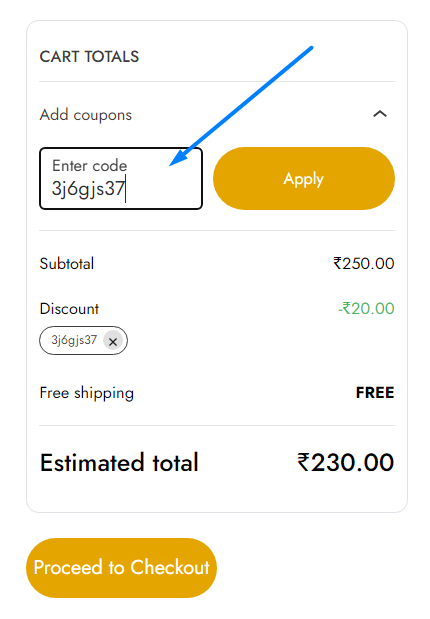
That’s it!. You have accomplished to give your customer a surprise gift voucher.
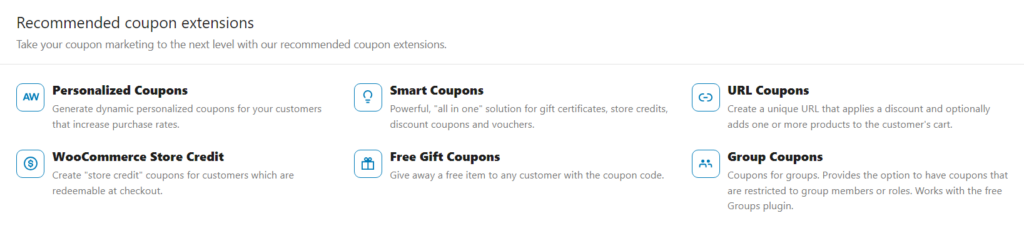
Recommended Advanced Coupon Extensions:
If you want more customized or personalized coupon code based on special occasion or category, you can extend the functionality by adding the below plugins,
Personalized Coupons – Generate dynamic personalized coupons for your customers that increase purchase rates.
Smart Coupons – Powerful, “all in one” solution for gift certificates, store credits, discount coupons and vouchers.
URL Coupons – Create a unique URL that applies a discount and optionally adds one or more products to the customer’s cart.
WooCommerce Store Credit – Create “store credit” coupons for customers which are redeemable at checkout.
Free Gift Coupons – Give away a free item to any customer with the coupon code.
Group Coupons – Coupons for groups. Provides the option to have coupons that are restricted to group members or roles. Works with the free Groups plugin.
In conclusion, hope this article helps you create a coupon code in WooCommerce for your products.