


How to Install Nginx in aaPanel: A Step-by-Step Guide

By Aravindhan | October 19, 2026










Nginx is a fast and reliable web server that is widely used to host websites and web applications. With aaPanel, you can Install Nginx and manage it easily through a simple web interface without using many command-line commands.
In this guide, you’ll learn how to install Nginx in aaPanel step by step. By the end of this tutorial, you’ll have Nginx installed and ready to use on your server.
Nginx
Nginx is the primary web server in aaPanel, responsible for handling incoming client requests and serving website content efficiently. It also functions as a reverse proxy, forwarding dynamic requests to backend services such as PHP-FPM. Nginx is widely recognized for its high performance, low resource consumption, and ability to handle large numbers of concurrent connections.
Steps to Install Nginx:
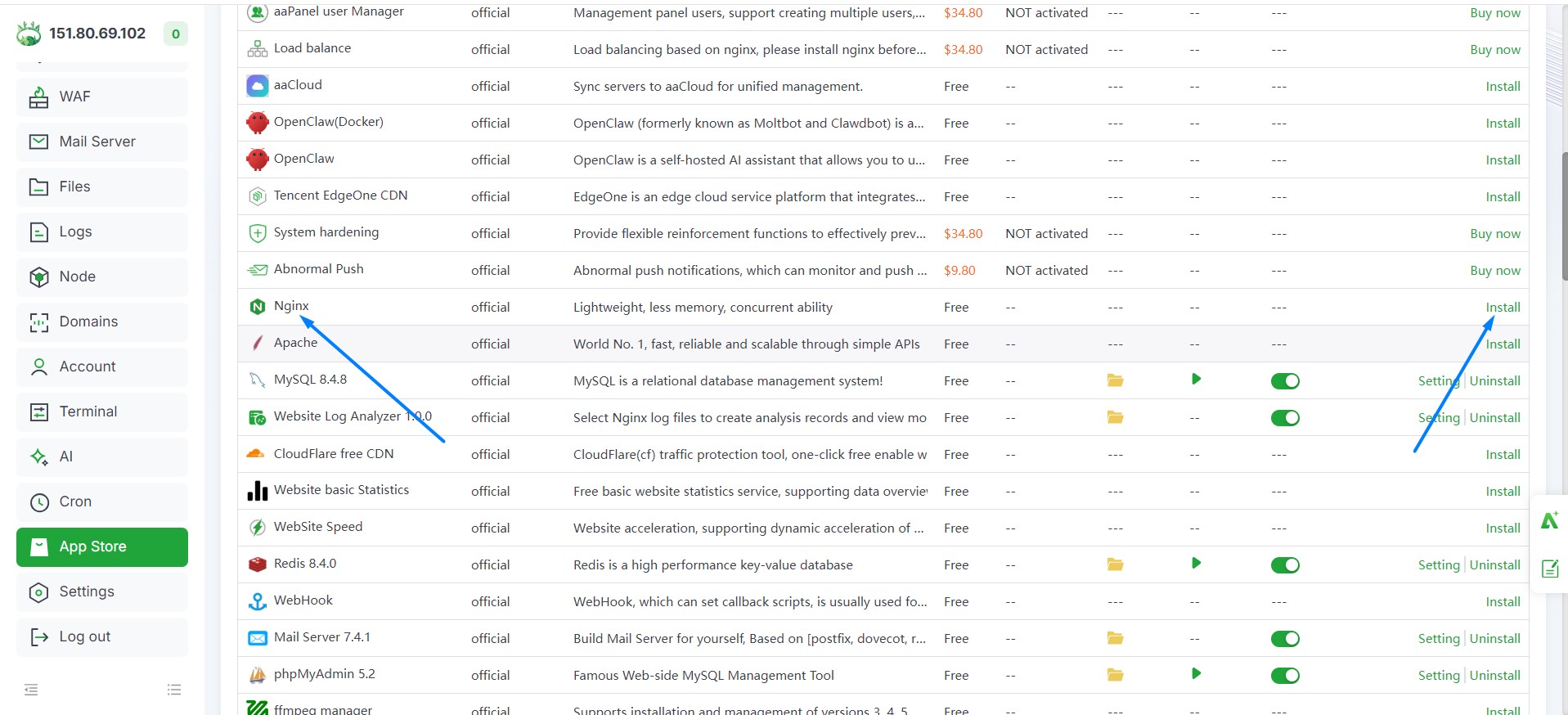
1. Open the App Store, select Nginx, and click Install.
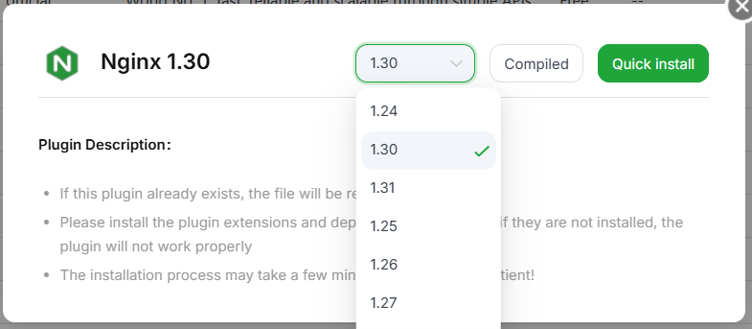
2. Choose the required Nginx version, then click Quick Install to begin the installation.
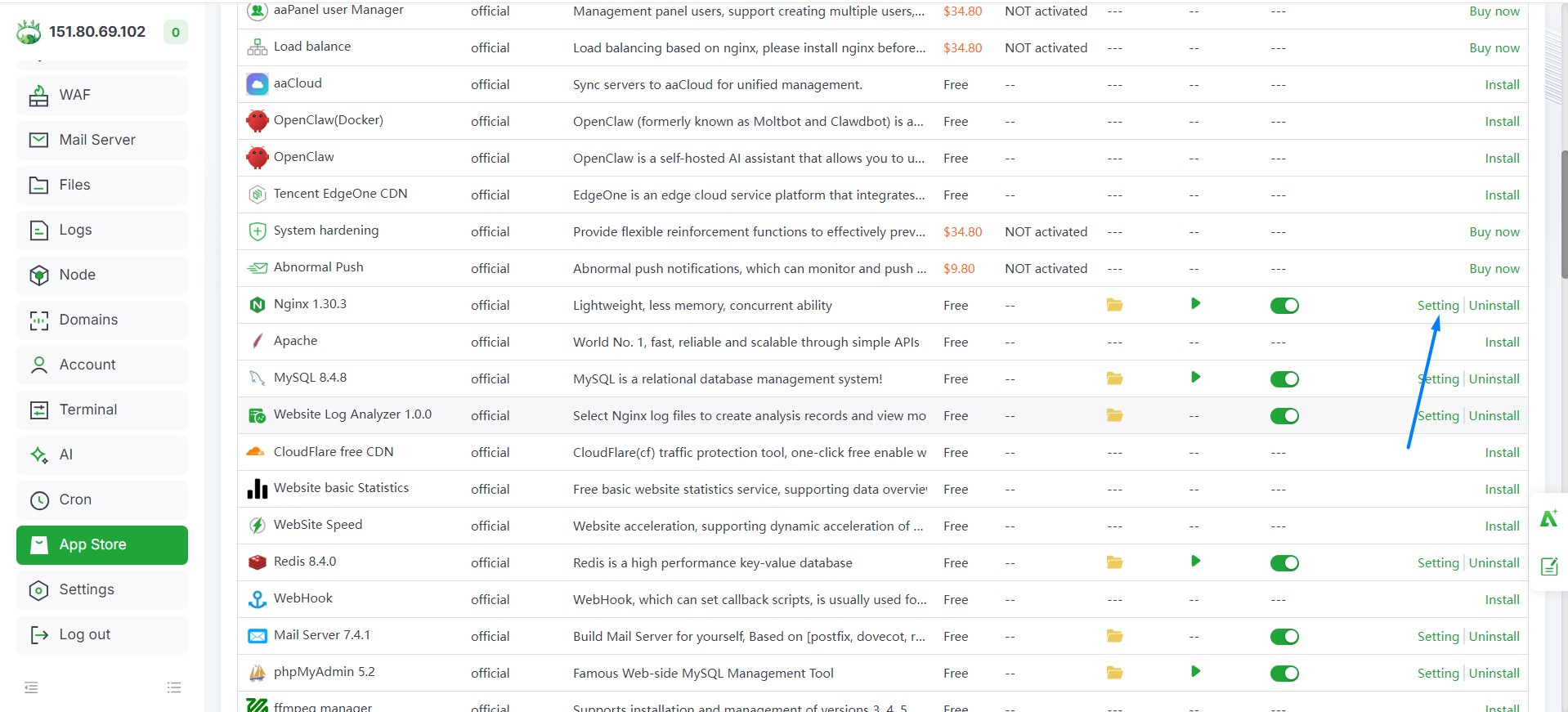
3. After Installation, to manage Nginx, navigate to the App Store and select Settings next to the Nginx service.
Configuration Details After Install Nginx:
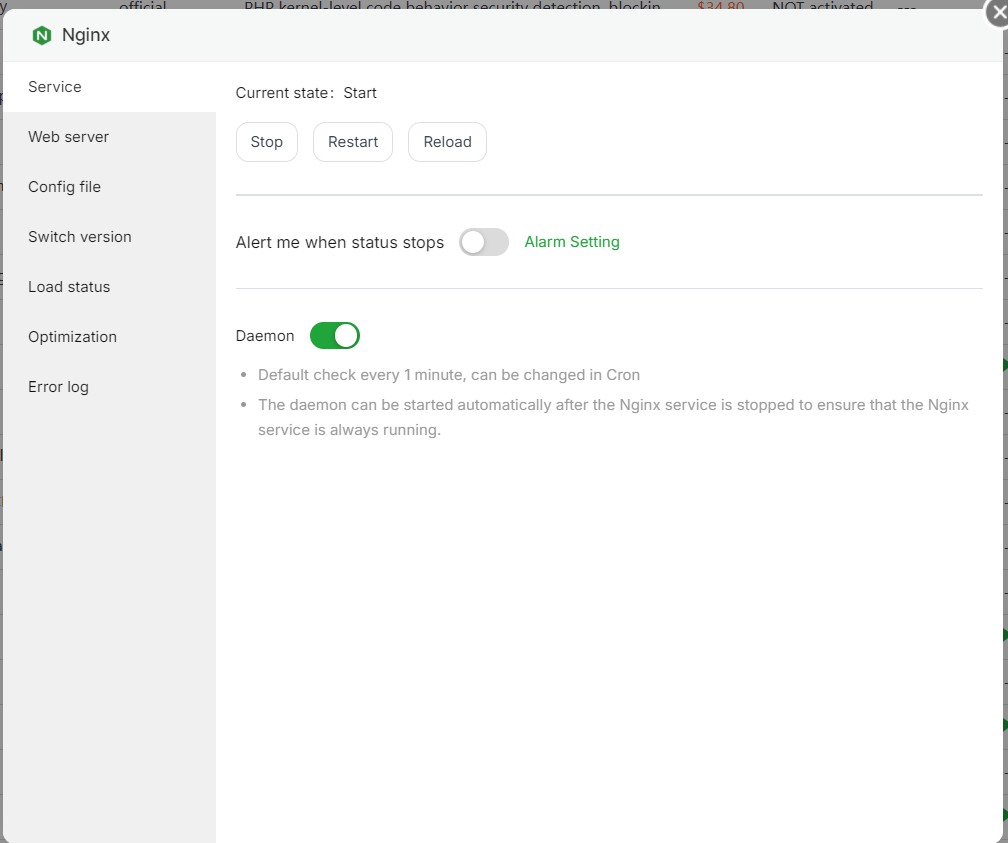
Service Management
The Service section allows you to manage the Nginx service by performing the following actions:
- Start
- Stop
- Restart/Reload
Reloading the service applies configuration changes without interrupting active connections, whereas restarting the Nginx service completely restarts it.
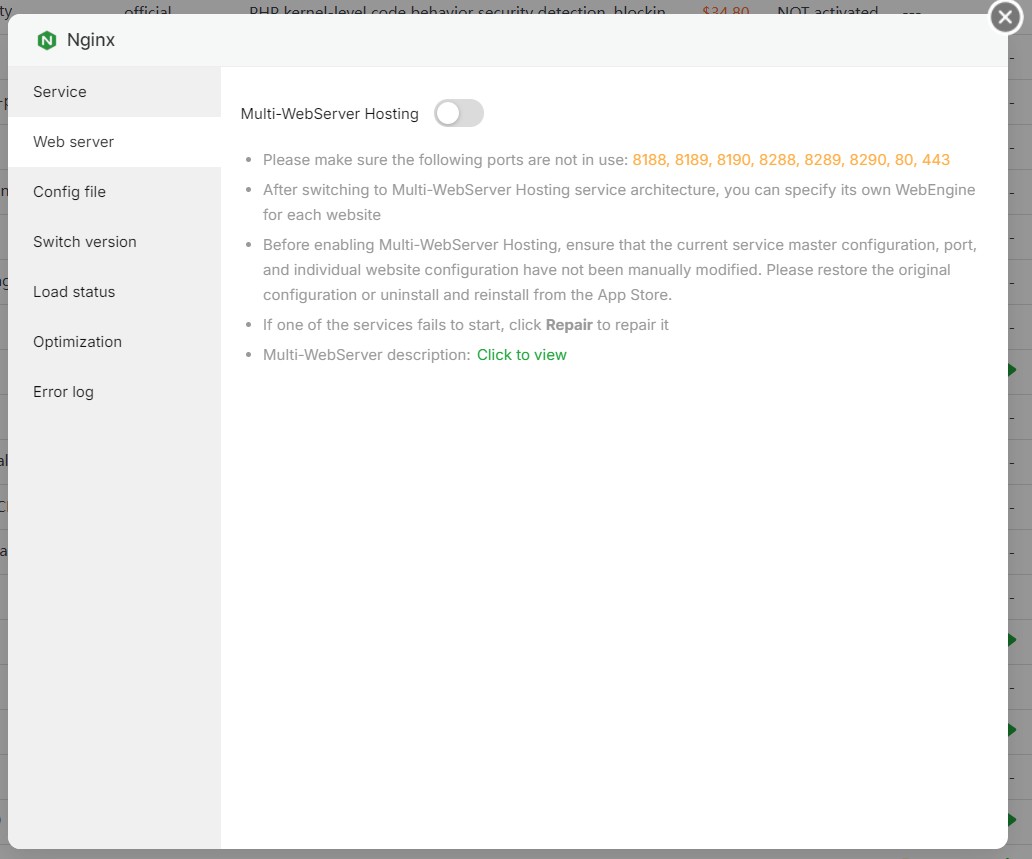
Web Server:
The Web Server section supports multi-web server hosting. Unless you have a specific requirement, it is recommended to keep the default configuration unchanged.
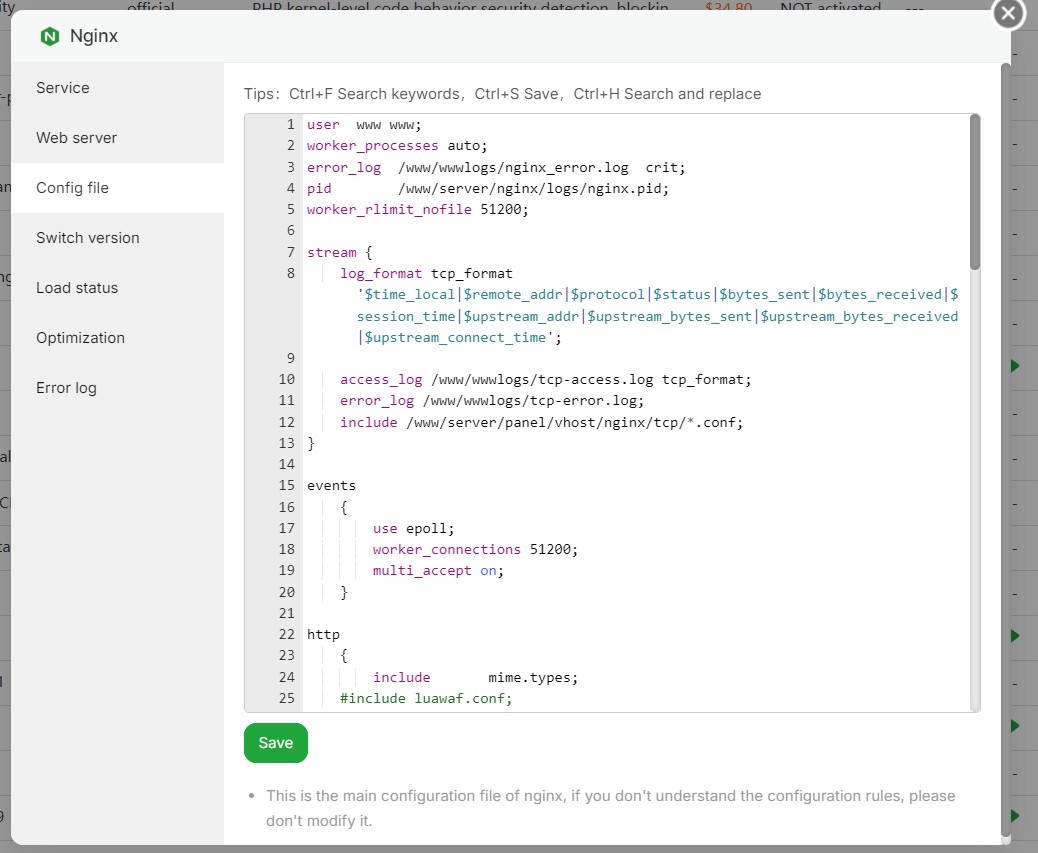
Configuration File:
The Config File option opens the main nginx.conf configuration file, where you can modify the global Nginx settings.
After making configuration changes, always verify the syntax before reloading the service by running the following command:
nginx -tIf the configuration test completes successfully, you can safely reload Nginx to apply the changes.
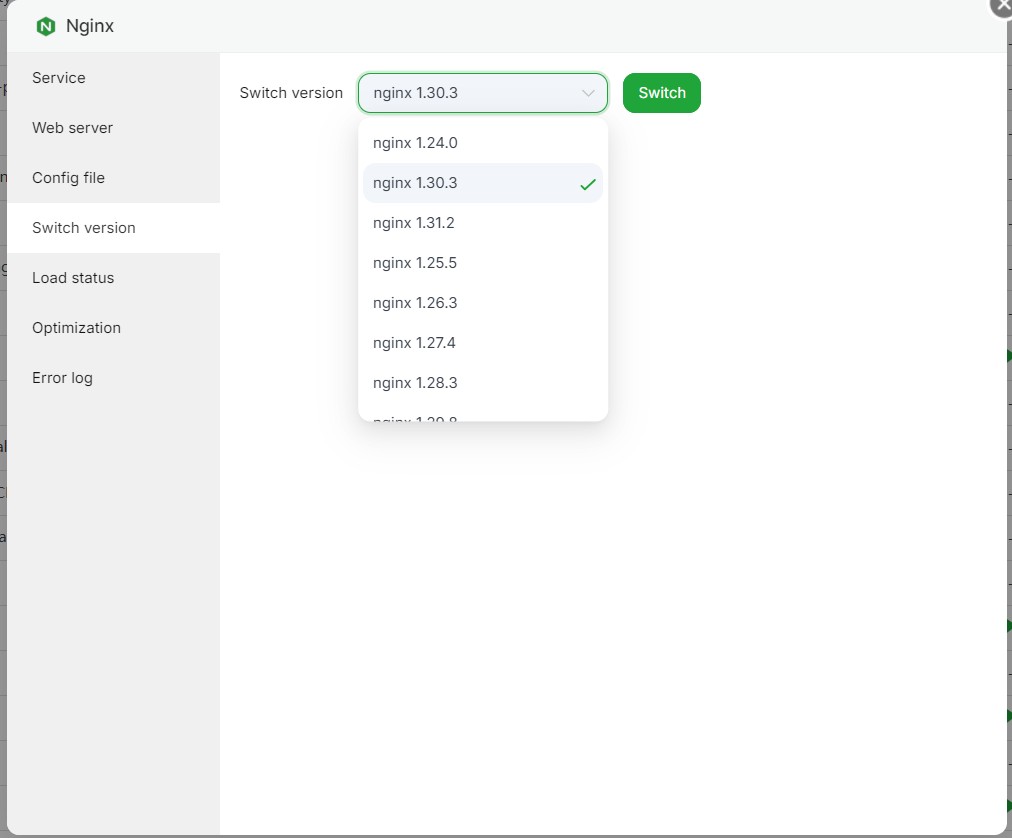
Switch Version:
The Switch Version feature allows you to upgrade or downgrade the installed version of Nginx.
This is useful when you need:
- New features
- Security updates
- Performance improvements
- Compatibility with specific applications
Always verify your website after switching versions to ensure all services continue to function correctly.
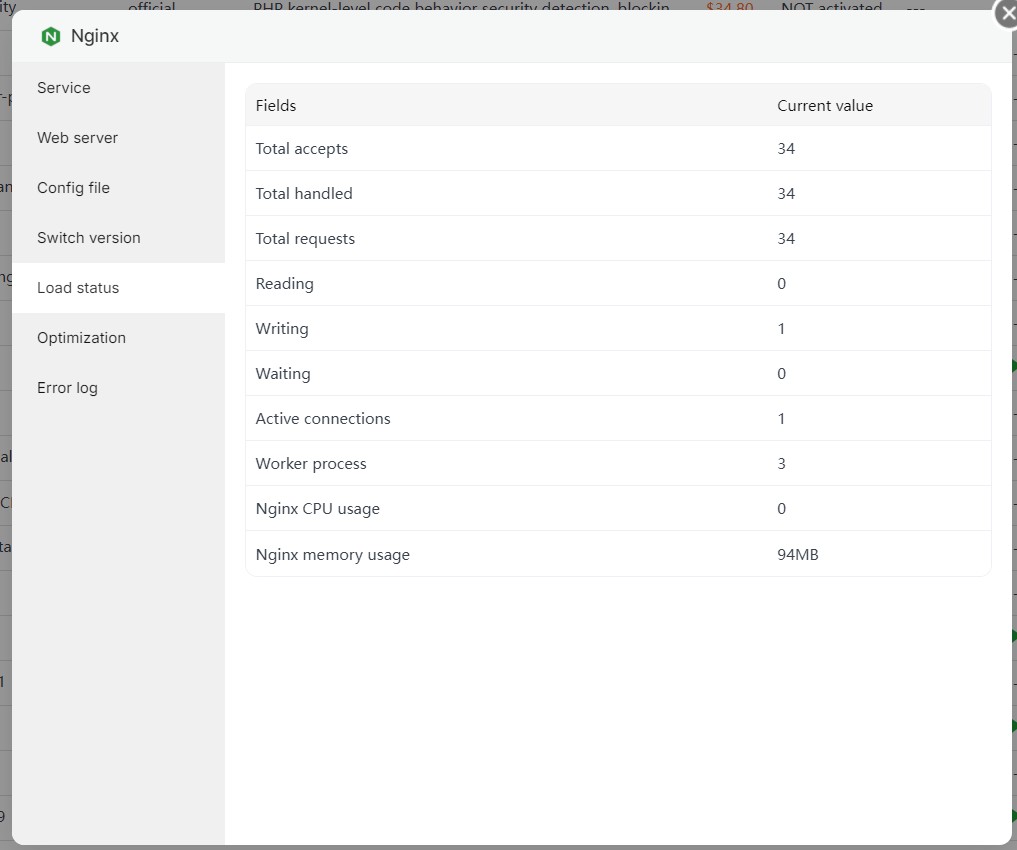
Load Status:
The Load Status section provides real-time information about the Nginx server, including:
- Active connections
- Accepted requests
- Handled requests
- Request processing statistics
These metrics help monitor server performance and identify potential bottlenecks.
Optimization:
The Optimization feature recommends performance settings based on your server’s available resources.
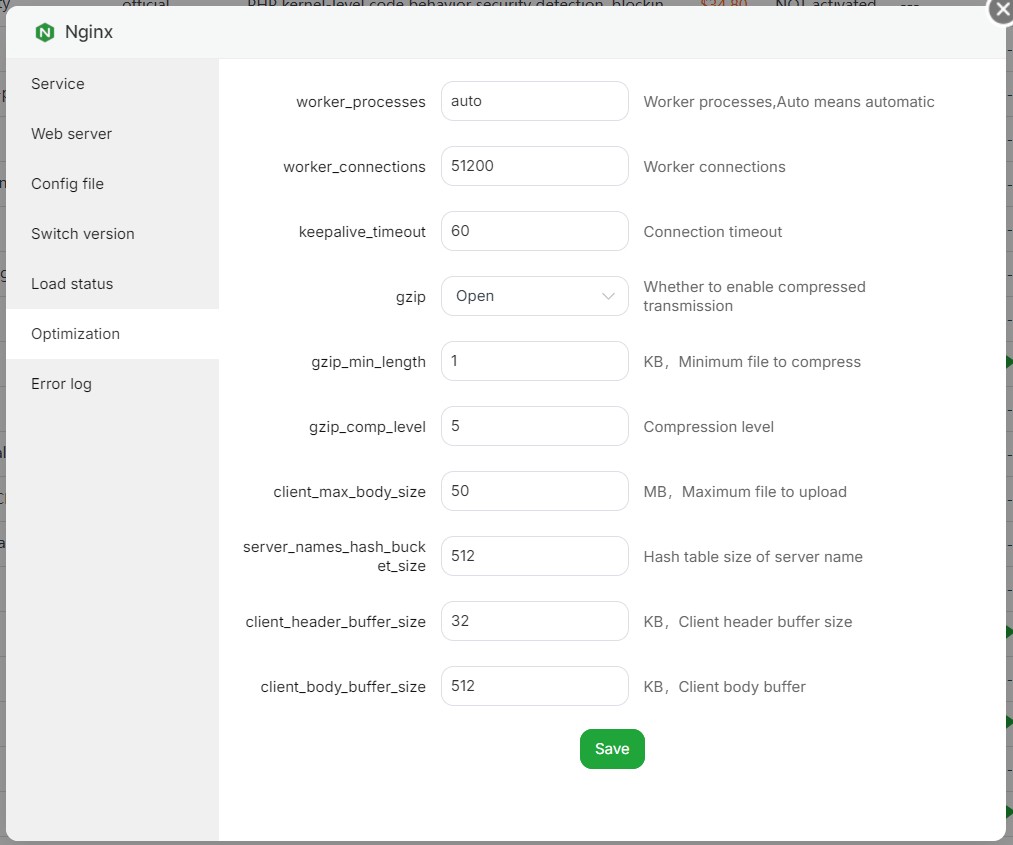
It can automatically optimize parameters such as:
- Worker processes
- Worker connections
- Connection limits
- Buffer sizes
Applying these recommendations can improve overall server performance and efficiently handle increased website traffic.
Error Log:
The Error Log records errors and warning messages generated by Nginx.
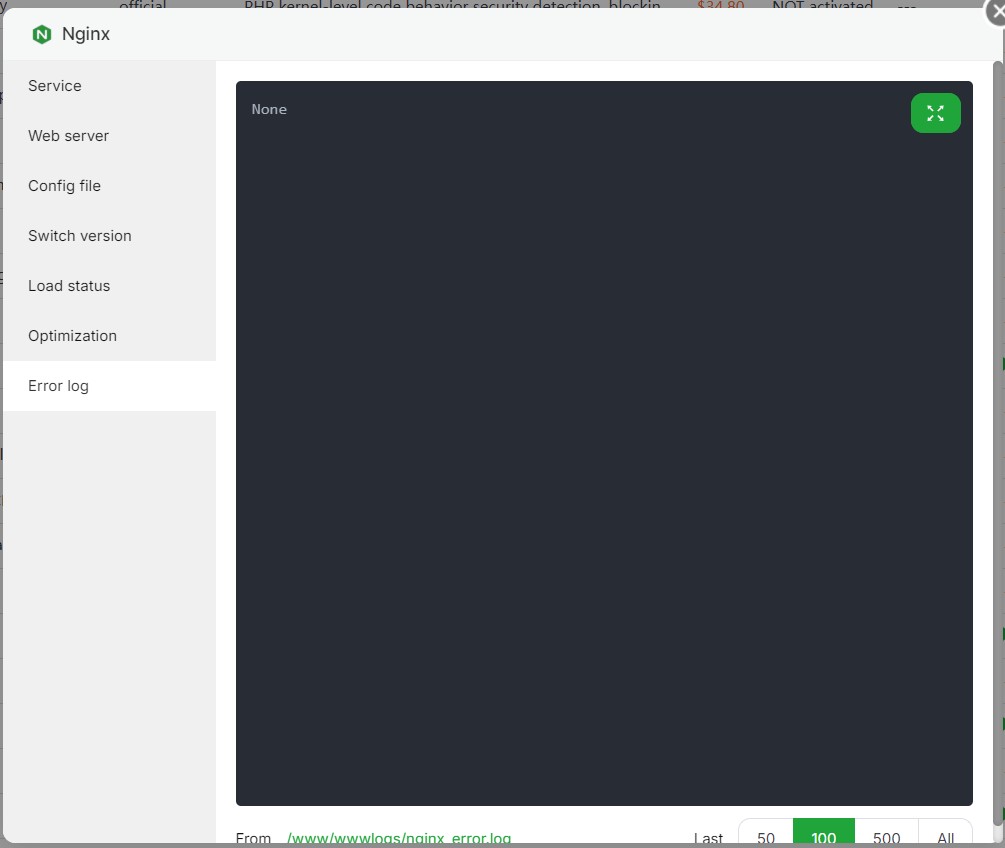
This should be the first place to check when troubleshooting website issues such as:
- 403 Forbidden
- 404 Not Found
- 502 Bad Gateway
- 504 Gateway Timeout
Reviewing the error logs helps identify configuration issues, backend failures, permission problems, and other server-related errors, allowing for faster troubleshooting and resolution.
Other Installation on VPS Server:
3. Install fastPanel on Ubuntu
Conclusion
By completing this guide, you have successfully learned how to install and manage Nginx in aaPanel. You can now control the Nginx service, configure server settings, monitor performance, optimize resources, and troubleshoot issues using the built-in management tools. Keeping Nginx properly configured and regularly monitored helps ensure your websites remain secure, stable, and perform efficiently.