


How to Clear the Default Mail Account Storage?

By Aravindhan | July 11, 2026










In every cPanel hosting account, there is a default mail account automatically created with the same name as your cPanel username. This default mail account is mainly used for receiving server notifications rather than personal or business communication.
Over time, this mailbox can consume disk space, so it is important to manage and clear the storage properly to avoid errors and performance issues. In this guide, you will learn how to safely clear and manage the default mail account storage in cPanel using simple steps.
Steps to Clear Default Mail Account Storage:
Step 1: Login to your cPanel account.

Step 2: Search Email Account and click on it.
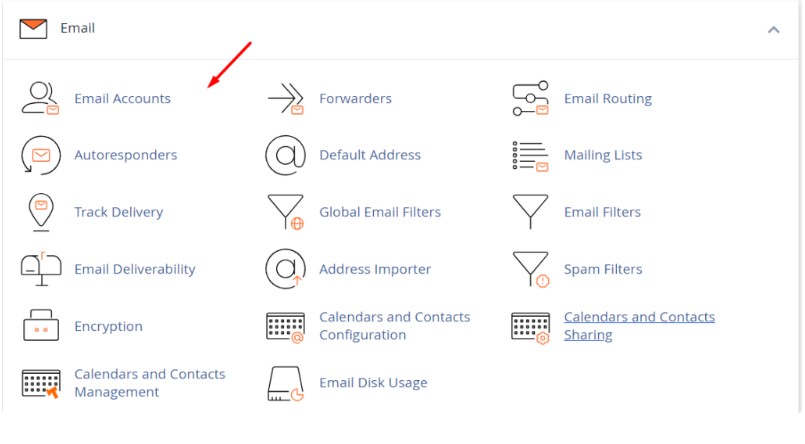
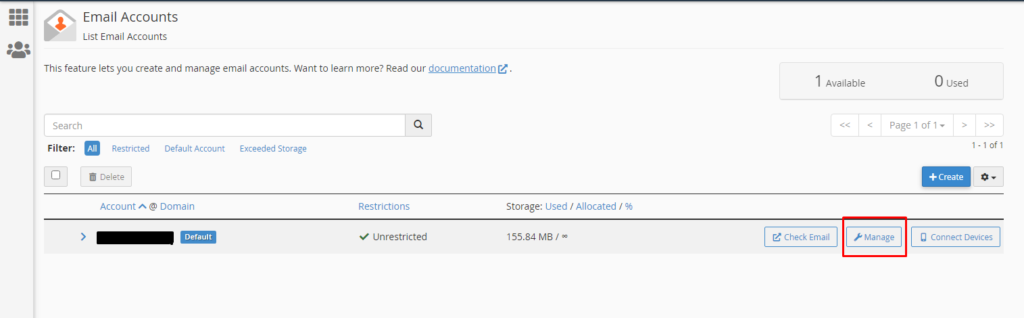
Step 3: Find your default mail account and click on Manage.
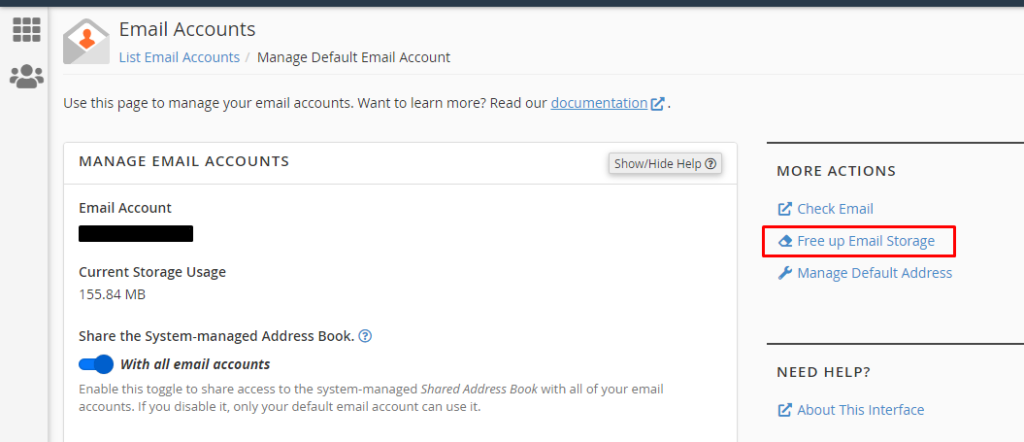
Step 4: On the Manage page, click on “Free up Email Storage”.
Step 5: You will see folder-wise disk usage of your default mail account.
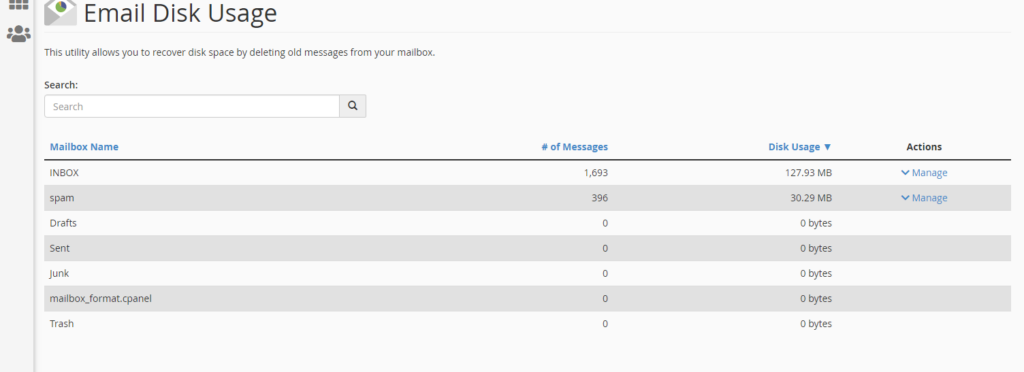
Step 6: Click on the “Manage” button. Under the “Messages to delete” dropdown, select “All Messages” and click on the “Delete Permanently” button. The default emails will get cleared.
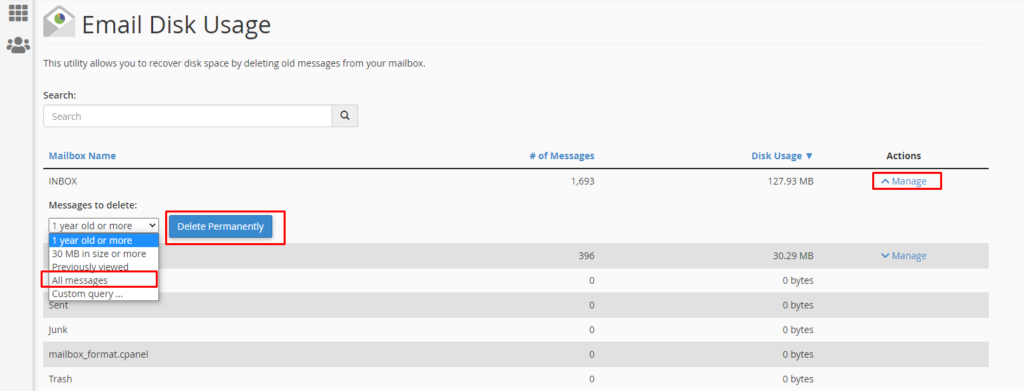
Note: If the disk space is already filled you can’t able to clear the default message using the above method. It shows the fatal error.
Remove Emails from File Manager:
Step 1: Login to your cPanel account.
Step 2: Search for “File Manager” and Click on it.
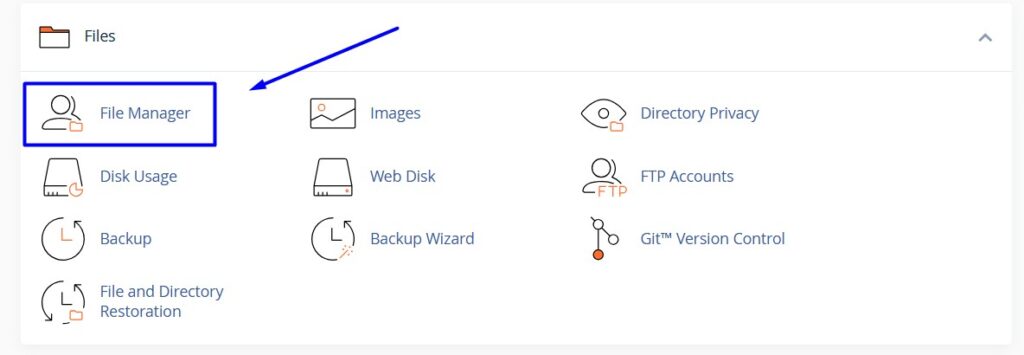
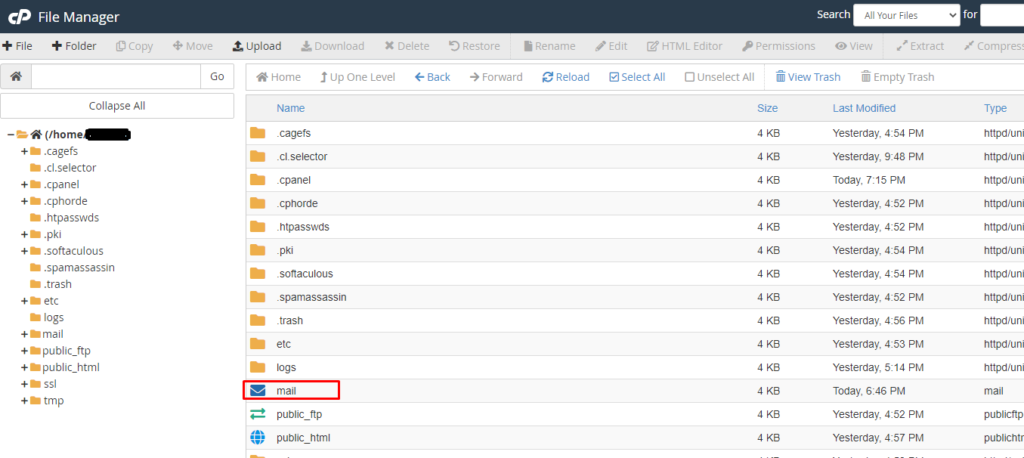
Step 3: In file manager, click Mail folder.
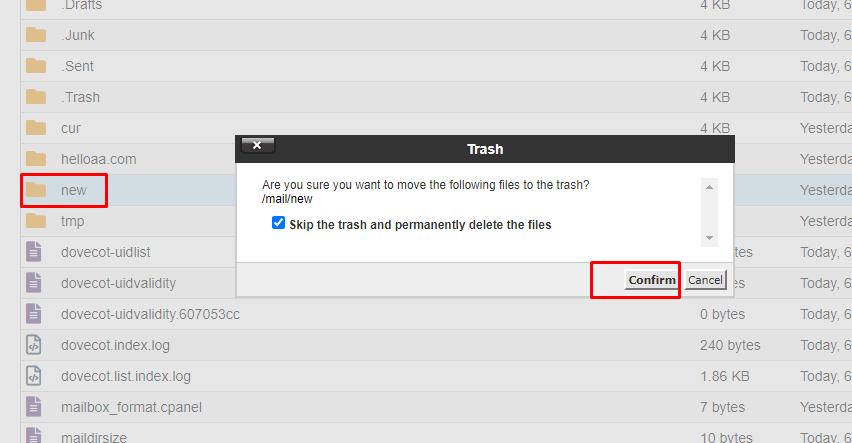
Step 4: In the mail directory, you can find the “New” folder.
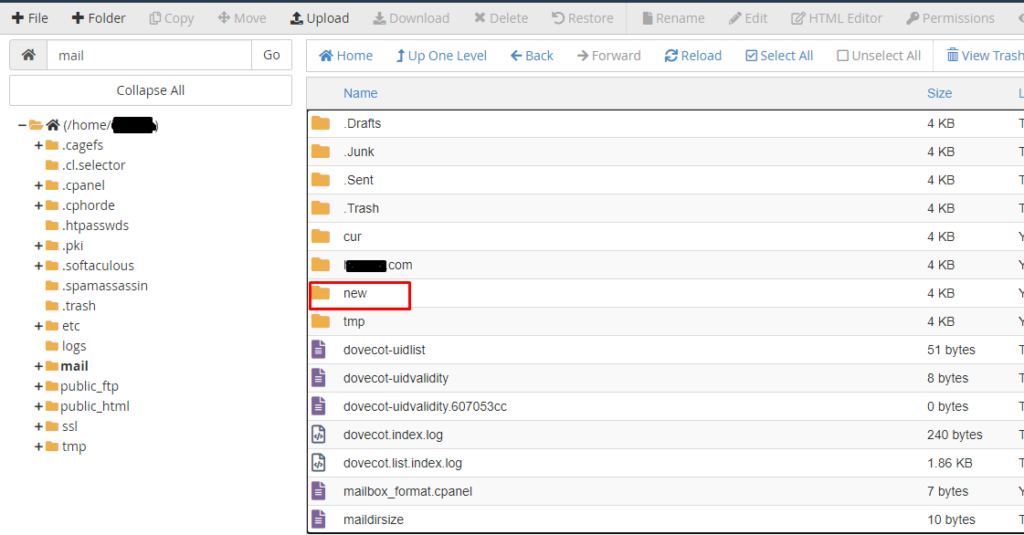
Step 5: Right click on the new folder, click “Delete” button on top of the page and click Confirm to delete the folder.
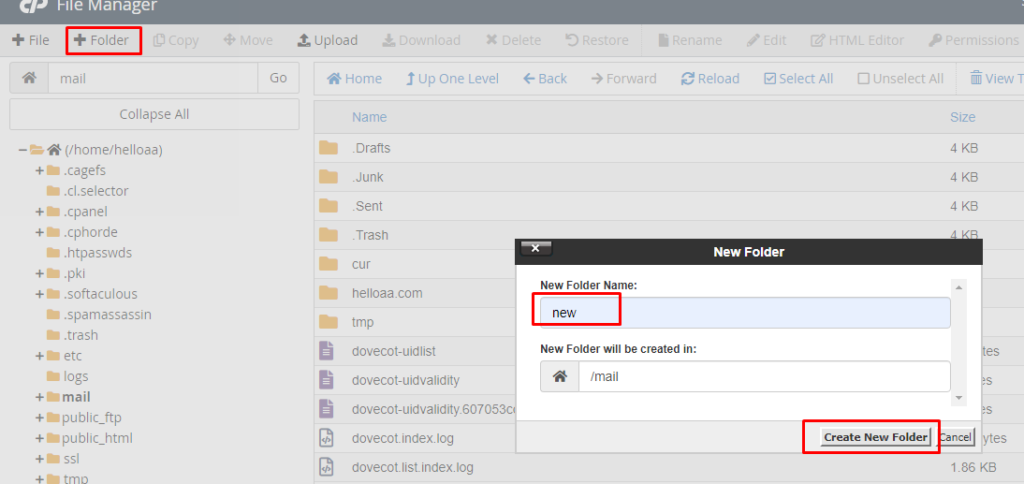
Step 6: After deleting the “new” folder, create folder with the name “new“again.
Related Sources:
1. Create custom Email Account in cPanel
2. Migrate Email from cPanel to cPanel
3. Update Email Records in cPanel
Managing your default email account regularly helps prevent storage overflow and server issues. By following the above methods, you can efficiently clear unwanted emails and maintain smooth cPanel performance.