




SeekaHost India Logo SeekaHost India Logo
Login
  • Home
  • Domains
  • Hosting
  • About
SeekaHost Logo

Domains


ExcellentExcellentExcellent4.9 Reviews4.9 Reviews4.9 ReviewsExcellentExcellentExcellent4.9 Reviews4.9 Reviews4.9 Reviews

Domains

Register a DomainRegister a DomainRegister a DomainHypeSecure your perfect domain.Transfer DomainsTransfer DomainsTransfer DomainsMove your domain with ease.Domain PricingDomain PricingDomain PricingExplore pricing across extensions.

Online Essentials

SSL CertificateSSL CertificateSSL CertificateSafeSecure websites with encryption.E-Mail HostingE-Mail HostingE-Mail HostingProfessionalProfessional email for your business.

AI Tools

AI Domain Name GeneratorAI Domain Name GeneratorAI Domain Name GeneratorLive NowTry Hynts - domain ideas nobody has takenBusiness Name CheckerBusiness Name CheckerBusiness Name CheckerCheck names for your business.
Take Your NameTake Your Name

Hosting


ExcellentExcellentExcellent4.9 Reviews4.9 Reviews4.9 ReviewsExcellentExcellentExcellent4.9 Reviews4.9 Reviews4.9 Reviews

Website Hosting

Web HostingWeb HostingWeb HostingReliable hosting for every website.Business HostingBusiness HostingBusiness HostingHotPowerful hosting for growing businesses.WordPress HostingWordPress HostingWordPress HostingHypeOptimized hosting for WordPress websites.WooCommerce HostingWooCommerce HostingWooCommerce HostingFast hosting for online stores.Magento HostingMagento HostingMagento HostingPowerful hosting for Magento commerce.Adaptive Core Security SuiteAdaptive Core Security SuiteAdaptive Core Security SuiteSafeguarding Your Website 24/7

Servers

VPS HostingVPS HostingVPS HostingFlexible virtual server resources.Dedicated HostingDedicated HostingDedicated HostingPowerful dedicated physical servers.n8n Self Hostedn8n Self Hostedn8n Self HostedTrendSelf-hosted workflow automation platform.

Panel Hosting

cPanel HostingcPanel HostingcPanel HostingEasy hosting with cPanel.Plesk HostingPlesk HostingPlesk HostingSimple hosting with Plesk.LiteSpeed HostingLiteSpeed HostingLiteSpeed HostingHotFaster hosting powered by LiteSpeed.Reseller HostingReseller HostingReseller HostingHypeLaunch your own hosting business.

AI Tools

AI Domain Name GeneratorAI Domain Name GeneratorAI Domain Name GeneratorLive NowTry Hynts - domain ideas nobody has takenBusiness Name CheckerBusiness Name CheckerBusiness Name CheckerCheck names for your business.
Explore HostingExplore Hosting
Launch ServersLaunch Servers
Explore PanelsExplore Panels

About


ExcellentExcellentExcellent4.9 Reviews4.9 Reviews4.9 ReviewsExcellentExcellentExcellent4.9 Reviews4.9 Reviews4.9 Reviews

Learn

BlogBlogBlogHosting insights, tips, and updates.TutorialsTutorialsTutorialsStep-by-step website hosting guides.Hosting GuidesHosting GuidesHosting GuidesLearn hosting from basics.

Support

Knowledge BaseKnowledge BaseKnowledge BaseFind answers and solutions.Submit a TicketSubmit a TicketSubmit a TicketRequest technical support assistance.Server StatusServer StatusServer StatusLiveCheck current service availability.

Company

About UsAbout UsAbout UsDiscover our story and mission.Contact UsContact UsContact UsGet in touch with us.Affiliate ProgramAffiliate ProgramAffiliate ProgramPartner with us and earn.ReviewsReviewsReviewsSee what our customers say.BrandingBrandingBrandingExplore our brand and identity.AnnouncementsAnnouncementsAnnouncementsNewStay updated with latest news.

AI Tools

AI Domain Name GeneratorAI Domain Name GeneratorAI Domain Name GeneratorLive NowTry Hynts - domain ideas nobody has takenBusiness Name CheckerBusiness Name CheckerBusiness Name CheckerCheck names for your business.
Expert CareExpert Care
User Login
Login

Knowledge from SeekaHosters

How To Start A Blog Earn Money Online Digital Marketing Tips Website Hosting Tips Website SEO
create FTP account in cPanel

How To Create FTP Account In cPanel?

How To Create FTP Account In cPanel?

By Gowdham | September 9, 2021

Simplify Article With:
Share Article With: Link copied

create FTP account in cPanel

An FTP account is used for uploading and managing files in your website. Having FTP account will give fast access to your website files on the internet. When you sign up for hosting cPanel account FTP account is automatically generated. You can use your cPanel username and password to log on it.

You can also able to create multiple FTP accounts for your users to access by without giving your cPanel login details. You can allocate for different user with different level of access.

Here we going to see how to create FTP account in cPanel.

Step 1 :

The cPanel login URL is domain/cpanel or domain:2083. Go to your domain cPanel login page, type username and password, then Click login.

cPanel login page

Step 2 :

  • Search for FTP account in the search bar and you will see the “FTP accounts” under “Files” session. Click on it.
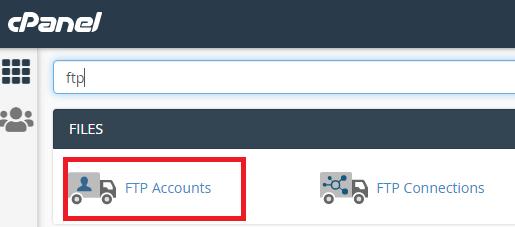
FTP account

Step 3:

Now you will see the Add FTP Account page where you need to fill all the details.

Type your username for the FTP account and it will be the combination of the main domain name. For example,  if your domain name is example.com then the FTP account full username will be user@example.com.
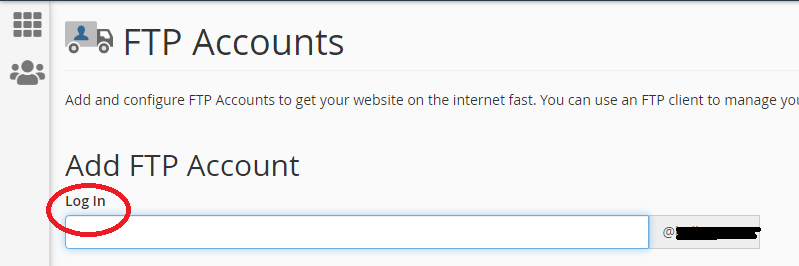
login

Step 4 :

Next one is the password. In this, you can type your password by manually or click the password generator to generate a password automatically.

  • While creating your own password manually make sure that password you’re using is strong.
  • Use the same password in the password(again) filed , to confirm the spelling, If you are using the password generator, it will be filled automatically.
  • Strength is helps to know the how your password is secure.

Password creation

Step 5:

Now you have to enter path of your directory, it will automatically be generated for your user. You can also able to change the user directory. Delete after public_html/ and give the directory where the user wants to access.

Directory - FTP Account

Step 6 :

In Quota field, enter the size that you want to allocate to particular user or leave it as unlimited.

Quota - FTP account

Step 7:

  • Click Create FTP Account.
  • A new FTP account will be created. And it is displayed in FTP account page. There you can manage the existing FTP accounts

Created FTP acccount


  • To change the password for your  FTP account, click on change password. Here your change your password by manually or by using password generator. Click change password button.
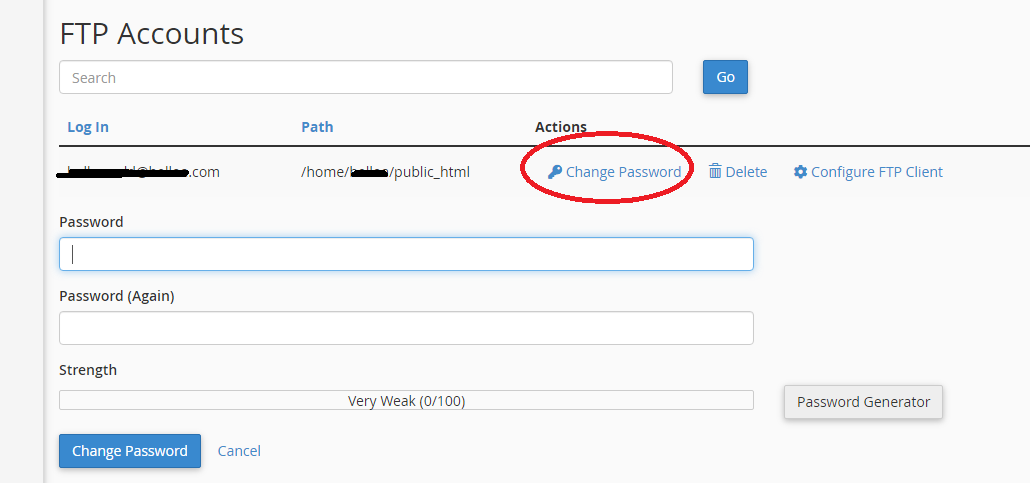
Change password


  • If you want to delete a user FTP account, click on delete.
  • In delete, you have two choices. One is you can delete only the FTP account. Another one is you can delete both FTP account and files in home directory, for this you need to select the checkbox.

Delete FTP account


  • You can check the account details by clicking Configure FTP client.
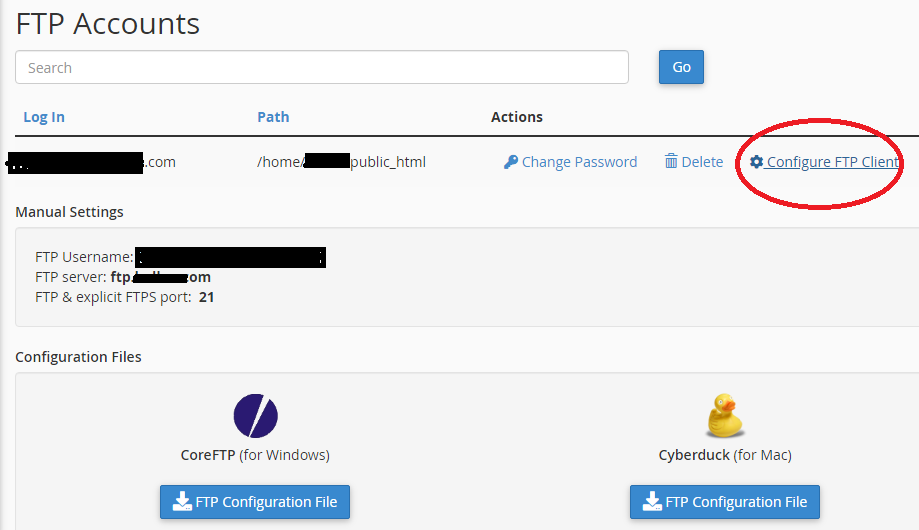
configure FTP client

If you are a registered user in SeekaHost and have any queries to be clarified or issues to be sorted, you can raise a ticket through the client area dashboard or email to support@seekahost.in. For immediate interaction or guidelines, contact our support team available in LiveChat at the right bottom corner of the website.


Buy cheap .IN Domain

Recent Posts

  • Hynts Features: What SeekaHost India’s AI Domain Tool Can Do
  • CSF Security Advisory September 2026: Critical Vulnerability and Patch Guide
  • How to Change PHP Settings Using MultiPHP INI Editor
  • How Can I Optimize My Reseller Account?
  • How to Change PHP Version and PHP Settings in Plesk
  • Connect with us

Main Packages

  • Web Hosting
  • Email Hosting
  • Business Hosting
  • VPS Hosting
  • Dedicated Servers
  • SSL Certificates

Information

  • Branding
  • Payment Methods
  • Customer Reviews ⭐
  • Information Blog

Domain Name Services

  • Buy a Domain
  • Transfer a Domain
  • Domain Pricing

Domain Tools

  • Domain Name Checker
  • Business Name Generator

CMS Hosting Package

  • Managed WP Hosting
  • Magento Hosting
  • WooCommerce Hosting

Control Panel Package

  • cPanel Hosting
  • LiteSpeed Hosting
  • Plesk Hosting
  • Reseller Hosting

Guides & Resources

  • Migrate to Us
  • How To Start A Blog
  • Earn Money Online
  • What is a Top Level Domain
  • How to Register Domain
  • VPS Hosting Guide

Account

  • Sign-In to Your Account
  • Customer Care
  • Knowledgebase
  • Announcements
  • Partner Program
  • Service Status

Legal

  • Terms and Conditions
  • Refund Policy
  • Privacy Policy
  • Report Abuse
logo
  • SeekaHost India Web Services Private Limited

  • Copyright © 2026 | All Rights Reserved.

Top 10 most rated web hosting company in India cPanel Certified Partner
Manage Consent
To provide the best experiences, we use technologies like cookies to store and/or access device information. Consenting to these technologies will allow us to process data such as browsing behavior or unique IDs on this site. Not consenting or withdrawing consent, may adversely affect certain features and functions.
Functional Always active
The technical storage or access is strictly necessary for the legitimate purpose of enabling the use of a specific service explicitly requested by the subscriber or user, or for the sole purpose of carrying out the transmission of a communication over an electronic communications network.
Preferences
The technical storage or access is necessary for the legitimate purpose of storing preferences that are not requested by the subscriber or user.
Statistics
The technical storage or access that is used exclusively for statistical purposes. The technical storage or access that is used exclusively for anonymous statistical purposes. Without a subpoena, voluntary compliance on the part of your Internet Service Provider, or additional records from a third party, information stored or retrieved for this purpose alone cannot usually be used to identify you.
Marketing
The technical storage or access is required to create user profiles to send advertising, or to track the user on a website or across several websites for similar marketing purposes.
  • Manage options
  • Manage services
  • Manage {vendor_count} vendors
  • Read more about these purposes
View preferences
  • {title}
  • {title}
  • {title}

Last Updated on September 9, 2021 by Gowdham