


How to upload files, plugins, and themes using cPanel file Manager

By Farhan Danish | August 19, 2025










If you’re stuck on cPanel and unsure where to upload your website files, plugins, or themes, you’re in the right place. In this article, we’ll walk you through each step of the process with clear, step-by-step instructions
How to Upload Website files
Step 1: Log in to the cPanel.
Step 2: Search and locate the file section, and click File Manager

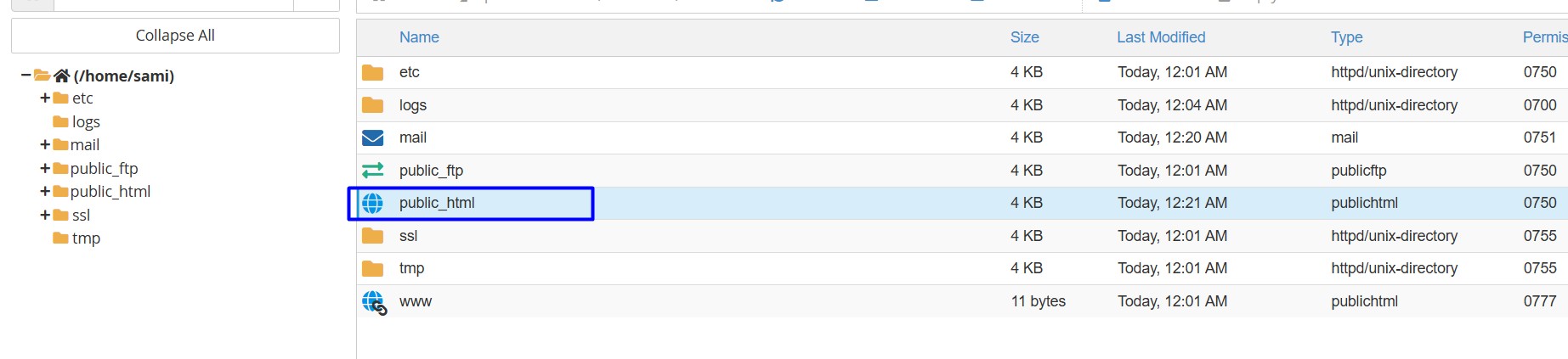
Step 3: Click Public_html, where the all website files located there
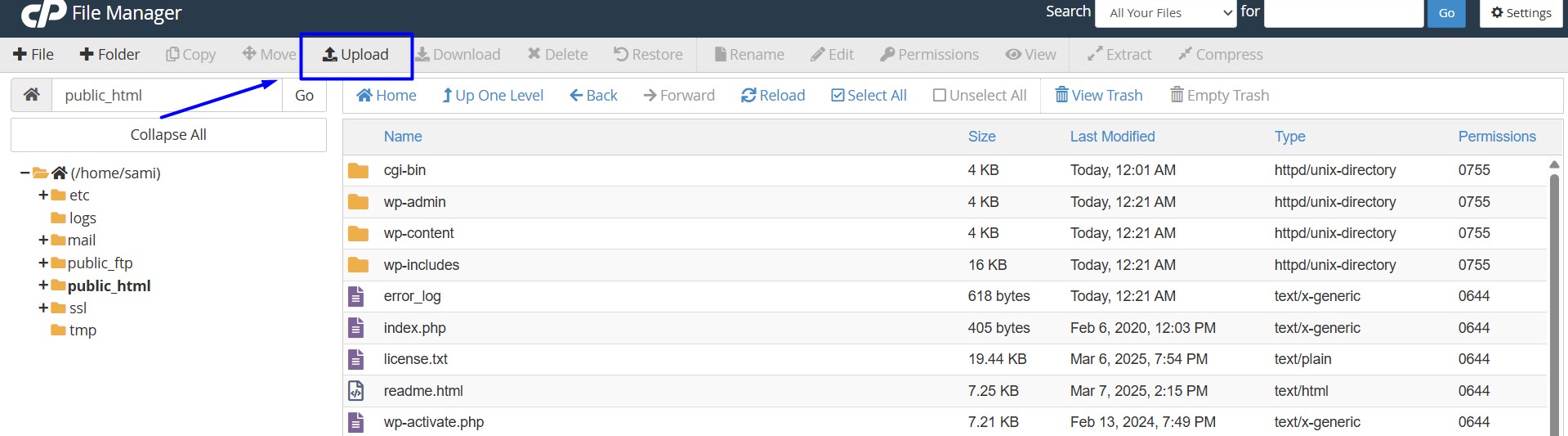
Step 4: Click Upload option
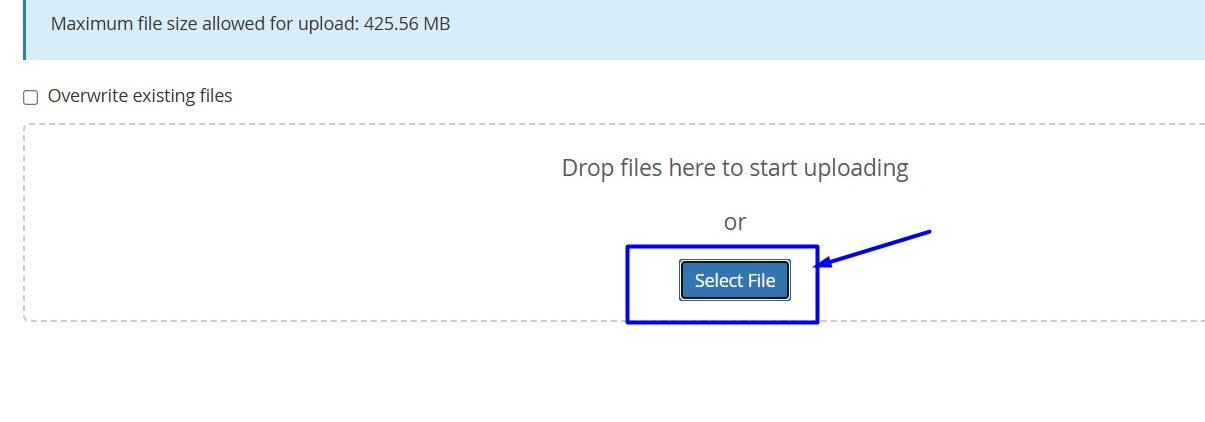
Step 5: Click Select file option and upload respective file from your local system
 Once the file is uploaded, click the go back option to check files, If the uploaded file is a compressed archive (such as a ZIP file), select the file and click the “Extract” option to unpack its contents.
How to Upload Plugin folder
The process to go login cPanel and access the File Manager is the same till step 3
Step 1: Locate WP-Content folder inside public_html directory then click plugin folder
File path -> public_html/wp-content/plugins
Step2: Click Upload button option, then Select file option and upload plugin file from your local system
Once the file is uploaded, click the go back option to extract the file
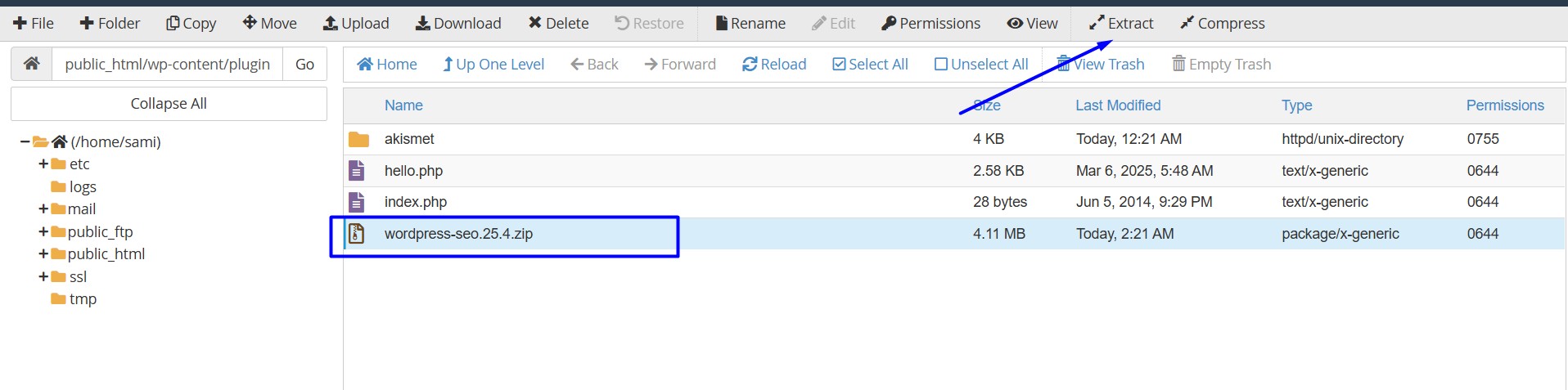
Then click extract file option to complete
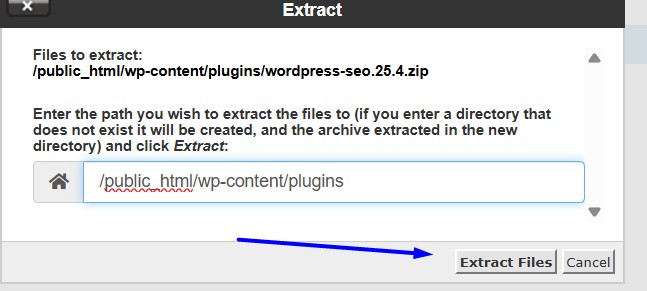
That all now the plugin is uploaded.
Now you can delete the compressed archive zip plugin folder
How to Upload Theme folder
On the file manager,
Step 1: Locate WP-Content folder inside public_html directory then click plugin folder
File path -> public_html/wp-content/themes
Step2: Click Upload button option, then ‘Select file’ option and upload theme file from your local system
Once the file is uploaded, click the go back option to extract the file.
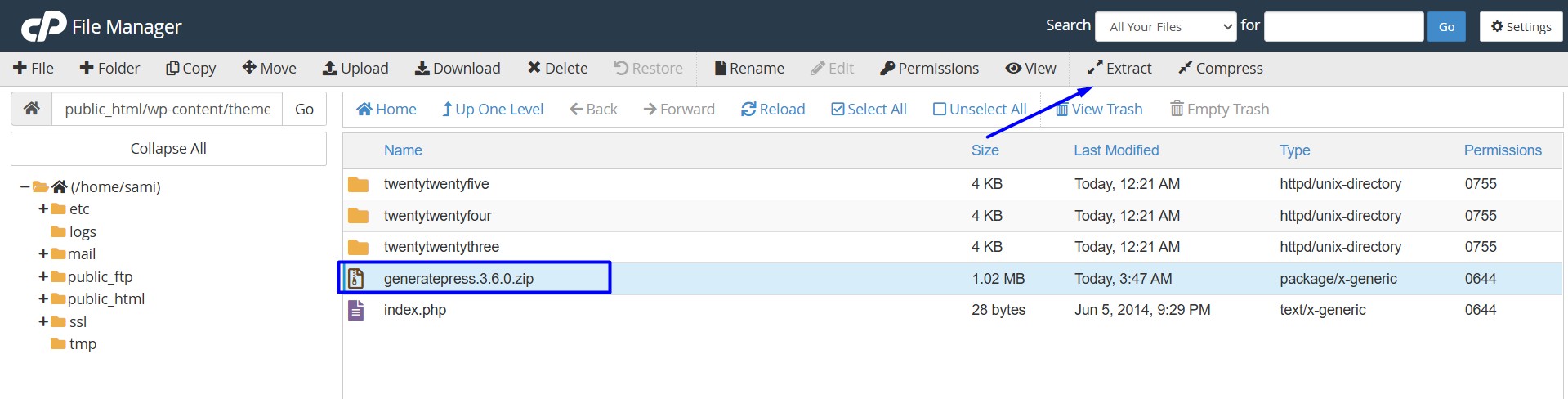
Then click extract file option to complete
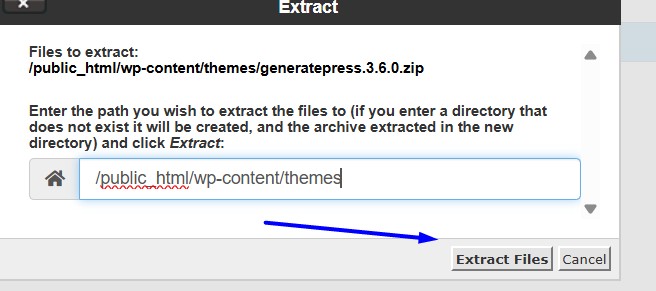
That all, the Theme folder is uploaded. Now you can delete the compressed archive Theme zip file.