











8 Simple Steps to Connect Github to cPanel

By Farhan Danish | July 24, 2026










Are you looking to upload your files from your account in GitHub to cPanel account? Using cPanel Git Version Control feature – you can clone repositories, pull the latest updates, manage versions efficiently, and maintain a streamlined development workflow. This integration improves website performance, enhances security, and simplifies code management for PHP, HTML, CSS, and JavaScript projects hosted on cPanel.
In this article, we will walkthrough on how to Connect Github to cPanel on 8 Simple Steps.
What is GitHub?
GitHub is a web-based Platform for developers to store, create, and manage collaborative code on git. You can create different branches, deploy, push and pull your development project.
I hope you already created GitHub account and already have files on it to deploy github to cpanel.
Prerequisites:
- A GitHub account with a repository containing the website files (Public Repository)
- cPanel account
Process to Connect Github to cPanel
Step 1: Log in to your GitHub account and click the repository.
Step 2: Click drop down code option of the repository, and copy the https URL that you want to connect github to cpanel
Note: Here, i have created a sample index.html file on GitHub account.

Step 3: Login to cPanel of your website

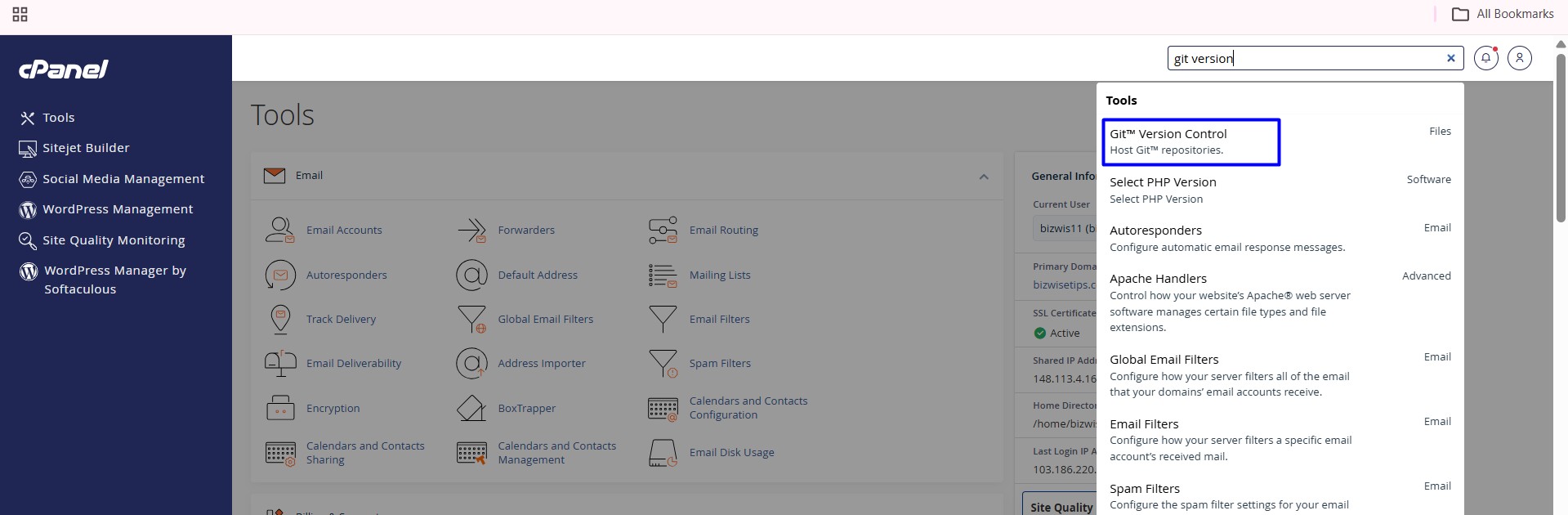
Step 4: Search Git Version and click the Git Version control option
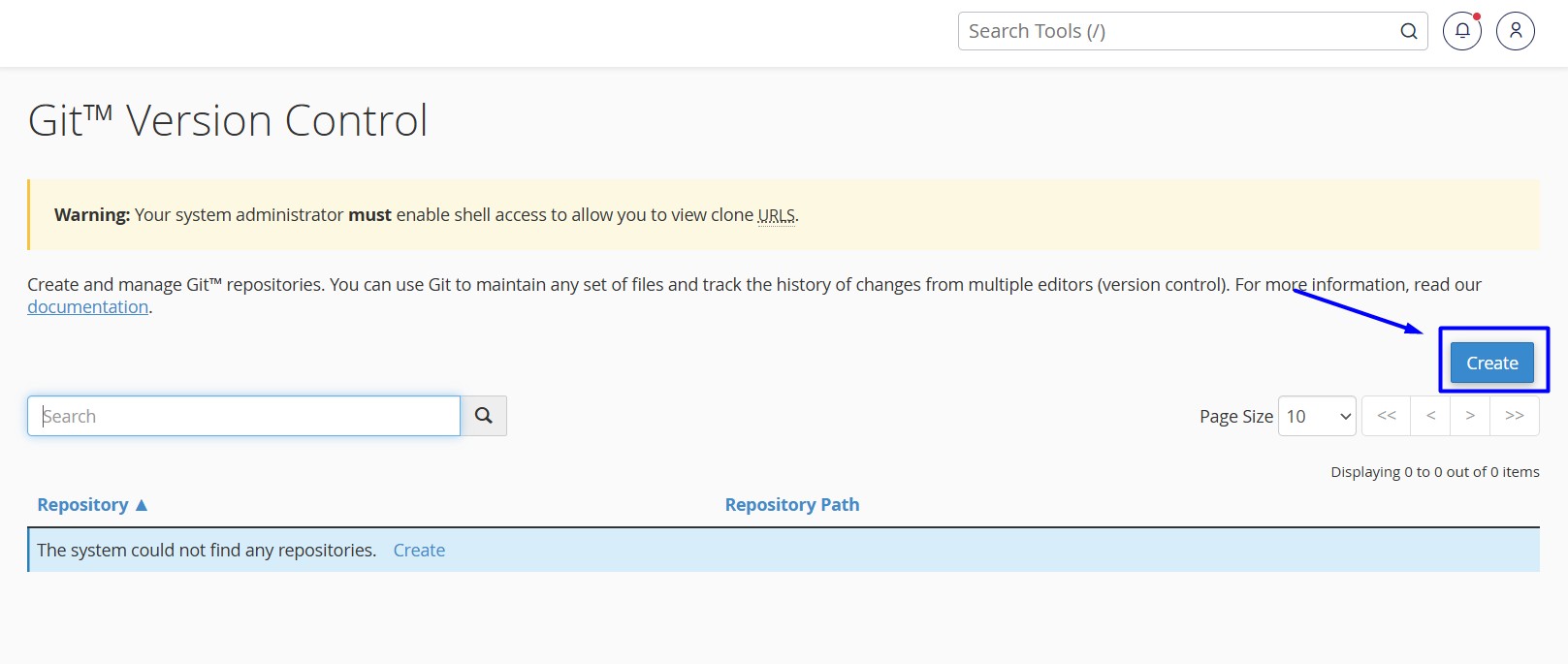
Step 5: Click the “Create” button.
Step 6: Enter details of your Github Repository details to clone your Repository in cPanel Git. Click “Create” Button once done.
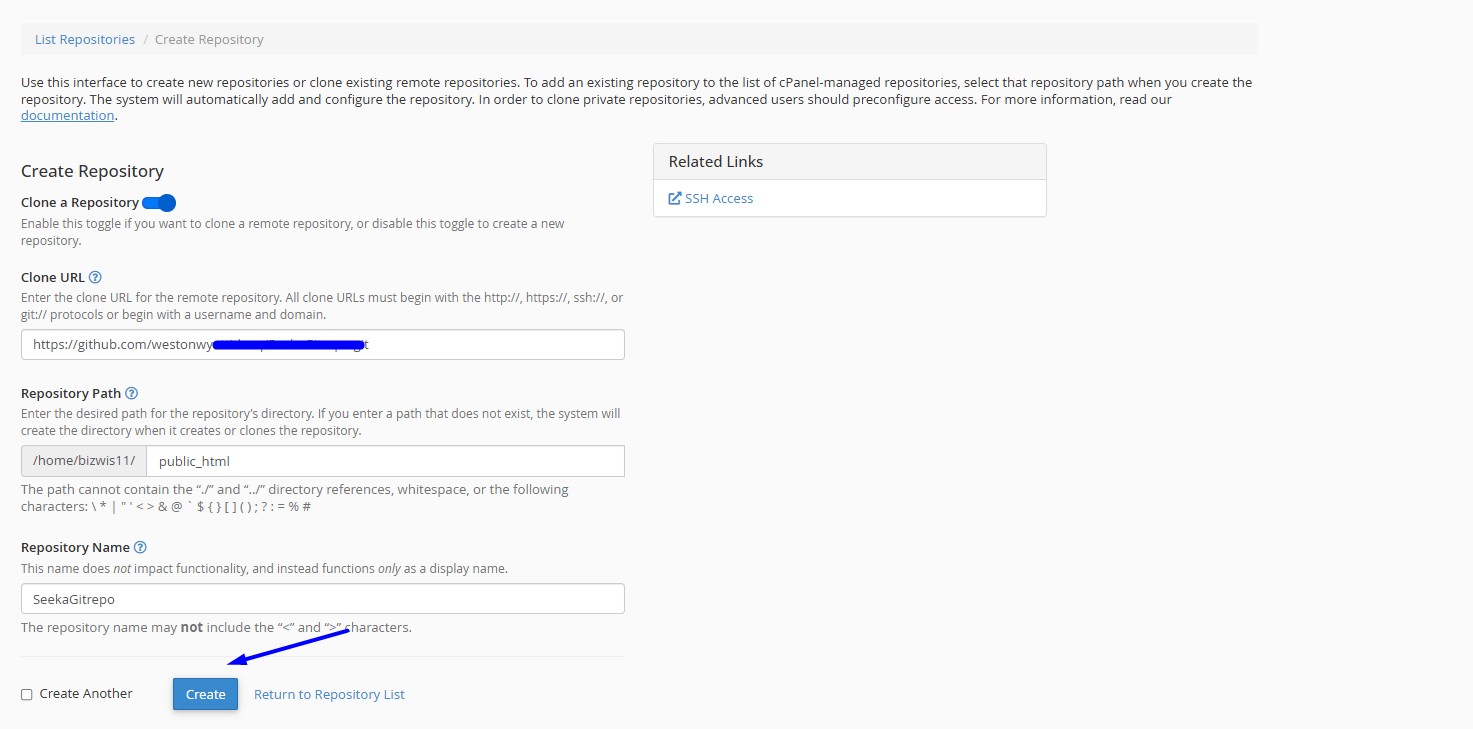
Clone a Repository: Enable this toggle if you want to clone a remote repository, or disable this toggle to create a new repository.
By default, the toggle will be enable, you can leave as default
Clone URL: enter the Repository https URL link you have copied from the GitHub account.
Repository path: This is the path to the home directory folder where the website content will reside. Here, I have entered my public html directory, it will deploy my main website content.
If you want enter the path of add-on or sub-domain, you can can enter the directory of the respective field.
Repository Name: This is your GitHub repository name.
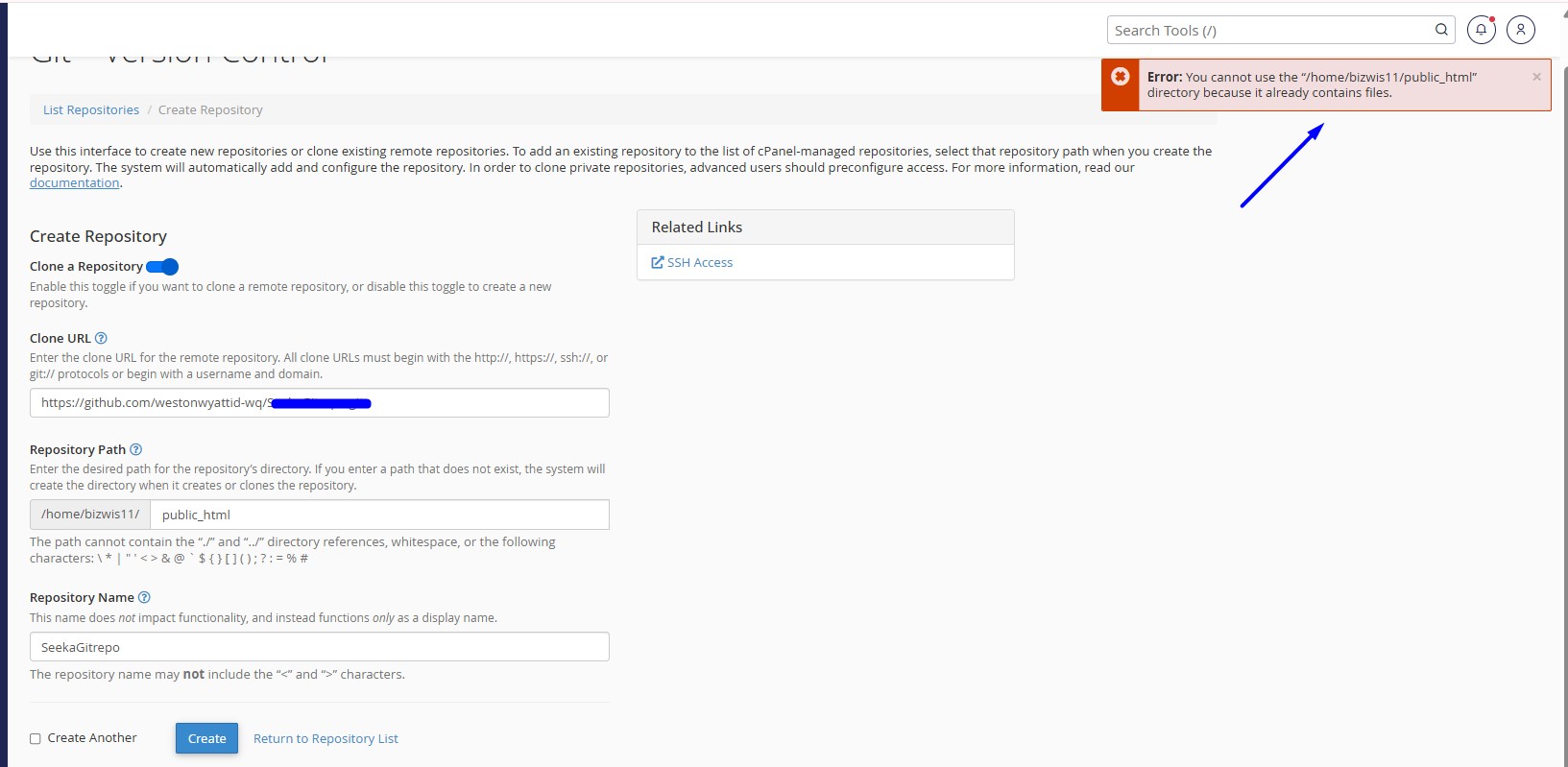
NOTE: If you see this error while cloning, your directory already contains files. Remove all existing files, including hidden .htaccess files, before cloning.
Once the clone is completed, load your website to display the content that you deployed to the public_html directory from your GitHub account.
Step 7: Adding or removing lines of code file in GitHub.
If you add any lines or make any changes in your GitHub account, those changes will not automatically updated on the main website, you need to click the Update from Remote option in cPanel every time you done changes.
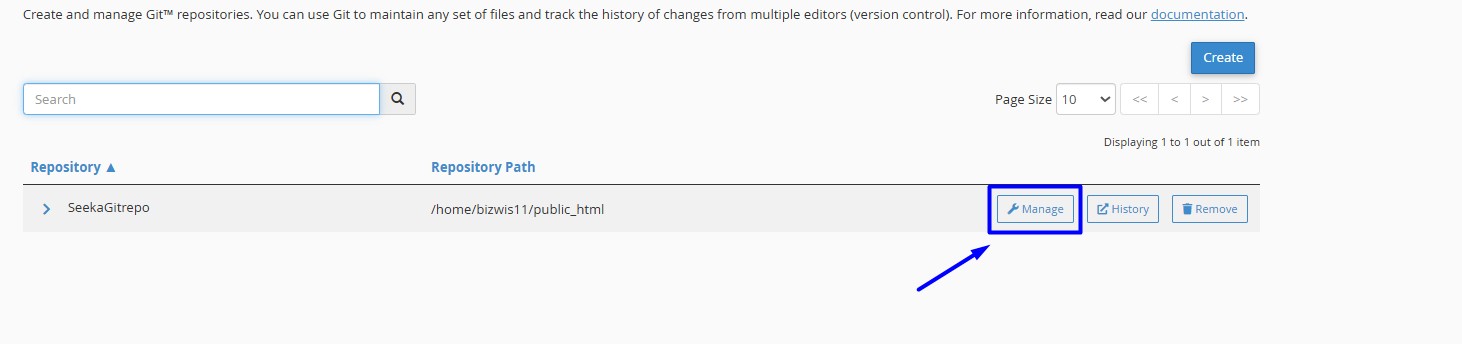
To do so, go to GitHub version control feature on cPanel and click “Manage” button.
Step 8: Click the Pull or Deploy option, then click the “Update from Remote” button.
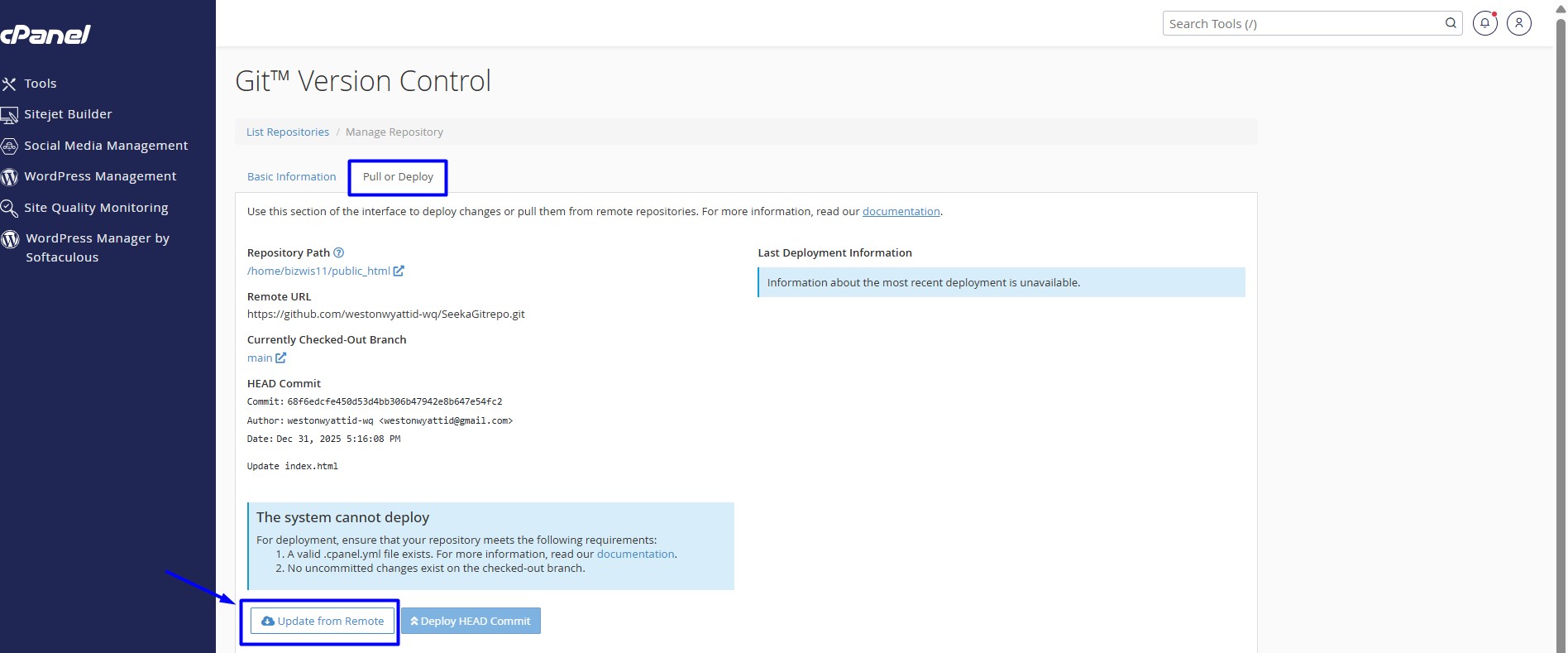
Your website files should be updated and load with latest changes from your github repository account.
Video Tutorial:
Step by Step Video Tutorial on How to Enable and Disable Hotlink Protection in cPanel