

How to Change PHP Settings Using MultiPHP INI Editor

By Karthi | August 18, 2026









Learn how to Change PHP Settings Using MultiPHP INI Editor in cPanel with the MultiPHP INI Editor. This step-by-step guide shows how to adjust PHP directives including memory limits and file upload sizes to improve your site’s performance.
What is MultiPHP INI Editor?
The MultiPHP INI Editor is a built-in cPanel utility for managing your PHP script configuration. It automatically creates or updates the underlying php.ini or .user.ini files in your site’s directory.
Because modern servers let you run different PHP versions on different domains, this tool gives you the flexibility to apply unique rules globally, across your entire account, or locally, to a specific subdomain or primary domain.
Different Methods to Change PHP Settings:
Method 1: Use Basic Mode
Basic Mode is the recommended choice for most website owners. It provides a simple graphical interface with text fields and toggle switches for the most common PHP directives.
Step 1: Locate the MultiPHP INI Editor
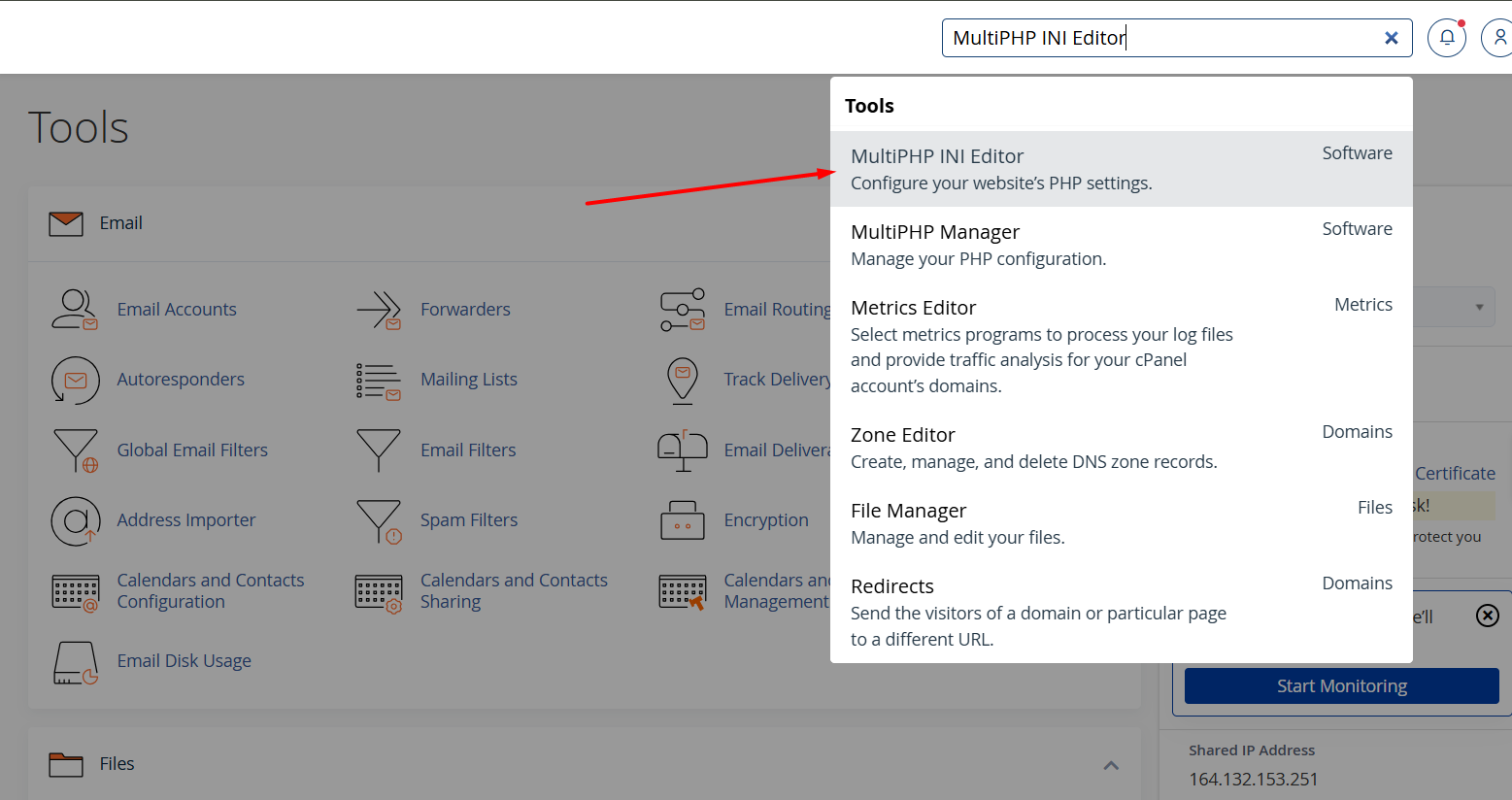
1. Log in to your cPanel.
2. Search “MultiPHP INI Editor” and click it.https://www.seekahost.com/login-to-cpanel-from-seekahost-portal
Step 2: Choose Your Domain
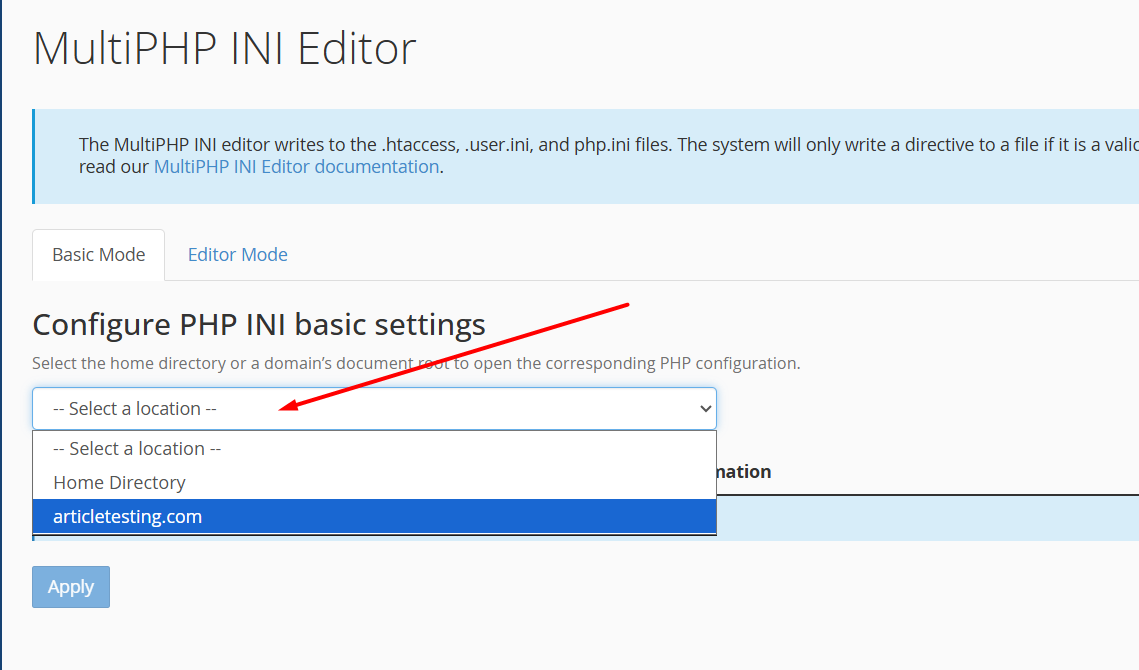
1. Make sure you’re on the “Basic Mode” tab.
2. Click the dropdown menu.
3. Choose the specific domain which you want to edit and apply the changes. (Note: To apply changes to all domains in your account, select Home Directory)
Step 3: Modify Values and Apply
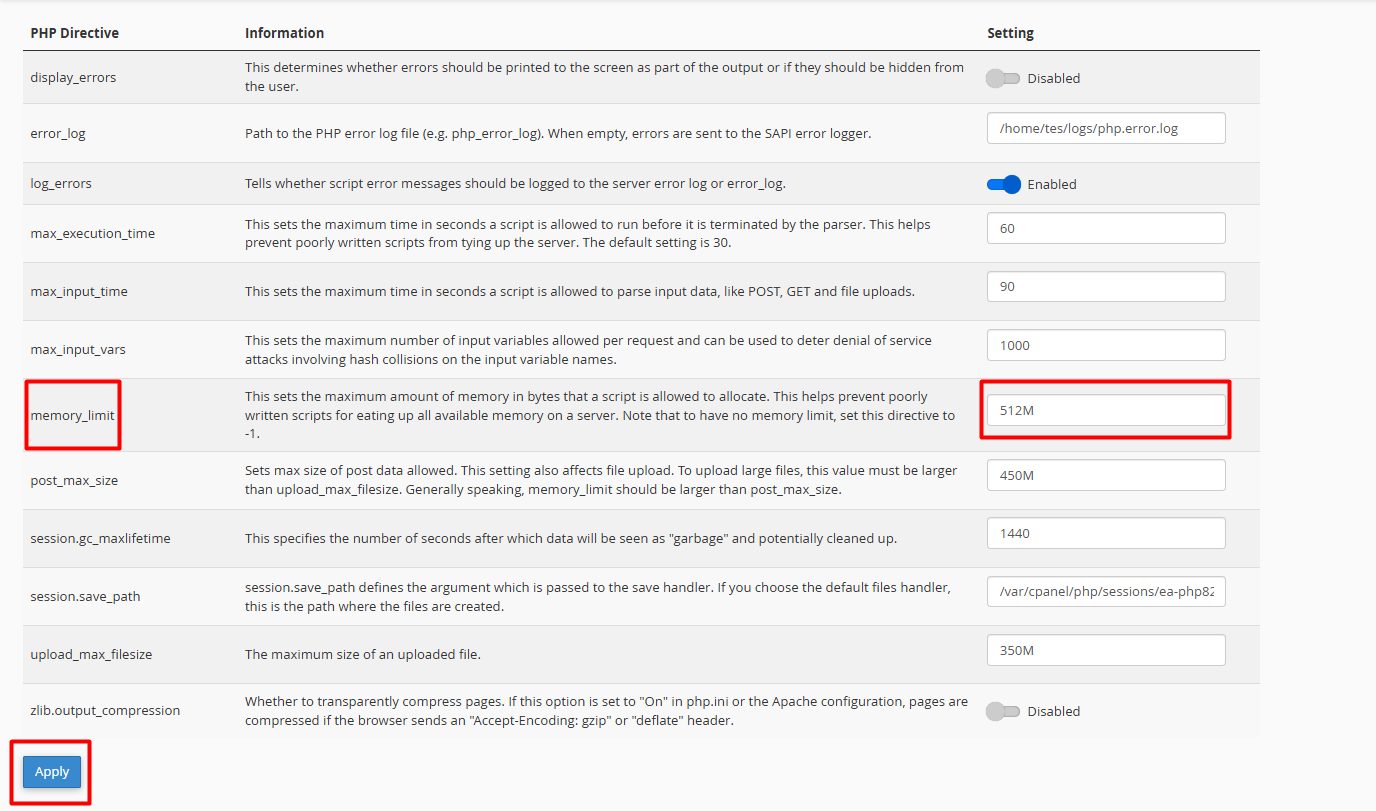
You can see the list of PHP directives to Change PHP Settings values. In the ‘memory_limit’ directive, enter the maximum limit that your site needs.
Note: Ensure that memory_limit is greater than post_max_size, and post_max_size is greater than upload_max_filesize.
Finally, click “Apply” to save the changes.
Method 2: Using Editor Mode (Advanced)
If you need to add custom PHP rules that aren’t listed in Basic Mode, you’ll need to use Editor Mode. This method loads the raw code in your configuration file.
Step 1: Switch to Editor Mode
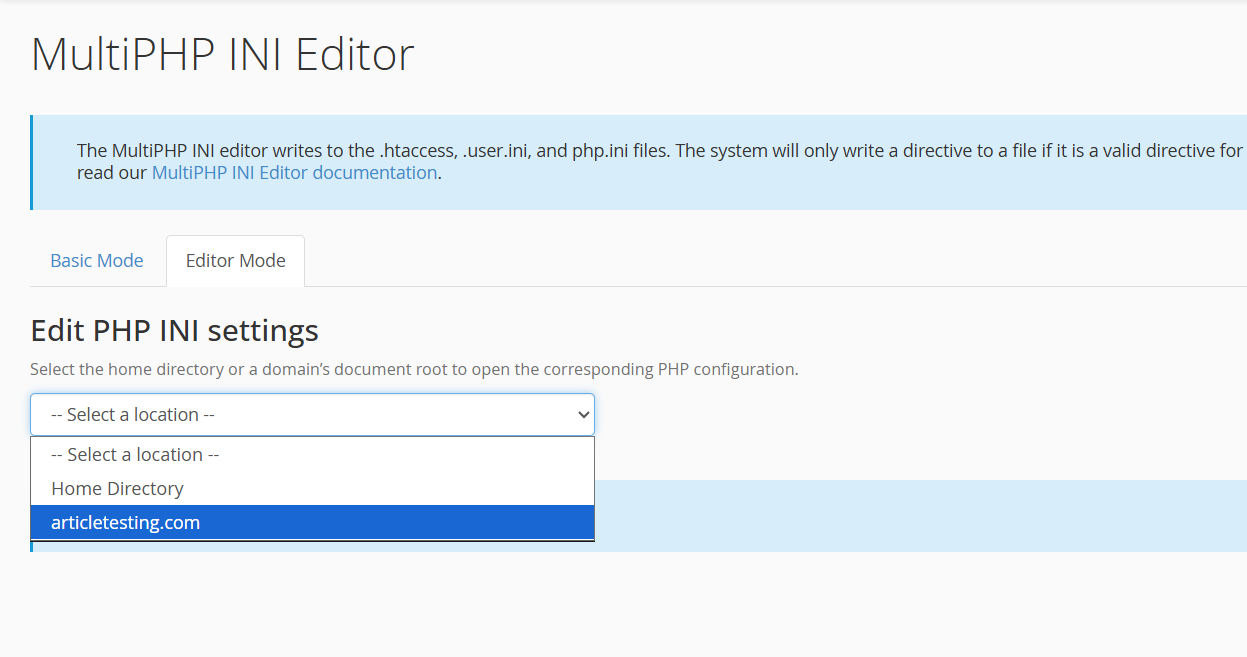
Inside the MultiPHP INI Editor interface, click the “Editor Mode” tab at the top and choose the domain.
Step 2: Edit the php.ini Text
1. A text editor window will appear on your screen with the server text.
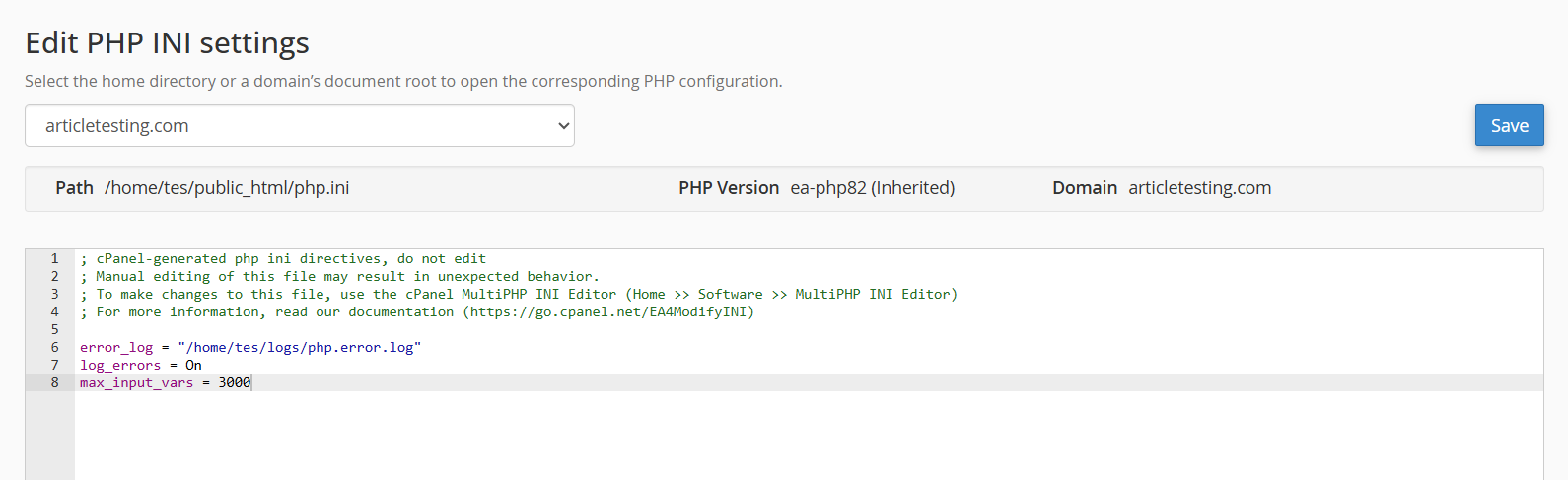
2. Scroll to find the rule you want to change, or add a new line at the bottom.
3. Type your custom directive in standard PHP syntax (e.g., max_input_vars = 3000).
4. Click the Save button in the top-right corner.
Common PHP Directives You May Need to Change
Here are the most common settings developers adjust to prevent site errors and improve performance:
- memory_limit: The maximum memory a single PHP script can use (e.g., 512M).
- post_max_size: The maximum size of POST data that PHP accepts, including form fields and uploaded files.
- upload_max_filesize: The maximum file size allowed for uploads such as themes, videos, or plugins.
- max_execution_time: The maximum time, in seconds, a PHP script can run before it is terminated.
- max_input_vars: The maximum number of input variables PHP accepts in a single request. This is important for large forms and complex menu structures.
- display_errors: Controls whether error messages appear on the live site. Turn this off for production security.
- log_errors: Save script error messages to a specific file path for cleaner debugging.
- error_log: Specifies the file path where PHP error messages are saved when log_errors is enabled.
Important sizing rule: When configuring file limits, always follow this strict hierarchy:
memory_limit > post_max_size > upload_max_filesize
Only raise these parameters to the exact limit your site needs. Setting them unnecessarily high can expose your server to performance bottlenecks and security vulnerabilities.
Conclusion:
Managing your website’s performance doesn’t require complex command-line skills or deep server knowledge. Using the cPanel MultiPHP INI Editor to Change PHP Settings values, you can quickly increase your resource limits to fix common upload timeouts, script errors, and memory exhaustion issues.
Whether you choose the user-friendly checkboxes in Basic Mode or need the precise control of Editor Mode, always follow the proper sizing hierarchy. Keep your limits reasonable so your server stays fast and secure.
Once your changes are applied, remember to clear your website cache so your new configurations take effect immediately!
If you need assistance or have questions to Change PHP Settings under MultiPHP INI Editor, you can contact our live chat support anytime.