

How to Change PHP Version and PHP Settings in Plesk

By Karthi | August 13, 2026










Managing PHP settings per site in Plesk lets you run different PHP versions for websites on the same server. This is especially useful when one site needs an older PHP version while another needs the latest release for better performance and security.
With Plesk, you can easily assign and change PHP version Plesk, select the appropriate PHP handler, and customize Plesk PHP settings for each domain.
Change the PHP Version in Plesk:
Step 1: Log in to your Plesk Control Panel.
Step 2: Click Websites & Domains in the left navigation sidebar.
Step 3: Locate the specific domain you want to modify.
Step 4: Look under the Dashboard and click on PHP option.
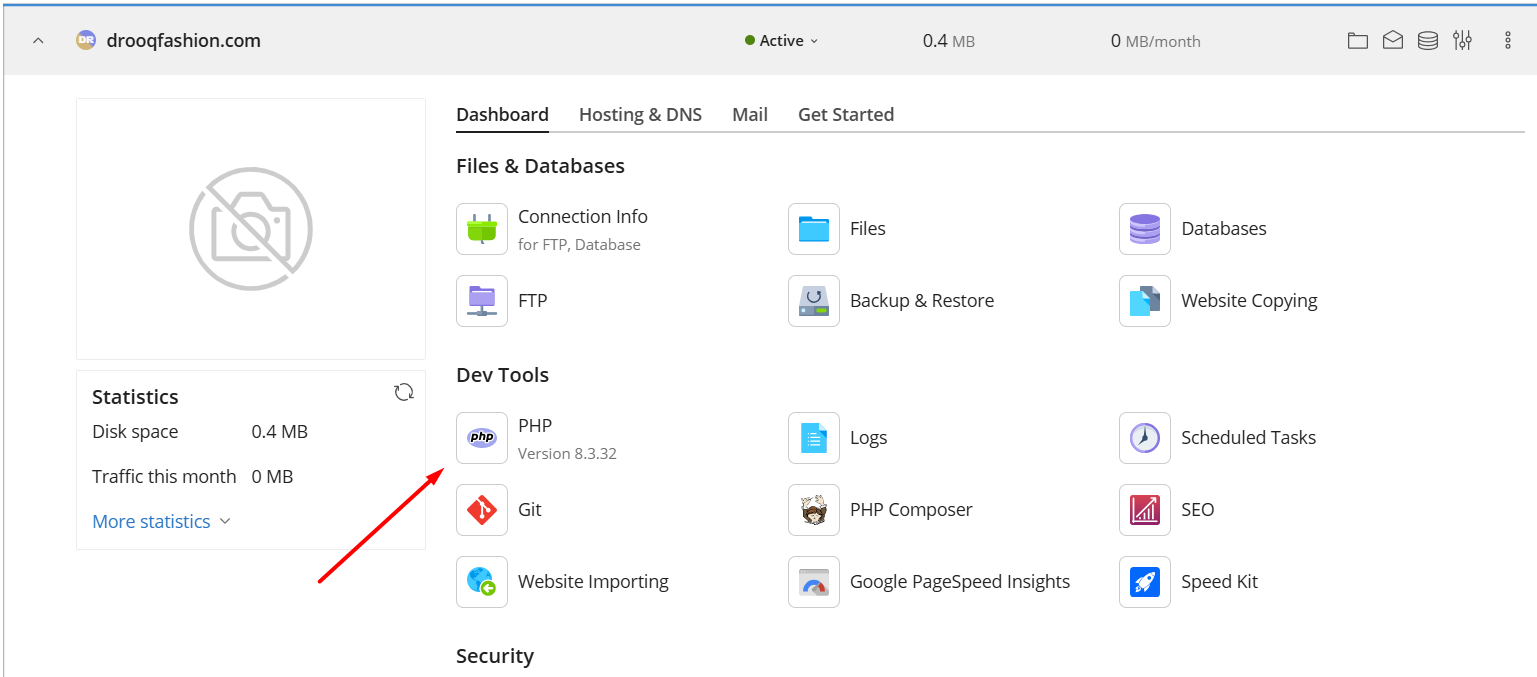
Step 5: Select the PHP Version and Handler
The PHP Settings page lets you configure the PHP environment for the selected website without affecting other domains hosted on the server.
PHP Version:
Use the PHP Version drop-down menu to select the PHP version Plesk should use for the selected website. Whenever possible, choose the latest supported version to benefit from improved performance, security, and compatibility.
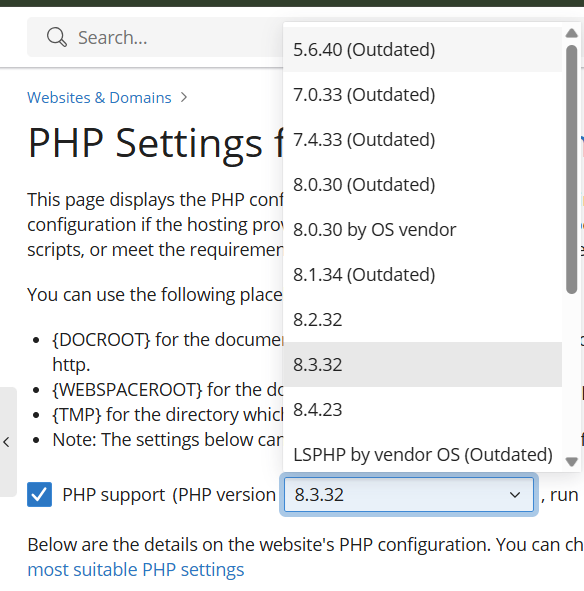
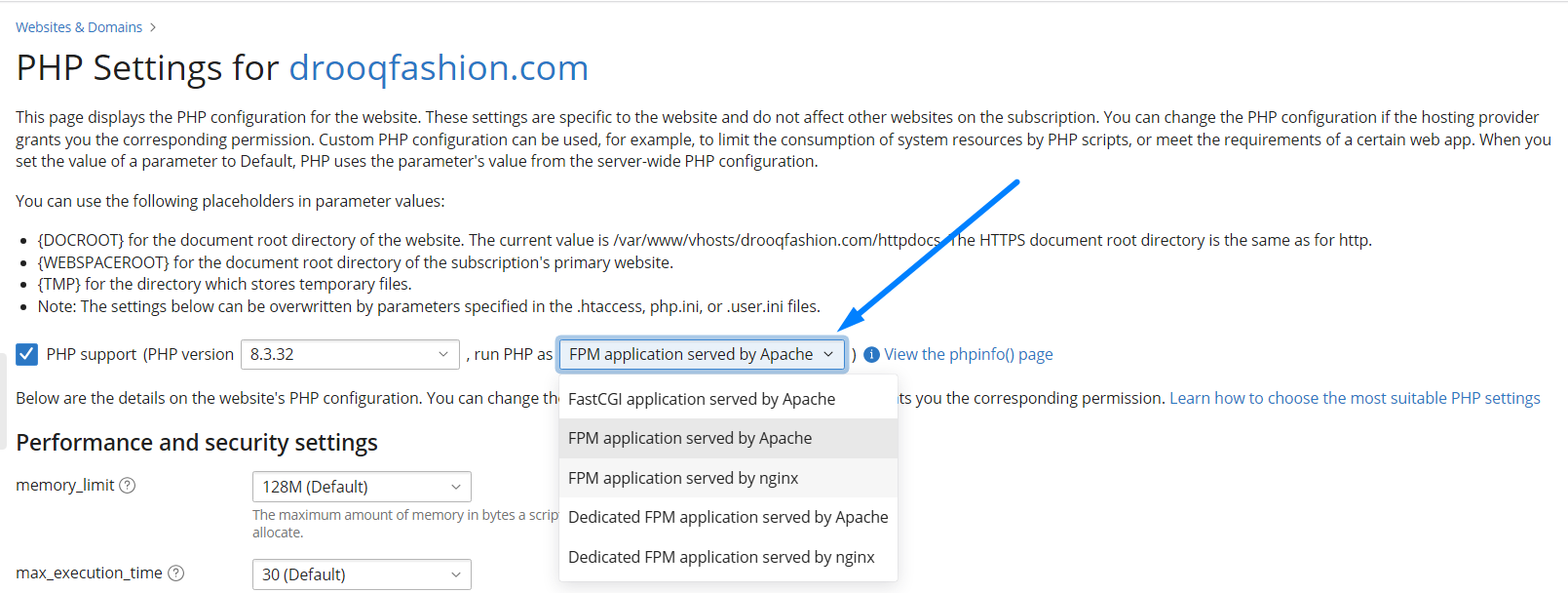
PHP Handler
On the PHP Settings page, choose the required PHP version from the drop-down menu. Then select the “Run PHP as handler” option based on your server configuration. For most websites, the FPM application served by Apache is the recommended option because it provides good performance and compatibility.
How to Manage PHP Settings in Plesk:
Step 7: Configure PHP Options
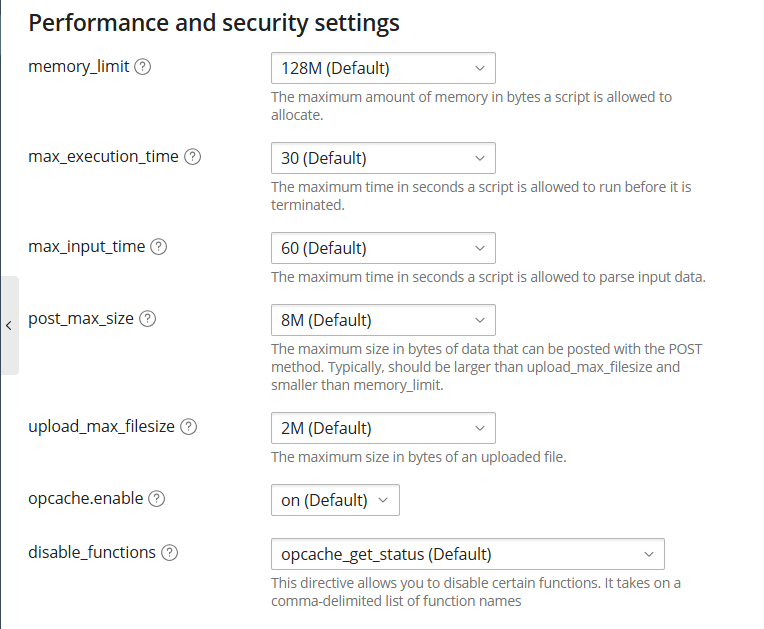
Plesk allows you to customize several important PHP directives.
- memory_limit
Specifies the maximum amount of memory a PHP script can use.
Recommended: 256M
- max_execution_time
Defines the maximum amount of time a PHP script can run before it is terminated.
Recommended: 60
- max_input_time
Sets the maximum amount of time PHP spends parsing input data.
Recommended: 60
- post_max_size
Determines the maximum size of HTTP POST requests.
Recommended: 64M
- upload_max_filesize
Controls the largest file size users can upload.
Recommended: 64M (or higher if required)
- opcache.enable
Enables PHP OPcache, significantly improving PHP performance by caching compiled scripts.
Recommended: On
- disable_functions
Allows administrators to disable potentially dangerous PHP functions.
Recommended: Only change this setting if you fully understand how it will affect your applications.
Step 8: Configure Common PHP Settings
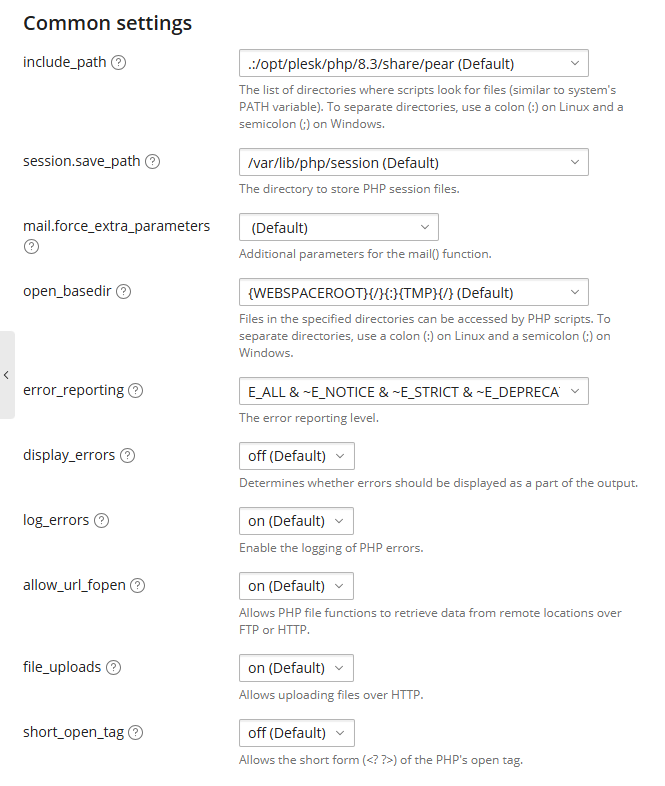
The Common Settings section offers additional configuration options.
- include_path
Defines the directories where PHP looks for included files.
Recommended: Unless your application requires it, leave this at the default value.
- session.save_path
Specifies where PHP stores session files.
Recommended: The default location is recommended.
- mail.force_extra_parameters
Adds extra parameters to the PHP mail function.
Recommended: Only configure this if your mail server requires it.
- open_basedir
Restricts PHP scripts to accessing only specified directories.
Recommended: This improves server security and should generally stay enabled.
- error_reporting
Controls which PHP errors are logged or reported.
For production websites, use:
E_ALL & ~E_NOTICE & ~E_STRICT & ~E_DEPRECATED
- display_errors
Determines whether PHP errors appear in the browser.
Production: Off
Development: On
- log_errors
Logs PHP errors in server log files.
Recommended: On
- allow_url_fopen
Allows PHP functions such as file_get_contents() to retrieve content from remote URLs.
Recommended: Enable it only if your applications require it.
- file_uploads
Controls whether file uploads are allowed.
Recommended: Keep this enabled for websites that let users upload files.
- short_open_tag
Enables the use of PHP’s short opening tags (<?).
Recommended: Off
Modern applications should use the standard <?php tag.
Step 9: Configure PHP-FPM Settings
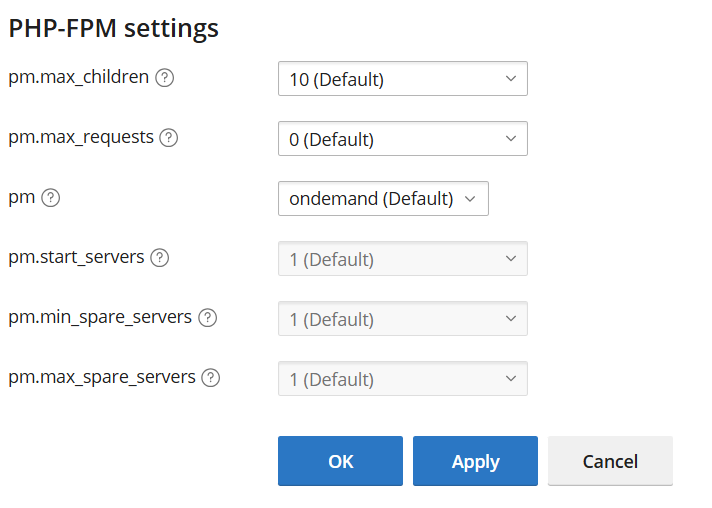
If your website uses PHP-FPM, you can also customize the process management settings.
- pm.max_children
Defines the maximum number of child processes.
Recommended: Increase this value for high-traffic websites if server resources allow.
- pm.max_requests
Specifies how many requests each child process handles before it restarts.
Recommended: A value of 0 means unlimited.
- pm
Determines the PHP-FPM process management mode.
Available options include:
ondemand – Creates processes only when needed.
dynamic – Adjusts the number of processes automatically.
static – Keeps a fixed number of processes running.
For most websites, on-demand offers a good balance between performance and resource usage.
Step 10: Save the Configuration
After making your changes, review the settings. Click Apply or OK. Plesk immediately applies the updated Plesk PHP settings to the selected website without affecting other domains hosted on the server.
Relevant Articles:
1. Create and Manage Email Account in Plesk
2. Create and Restore Backup in Plesk
Plesk makes it easy to change PHP version Plesk and configure Plesk PHP settings for individual websites. By choosing the right PHP version and configuring memory, execution limits, OPcache, error handling, and PHP-FPM settings, you can optimize your website for better performance, security, and reliability. Regularly reviewing these settings helps ensure that your hosting environment stays compatible with modern PHP applications and delivers the best possible user experience.