











WooCommerce Shortcodes Lists: Documentation

By Arshath | June 5, 2026










Throughout your WooCommerce store you have come across various aspects and features to customize the store to make it an interactive website for your users. One of such hidden or unknown feature is “WooCommerce Shortcodes” which you can use in any of your post/pages like shortcut to showcase intuitively of your products which completely change the functionality of your store in quick steps.
Let’s focus on different WooCommerce Shortcodes listed in this article and implement them into your overall store strategy to elevate better.
What is WooCommerce Shortcode?
WooCommerce shortcodes are small snippets of code enclosed in square brackets that WooCommerce and WordPress use through a built-in feature called the Shortcode API to display dynamic content. You can add them using blockeditor’s shortcode block option in any of your pages/posts to give your content more dynamic look with functionality such as product grid, checkout, account, cart, etc.
How to Add WooCommerce Shortcodes?
To add a WooCommerce shortcodes, paste it directly into a WordPress Page/Post editor, a Shortcode block in Gutenberg, or a “Shortcode” widget in Elementor.
Steps to Add:
1. Open WordPress Dashboard.
2. Go to Pages or Posts.
3. Click Edit on the page you want.
4. In type box, click + icon and select “Shortcode” block to apply the code.
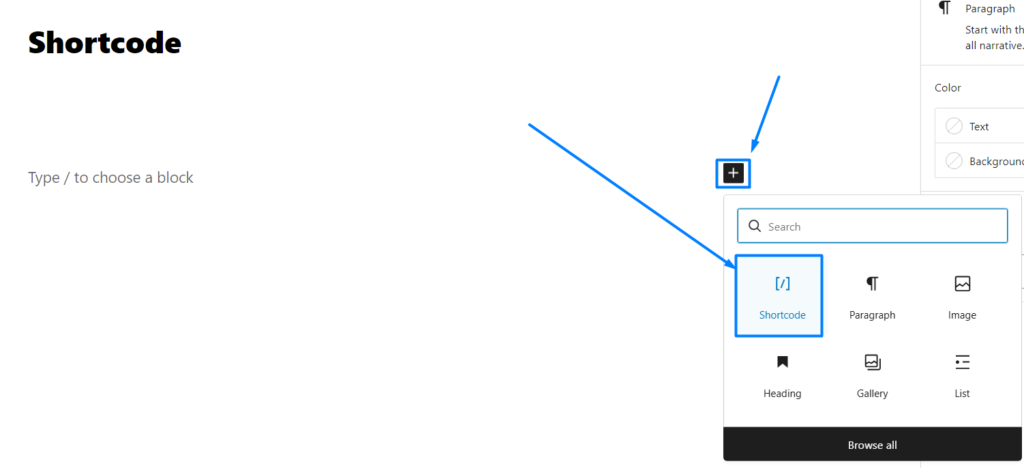
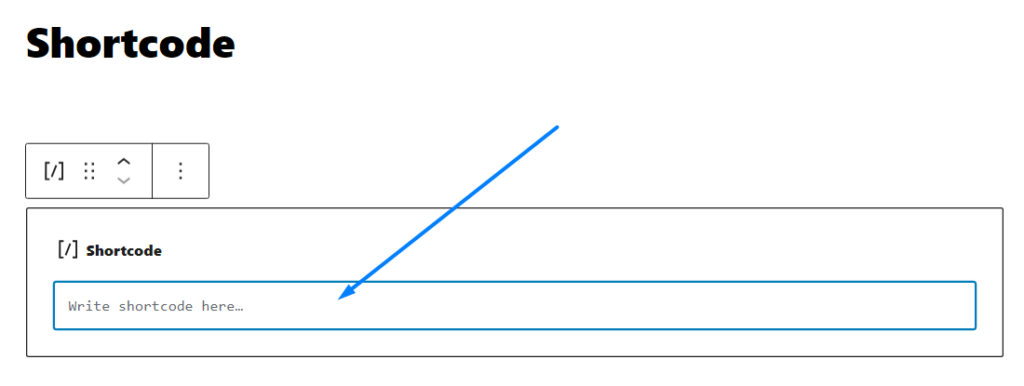
5. Paste the WooCommerce shortcodes in the shortcode box it displays.
6. Click Update or Publish
How Does WooCommerce Shortcode Work?
You do not need to use any special plugins to apply the shortcode since the shortcode are built-in feature on WordPress + WooCommerce website unless you need customized shortcode for your website.
Two Parts in Shortcode:
- Body
- Parameter
1. Body Part:
Main part of shortcodes tells what kind of action will be taken with this code.
[products] – Here “products” is keyterm that tells what dynamic product or feature to display.
2. Parameter:
Parameters are additional input as restricted or user specific functionality as output which comes right after body part in square brackets. Each consists of an attribute and a value, separated by an equal sign.
[products limit=”3″ columns=”3″ orderby=”popularity”] – Here limit = 3 tells how many products to show, column = 3 Arranges the products in a 3-column grid layout, orderby = popularity Sorts the products based on sales, showing the best-selling items first.
To use a shortcode, simply add it to your chosen post or page in the WordPress block editor using the shortcode block. Click the + icon, then drag and drop the shortcode block into the editor.
WooCommerce Shortcodes for Displaying Products:
Assuming that you already built website with WooCommerce WordPress, check each shortcode using block editor for your post/pages.
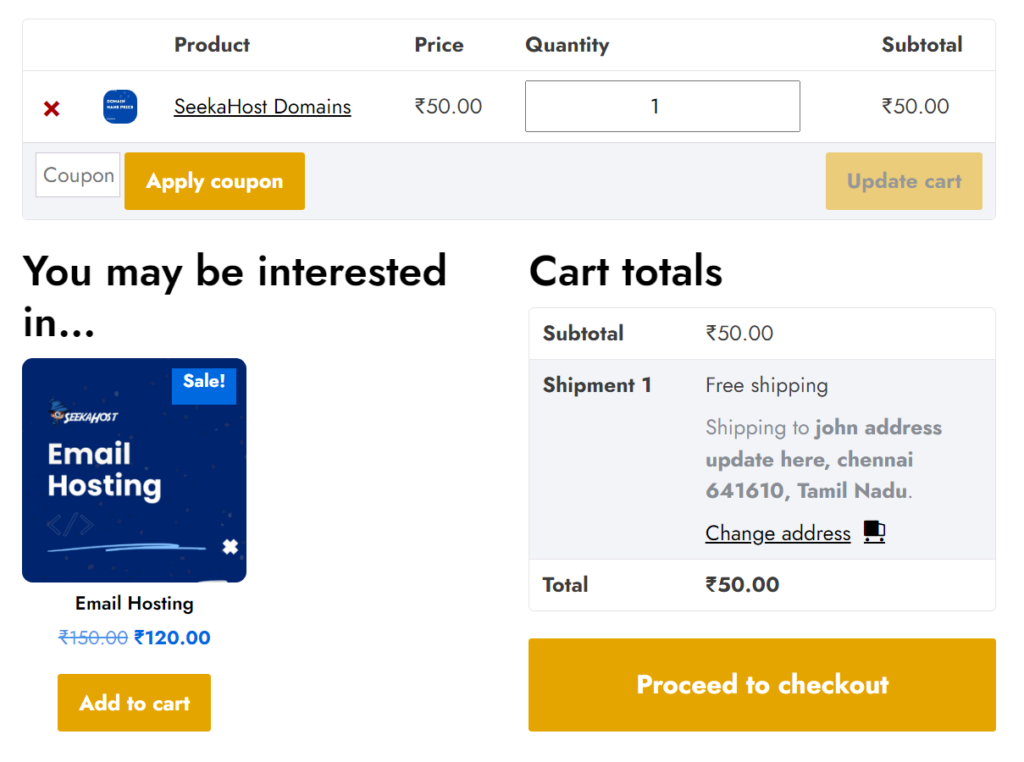
1. Cart Page: [woocommerce_cart]
To display customers cart added products, you can add this shortcode in a specific page where you want it to display for your visitors instead of jumping or navigate to usual cart page for modifying the orders.
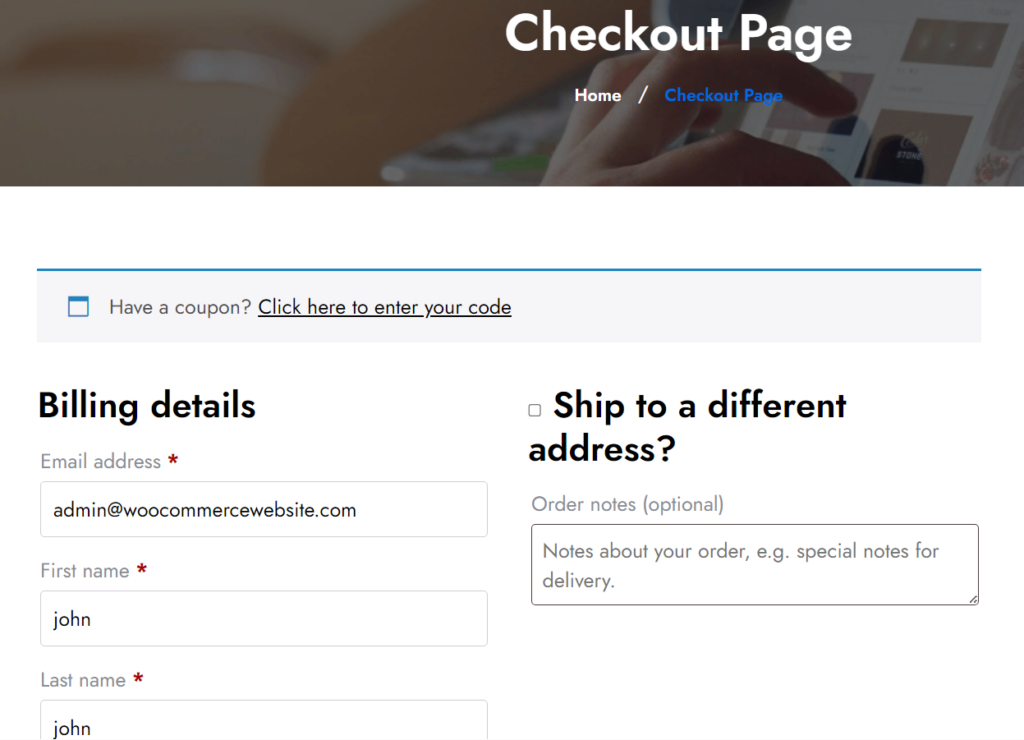
2. Checkout Page: [woocommerce_checkout]
Once customer add the product to cart, they will proceed to checkout. You can use this shortcode to showcase a dedicated checkout page to complete their purchase.
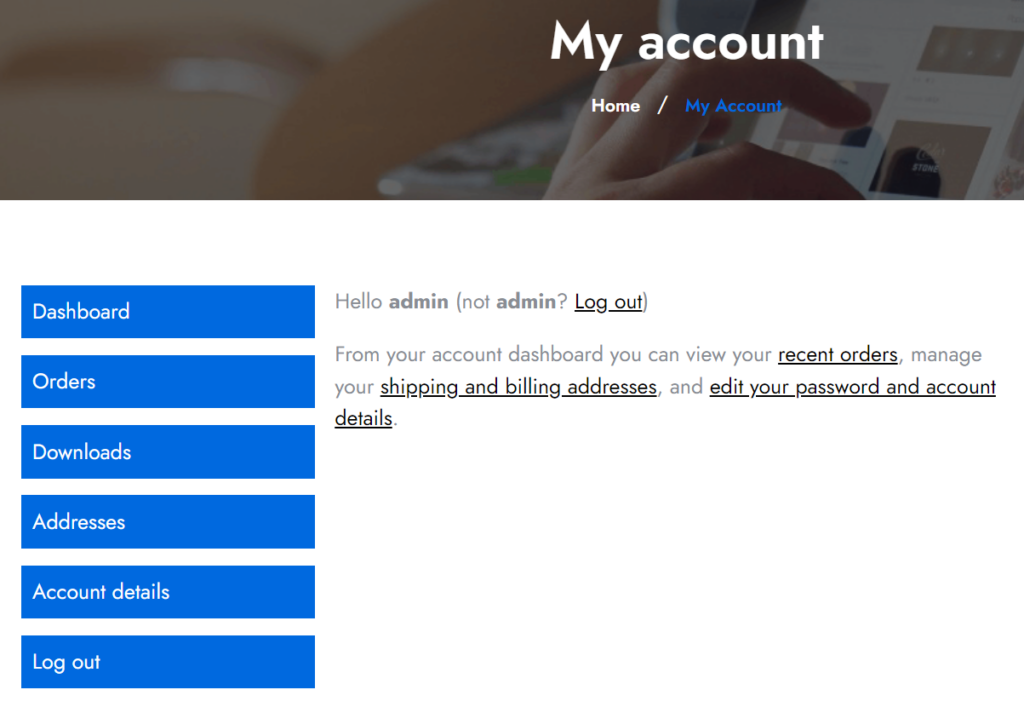
3. My Account Page: [woocommerce_my_account]
Your customer can now manage their account once they logged into the website, they can find their complete information and dashboard to manage the account when you use this shortcode in your page. If they haven’t logged in, they will be prompted to login or signup.
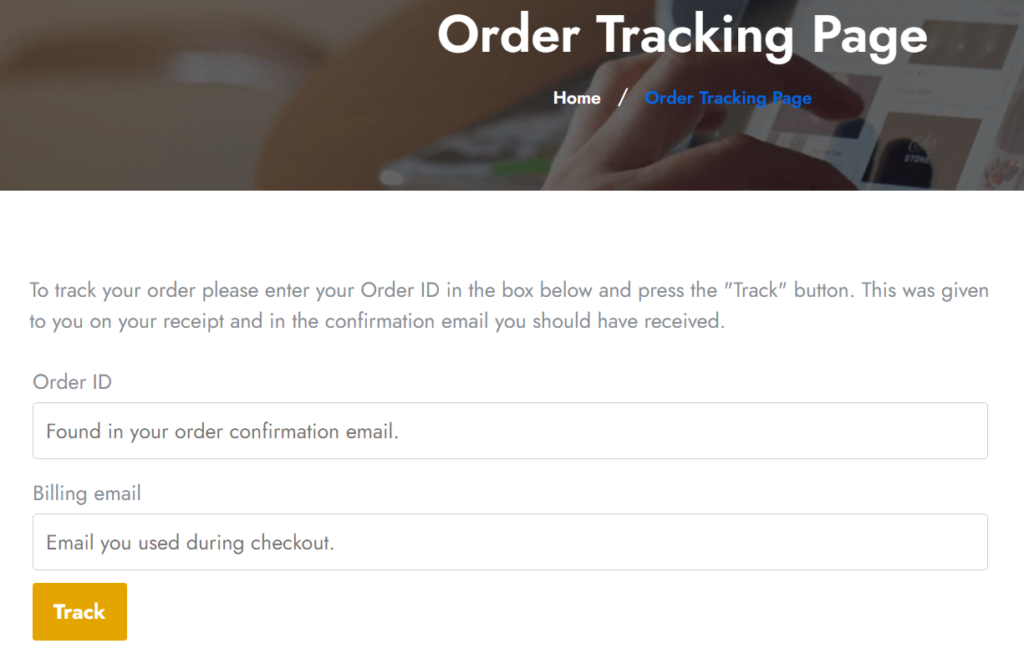
4. Order Tracking Page: [woocommerce_order_tracking]
With this shortcode in your page, your customers can track their order which they have ordered in your store in this page with their order Id and billing email.
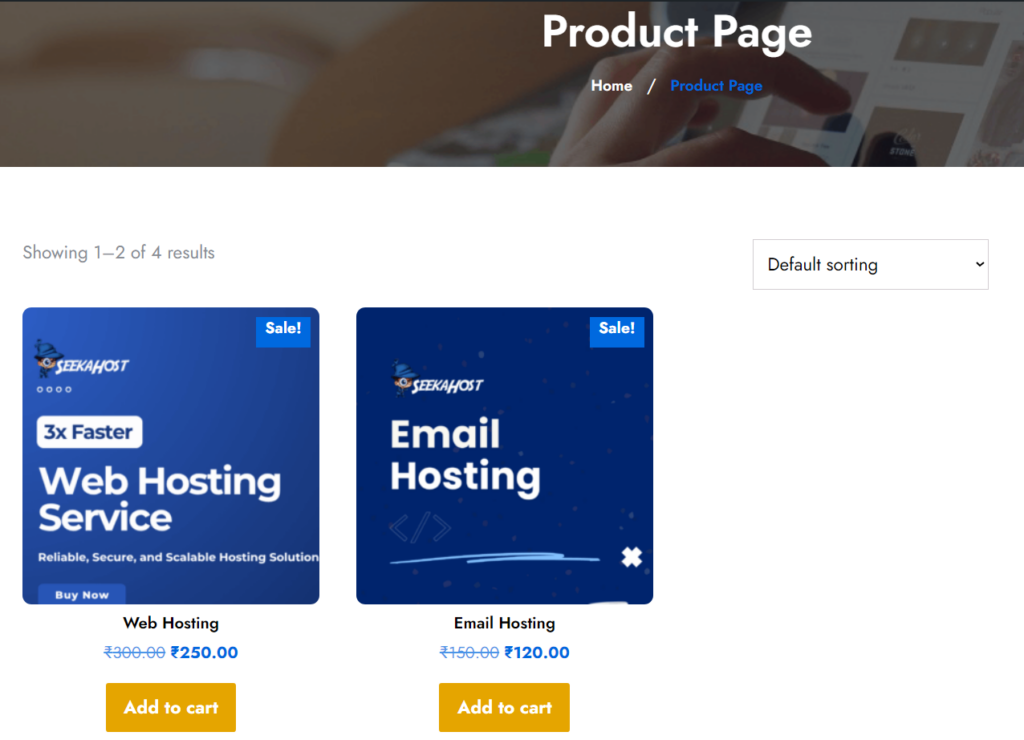
5. Products Page: [woocommerce_order_tracking]
While other shortcode give you single functionality, this shortcode gives you most versatile functionality with each attribute you add to the code it gives you different display on the page.
For example, I have given shortcode as “[products limit=”2″ columns=”3″ orderby=”popularity” order=”DESC” paginate=”true” class=”my-product-grid”]”.
What each parameter means
-
limit="2"
Show only 2 products. -
columns="3"
Show the products in 3 columns in the row. -
orderby="popularity"
Sort products by popularity, so the most popular products appear first. -
order="DESC"
Show items from highest to lowest order.
In this case, it works with popularity, so the most popular comes first. -
paginate="true"
Turn on pagination.
If there are more products than the limit, WordPress will show page numbers. -
class="my-product-grid"
Add a custom CSS class to this product list.
This is useful if you want to style it with your own CSS.
6. Add to Cart Button: [add_to_cart id="39"]
If you have just added the product but there is no add to cart button for the product, you can use this shortcode to add the add to cart button for the product.
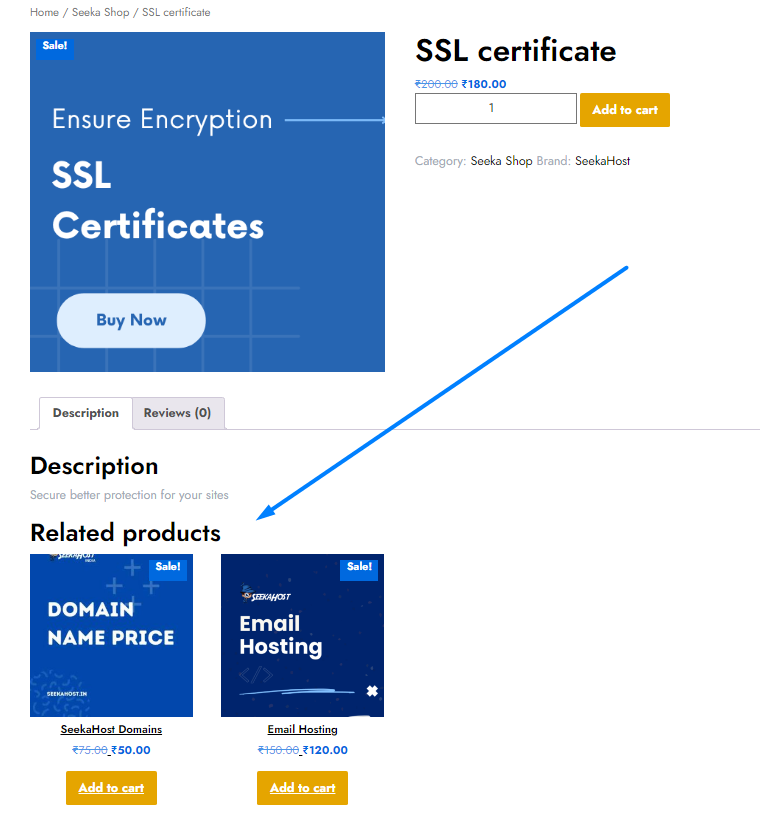
7. Related Product: [related_products]
Based on the current product tags and category shared, this shortcode will help you display related product below the main product. You can limit the number of product to show by pairing with post_per_page attribute.
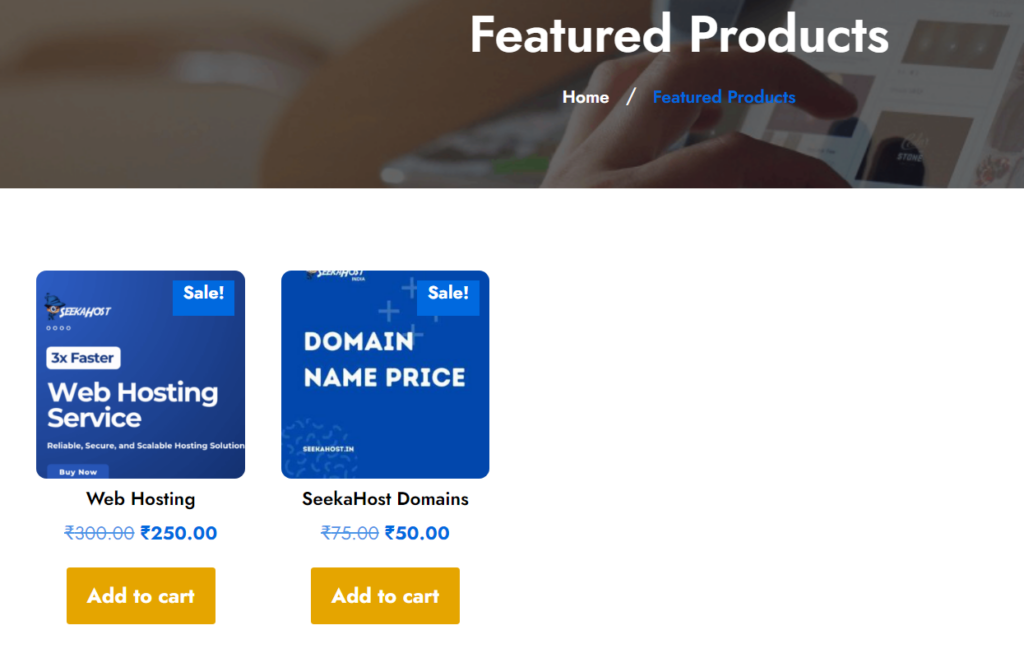
8. Featured products: [featured_products]
Much like related product, you can use this WooCommerce Shortcodes to highlight for promotion or featured products in your homepage or under product page to upsell more.
9. Best Selling Products: [best_selling_products]
With this code, you can promote your best selling products thats automatically picked based on your sales showcasing that these are popular among your other buyers.

10. Top Rated Products: [top_rated_products]
Similar to best selling product, you can showcase a product with highest rated by all of your customers using this shortcode. You can make your customer decide and influence to purchase easier
We hope this article helps you effectively use these shortcode and helps you make your store better than before.