


How to Edit Hosts File in Windows, macOS, and Linux?

By Karthi | June 22, 2026










Host file is where you map a domain name to an IP address for testing website locally without pointing through domain DNS. In this article, we will explain about how to edit hosts file for the following OS:
- Windows
- MacOS
- Linux
What is a hosts file?
A hosts file is a simple text document on your computer that links easy-to-remember domain names (such as www.google.com) to specific IP addresses. It functions as a local, manual override for DNS (Domain Name System), being checked before external DNS servers for fast lookups, testing, or blocking websites.
This file contains IP addresses and their associated hostnames, and is used in network setup, development, or to block access to certain sites by directing them to a non-existent or local IP similar to one localhost used by developer to test application code in computer.
Key Scenarios to Edit Hosts File:
1. Resolving domains – Editing the hosts file when hosting a website enables immediate access to your domain without waiting for DNS propagation, which is helpful for quick site verification.
2. Connecting hostnames – DNS servers frequently fail to resolve a hostname to its IP address. Mapping in edit hosts file allows you to manually assign the address.
3. Blocking Websites – For organizations or parents, edit hosts file allows you to block access to a specific website by assigning a custom IP address to its domain.
4. Fixing errors – An unreachable website can happen if its domain doesn’t resolve properly because of DNS problems or incorrect entries. Editing the hosts file can help ensure the IP address is correct.
NOTE: Keep in mind that modifications to the hosts file affect only your local machine.
Path to Locate to Edit Hosts File:
- Windows: C:\Windows\System32\drivers\etc\hosts
- macOS/Linux: /etc/hosts
How to Edit Hosts File in OS:
To ensure the new hostname mapped in edit hosts file works correctly, you should clear the DNS cache in browser.
1. In Windows 11/10:
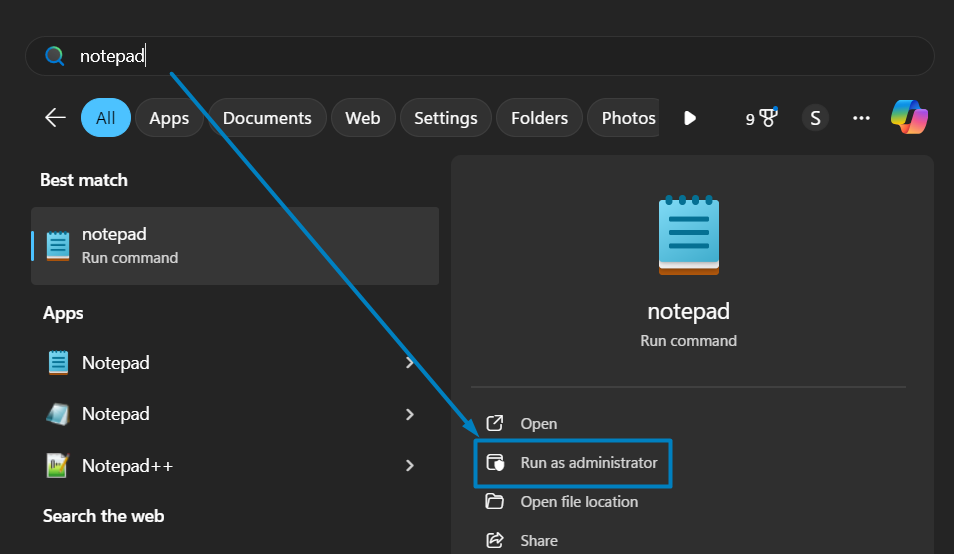
Step 1: Click Start -> Search Notepad -> click Run as administrator and click Yes.
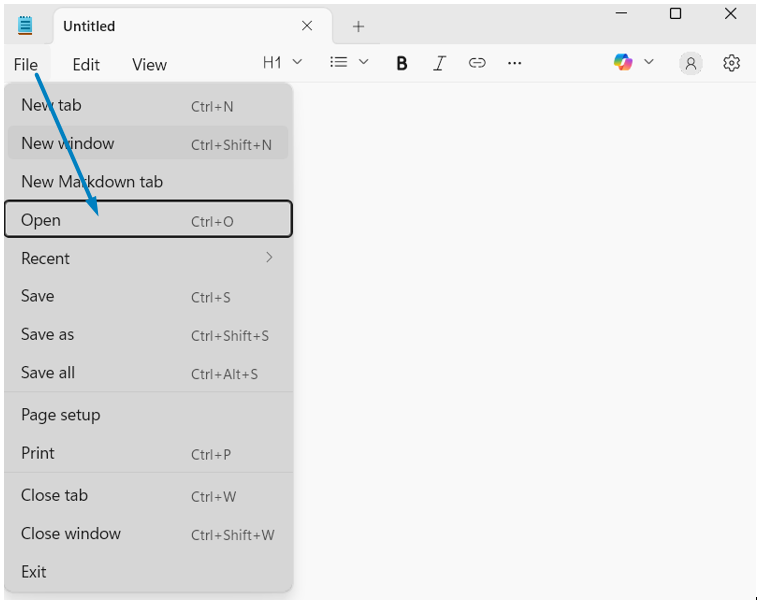
Step 2: In notepad, under File option click Open.
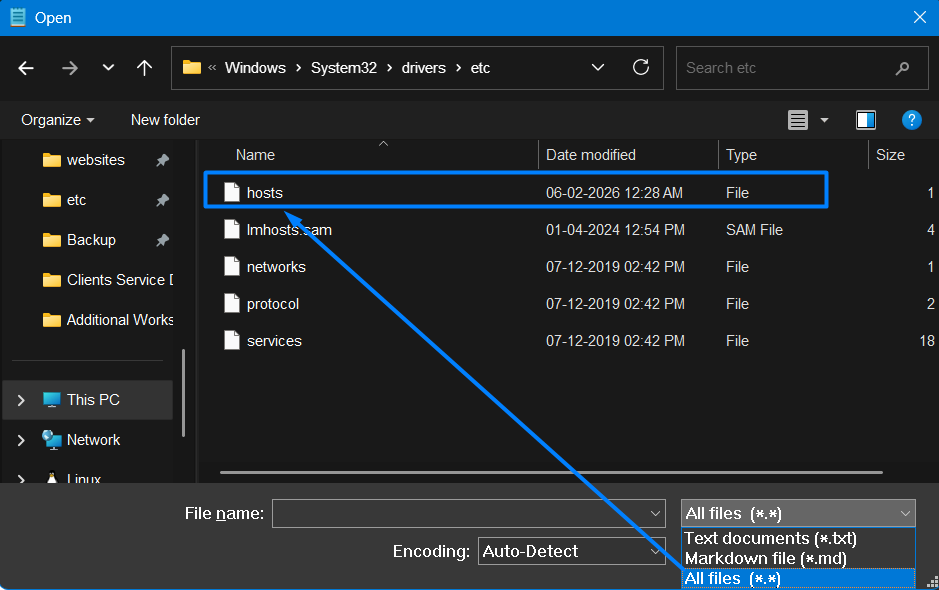
Step 3: To locate the hosts file, navigate to C:\Windows\System32\Drivers\etc and choose All Files. Then select hosts file and click open button.
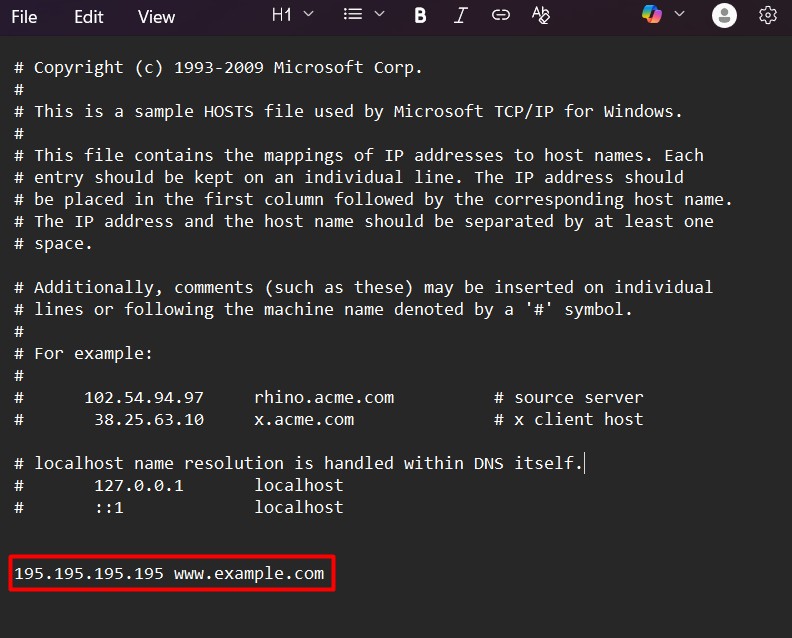
Step 4: At the bottom of the document, add the IP address followed by a space and domain name.
Example,
195.195.195.195 domainame.com
195.195.195.195 www.domainame.com
NOTE: Change or update with www if your website URL is updated with it.
Step 5: Press Ctrl + S to save the changes.
2. In macOS
Step 1: Open the terminal. In the dock, click the Launchpad icon -> search terminal and press Return.
Step 2: To open the notepad, run the below command in the command prompt.
Step 4: Enter your MAC Password to authenticate and edit hosts file mac.
Step 5: At the bottom of the document, add the IP address followed by a space and domain name.
Example,
195.195.195.195 domainame.com
195.195.195.195 www.domainame.com
NOTE: Change or update with www if your website URL is updated with it.
Step 6: Press Ctrl+O, and then press Return. To exit the nano editor, press Ctrl+X.
For graphical user interface, follow below steps:
Step 1: Open Finder, then go to Go -> Go to Folder (or press Command + Shift + G)
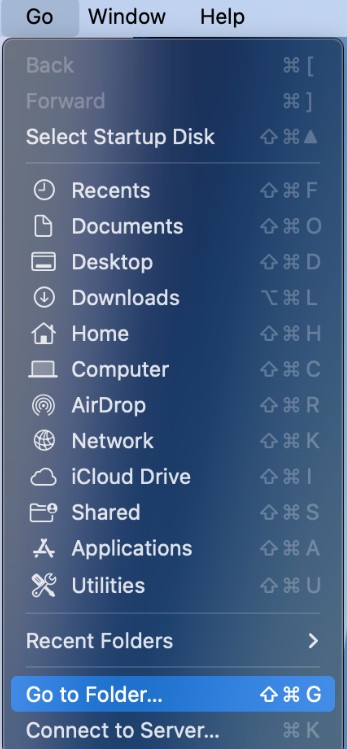
Step 2: Enter /private/etc/hosts and click GO button.
Step 3: Go to /etc and find the hosts file.
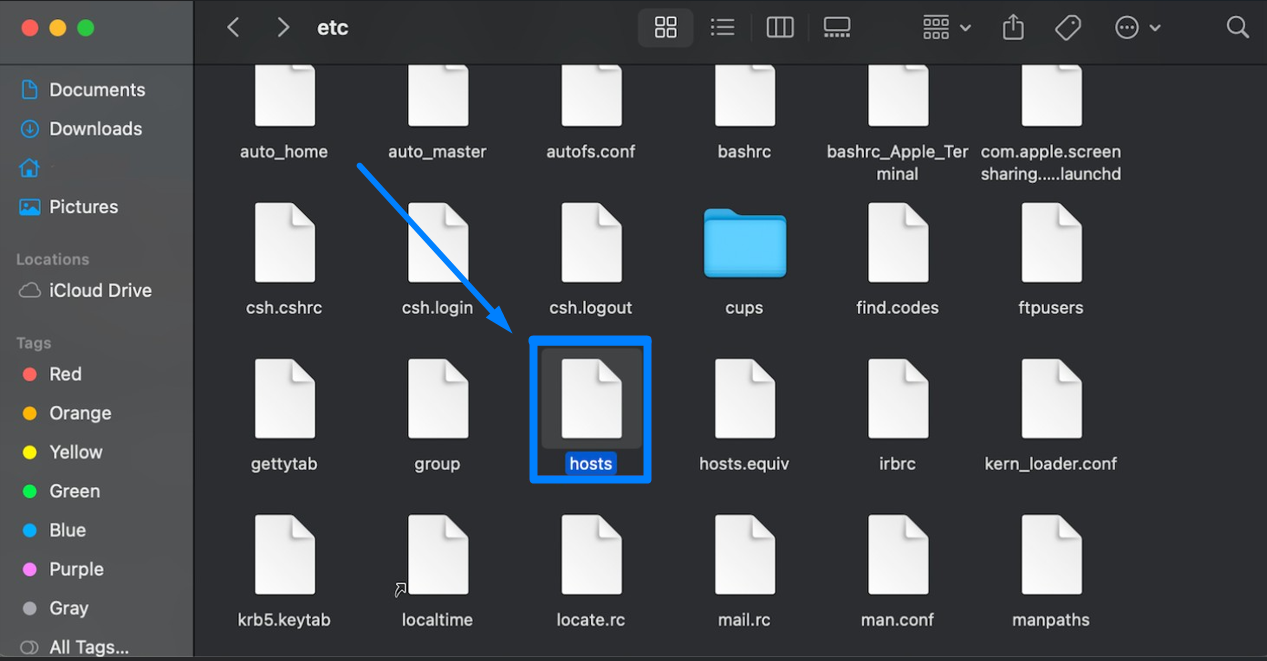
Step 4: Right-click the file and select your preferred text editor.
Step 5: Add your configuration at the bottom of the file.
Step 6: Save the changes by pressing Command + S.
3. In Linux
Step 1: Press Ctrl+Alt+T to open the Terminal or by selecting it from the application launcher menu.
Step 2: To open the hosts file in the vi text editor, type the following command.
Step 3: Enter your administrator password to edit hosts file Linux.

Step 4:At the bottom of the document, add the IP address followed by a space and domain name.
195.195.195.195 domain.com
Step 5: Press Ctrl+O, and then press Return. To exit the nano editor, press Ctrl+X.
Video Reference:
Hope you understand and learned how to edit hosts file across popular operating systems.