

Fix the dns_probe_started Error and Get Back Live

By Kathir | July 7, 2026










Like any technology, internet connectivity is not immune to occasional hiccups. One such issue that internet users might encounter is the “DNS Probe Started” error. This error can be frustrating as it disrupts your browsing experience and prevents you from accessing websites. In this article, we will delve into the details of the dns_probe_started error, its potential causes, and most importantly, how to solve it effectively.
Understanding the Dns_Probe_Started Error:
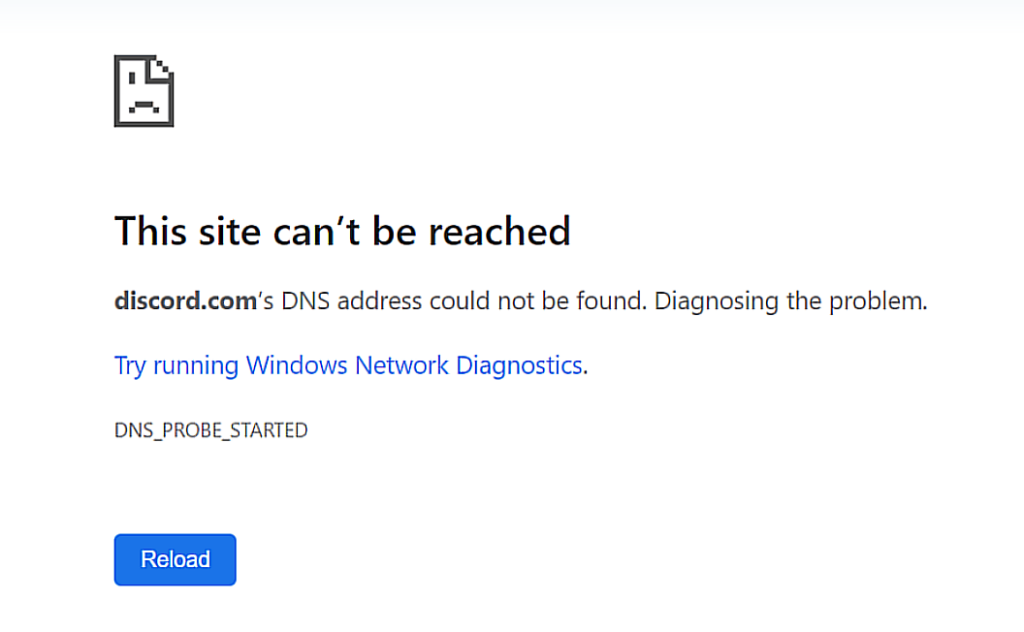
The DNS Probe Started error is a common issue encountered by users primarily while using the Google Chrome web browser. It is often accompanied by an error message that reads “DNS_PROBE_STARTED” or “DNS PROBE FINISHED NO INTERNET.” This error occurs when the browser is unable to establish a proper connection to the DNS (Domain Name System) server, which is responsible for translating human-readable domain names into IP addresses that computers can understand.
When you enter a web address into your browser’s address bar, the browser sends a request to the DNS server to obtain the IP address associated with that domain name. If the DNS server fails to respond or if there is a miscommunication, the DNS Probe Started error occurs, leading to a disrupted browsing experience.
Also Read About: What is DNS propagation and Related Terms
Potential Causes of the Dns_Probe_Started Error:
DNS Server Issues:
The most common cause of this error is temporary issues with the DNS server. DNS servers can experience outages or heavy traffic, leading to delays in responding to requests.
Network Configuration:
Incorrect network configuration settings, such as improper DNS server addresses, can trigger the DNS Probe Started error.
Network Connectivity Problems:
Connectivity issues, such as unstable Wi-Fi or Ethernet connections, can prevent your browser from reaching the DNS server.
Firewall or Antivirus Interference:
Sometimes, overzealous firewall or antivirus settings can block the communication between your browser and the DNS server, leading to an error.
Browser Cache and Cookies:
Corrupted browser cache and cookies can interfere with DNS resolution and lead to the error.
IP Address Conflict:
Conflicting IP addresses within your network can cause confusion in routing, resulting in the DNS Probe Started error.
Router Issues:
Your router’s settings or firmware could be causing the error if they are misconfigured or outdated.
Solving the Dns_Probe_Started Error:
Resolving the DNS Probe Started error requires a systematic approach to identify and address the underlying issues. Below are the steps you can take to tackle this error effectively:
Check Other Websites:
Before assuming the error is on your end, verify if the issue persists across multiple websites. This can help confirm whether the problem is specific to a certain website or a broader connectivity issue.
Restart Your Router and Modem:
Power cycle your router and modem by unplugging them, waiting for a minute, and then plugging them back in. This can refresh the network connection and resolve minor connectivity glitches.
Clear Browser Cache and Cookies:
Corrupted cache and cookies can disrupt DNS resolution. Clear your browser’s cache and cookies, and then restart the browser.
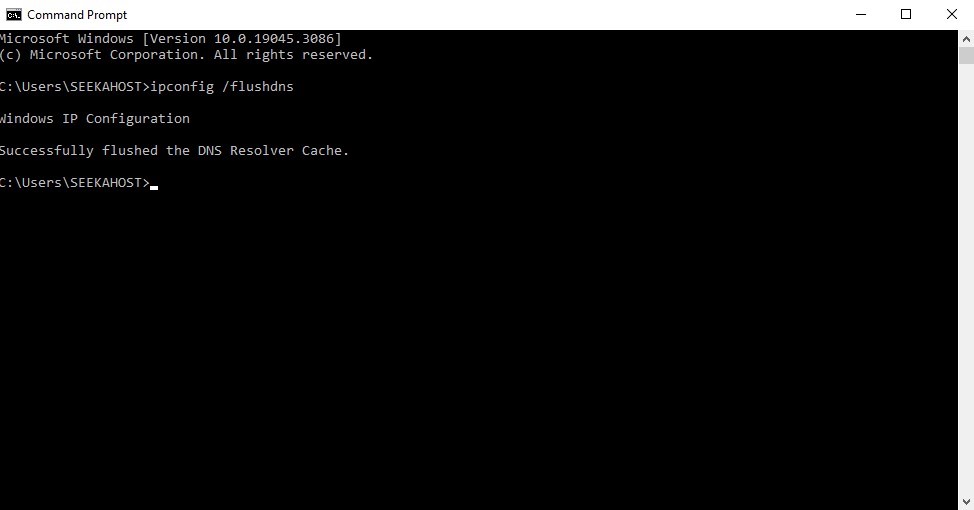
Flush DNS Cache:
- Open the command prompt (Windows).
- Type the command “ipconfig /flushdns” to clear the DNS cache.
Change DNS Servers:
Try switching to a different DNS server. Google’s Public DNS (8.8.8.8 and 8.8.4.4) or Cloudflare’s DNS (1.1.1.1) are popular options. Update the DNS settings on your computer or router accordingly.

Disable Firewall and Antivirus Temporarily:
Turn off your firewall and antivirus software temporarily to see if they are causing the issue. If the error goes away, adjust their settings to allow proper communication.
Reset Network Settings:
In some cases, resetting your network settings to default can help. You can usually find this option in your computer’s network settings or on your router’s admin page.
Update Network Drivers:
Outdated or corrupted network drivers can contribute to connectivity issues. Update your network drivers to the latest version.
Check for IP Address Conflicts:
Ensure that there are no IP address conflicts within your network. Each device should have a unique IP address.
Update Router Firmware:
If you suspect router issues, check if there’s a firmware update available for your router. Outdated firmware can lead to various connectivity problems.
Use Command Prompt to Reset IP and Winsock:
Open the command prompt with administrative privileges and type the commands “netsh int ip reset” and “netsh winsock reset.” Then, restart your computer.

Temporary Disabling VPN:
If you’re using a VPN, it might interfere with DNS resolution. Disable the VPN temporarily to see if the error persists.
Navigating DNS_PROBE_STARTED Errors
Continuing the exploration of the “DNS_PROBE_STARTED” error, let’s delve even deeper into the myriad causes and solutions that can empower users to overcome this technological challenge and restore their seamless online experience.
Persistence in Problem-Solving
In the face of the “DNS_PROBE_STARTED” error, persistence is key. Often, this error can be a result of a combination of factors. If applying individual solutions does not yield results, a comprehensive approach is necessary. Combining multiple strategies, such as clearing the DNS cache, checking DNS server status, and verifying browser settings, can provide a holistic resolution path.
Exploring Advanced Solutions
For those willing to venture into more advanced territory, exploring the configuration of router settings can prove beneficial. Adjusting DNS server settings on the router can potentially eliminate compatibility issues and reduce the likelihood of encountering the “DNS_PROBE_STARTED” error. However, it’s essential to exercise caution and ensure you have a good understanding of the changes you’re making to avoid unintended consequences.
Elevating the Online Experience
The journey to resolving the “DNS_PROBE_STARTED” error extends beyond technical aspects. It’s about elevating your overall online experience. As you navigate through challenges and uncertainties, you’re building a stronger foundation for future interactions with technology. Acquiring troubleshooting skills and a deeper understanding of the intricate mechanics of the digital world empowers you to take control over your digital destiny.
Enabling a Smoother Digital Future
In an era where the internet is an integral part of daily life, it’s paramount to foster a digital ecosystem that functions seamlessly. By tackling and understanding errors like “DNS_PROBE_STARTED,” you contribute to a collective effort toward a more connected, efficient, and accessible online world. Each time you troubleshoot an error and find a solution, you’re not just resolving an isolated issue—you’re participating in the ongoing evolution of technology.
Collaborative Solutions – Seeking Professional Assistance
While this article provides an array of solutions, it’s important to acknowledge that not all users are tech-savvy or have the time to experiment with advanced troubleshooting steps. In such cases, seeking assistance from professionals can be an optimal path forward. IT support teams, tech forums, and online communities are valuable resources where experts and fellow users share insights and solutions, ensuring that users of all expertise levels can overcome the “DNS_PROBE_STARTED” error.
The Road Less Traveled – Prevention
As the old adage goes, prevention is better than cure. In the realm of technology, proactive measures can significantly reduce the likelihood of encountering errors like “DNS_PROBE_STARTED.” Regularly updating your operating system, browser, and security software ensures that you’re equipped with the latest patches and fixes. Additionally, practicing safe browsing habits and avoiding suspicious websites and downloads can mitigate the risk of malware that might trigger DNS-related errors.
A Continuous Learning Experience
The digital landscape is in a constant state of flux, with new technologies, threats, and challenges arising regularly. Navigating these complexities is not just about solving errors but embarking on a continuous learning experience. As you troubleshoot, experiment, and find solutions, you’re enhancing your own digital literacy. This knowledge extends beyond individual errors, allowing you to become a more informed and confident participant in the digital age.
Conclusion:
The DNS Probe Started error can be a frustrating experience, but with a systematic approach, it is usually possible to diagnose and resolve the underlying issues. By following the steps outlined in this guide, you can effectively troubleshoot the error and restore a smooth browsing experience. Remember that connectivity issues can stem from various sources, so patience and methodical troubleshooting are key to identifying and fixing the problem. If the issue persists despite your best efforts, don’t hesitate to seek professional assistance from your Internet Service Provider or a technical expert.
Related Articles:
- Fix err_connection_closed Error – 9 Ways to Get Online
- err_name_not_resolved Error Fix – Solve & Get Online!
Frequently Asked Questions:
- What does ‘DNS Probe Started’ mean?
‘DNS Probe Started’ is not a standard error message or status. It’s possible that you’re encountering a misinterpretation of an actual error message related to DNS (Domain Name System) resolution issues. This error message could indicate that your device is attempting to initiate a DNS query to resolve a domain name.
- Why am I seeing a ‘DNS Probe Started’ error?
If you’re seeing a message about ‘DNS Probe Started,’ it might be a misunderstanding or an incomplete error message. Actual DNS-related errors are often encountered due to network connectivity issues, misconfigured DNS settings, or problems with the DNS server. It’s recommended to provide more details or the exact error message you’re encountering for accurate assistance.
- How can I resolve DNS-related issues?
If you’re facing DNS-related problems, you can try the following steps:
Check your internet connection, Restart your router and modem, Clear your browser’s cache and cookies, Flush your DNS cache using the command prompt or terminal.
- Can I fix the ‘DNS Probe Started’ error on my own?
If you’re truly encountering a ‘DNS Probe Started’ error message, it’s best to seek assistance online or from technical support. If it’s an issue related to DNS, you might be able to troubleshoot it with the steps mentioned earlier. However, accurate diagnosis requires more specific information about the error message and your system.
- Is ‘DNS Probe Started’ a virus or malware?
As of my last update in September 2021, ‘DNS Probe Started’ is not recognized as a virus or malware. It could be a misunderstood error message or a term used in a specific context that hasn’t been widely recognized. Always be cautious of any unusual messages and perform regular security scans on your system.
- Should I be concerned about ‘DNS Probe Started’ notifications?
If ‘DNS Probe Started’ is indeed a legitimate error message, it could indicate a potential issue with your network connectivity or DNS settings. It’s worth investigating to ensure smooth browsing and internet usage. However, without more context or information, it’s hard to determine the severity of the situation.
- Can a browser extension cause a ‘DNS Probe Started’ error?
In some cases, browser extensions could potentially interfere with DNS resolution and cause connectivity issues. Try disabling extensions one by one and checking if the issue persists. However, ‘DNS Probe Started’ might not directly be caused by an extension, but rather by underlying network or DNS problems.
- Where can I get help for ‘DNS Probe Started’ issues?
For specific issues related to ‘DNS Probe Started,’ consider seeking help on tech forums, community websites, or reaching out to technical support for your device, operating system, or router. Providing accurate error messages and a detailed description of the issue will help others assist you effectively.