


How to Connect via RDP to Windows Server?

By Farhan Danish | July 14, 2026










Need to manage and Connect via RDP to Windows Server remotely from home, the office, or on the go? Remote Desktop Protocol (RDP) is the standard for secure and efficient server administration. Whether deploying software, configuring systems, or providing technical support, knowing how to Connect via RDP to a Windows Server is essential for administrators and remote workers.
This tutorial will guide you in setting up a Remote Desktop Protocol (RDP) connection on Windows.
What is RDP?
Remote Desktop Protocol, commonly known as RDP, is a proprietary network protocol developed by Microsoft. Think of it as a digital bridge that allows your local device to talk to and control a distant computer over the internet or a local network. When you use RDP, your local machine acts primarily as a viewing screen and keyboard; the actual processing power, storage, and data handling occur entirely on the remote server.
Steps to Connect via RDP to Windows Server:
Step 1: Log in to your SeekaHost India Client Area.
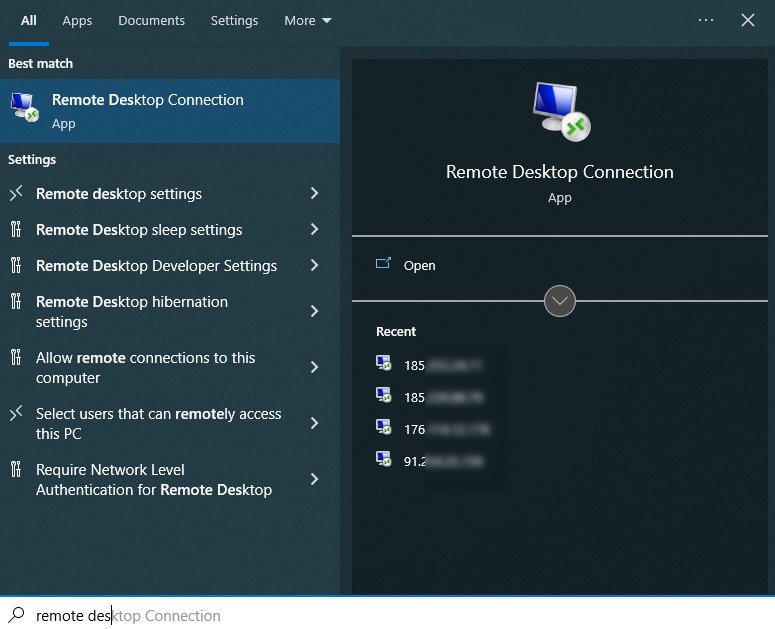
Step 2: Search Remote Desktop connection on your local system and click Open.
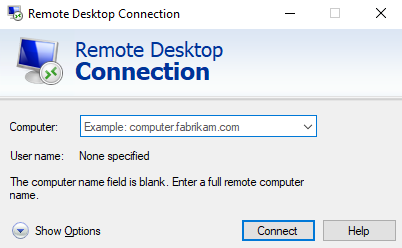
Step 3: Once the popup window shows, click “Show Options” on bottom.
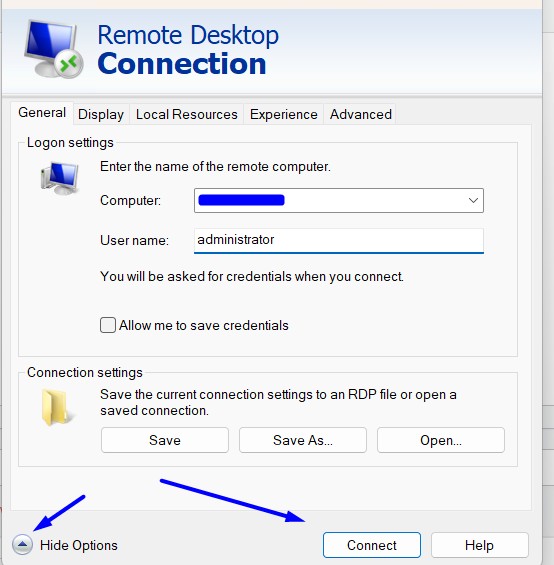
Step 4: In the General section, enter the server details with the IP address and username. Click “Connect” button.
Computer: Enter the Server IP
Username: Enter as “administrator”
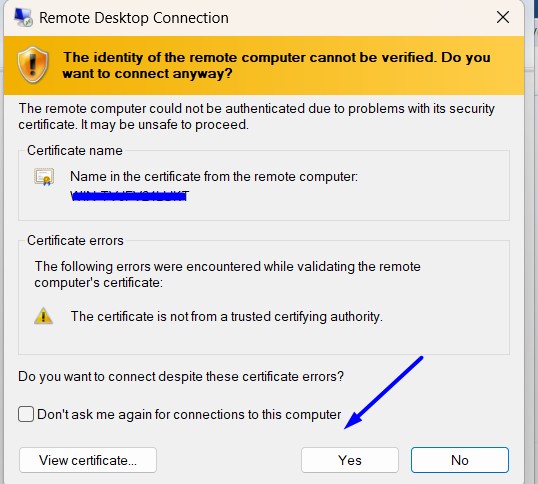
Step 5: Now click Yes button to proceed without SSL security.
Important: When making the first Connect via RDP to the host from your client, you will be required to accept a security certificate to establish the connection.
Step 6: If the data is entered correctly, you will be prompted to enter the password for the previously specified user. Click OK button.
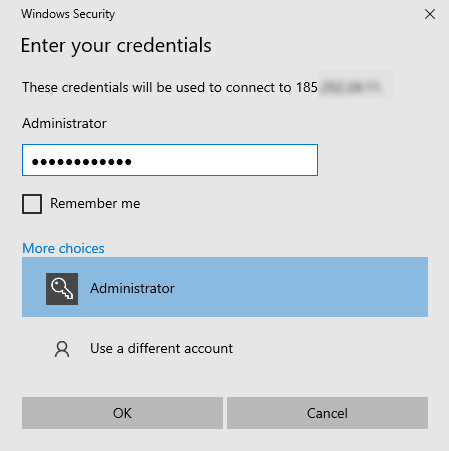
Step 7: After entering the password, you will successfully connect via RDP. To end the connection, simply close the RDP connection Tab.
Related Useful Resources:
1. Simple Steps to Install SSL certificate on Windows Server
If you are looking to purchase Windows VPS Hosting, you can purchase SeekaHost India’s VPS Hosting and connect via RDP easily to your windows server.
Hope this information helps you easily connect via RDP to your windows server.